A practical before, during, and after workflow for hybrid meetings, based on the problems real hosts face when some people are in the room and others are online.
Hybrid Meeting Tips
Video Conference
Remote Work
Updated: Sep 7, 2026 · 7 minutes read
Global Business, Brought Near.
No Installer, No Hassle, Just Works.
A hybrid meeting works when the person leading it controls one conversation across two locations. Confirm what decision is needed, test what remote attendees can actually see and hear, stop room-only discussions, and record decisions with one named owner and deadline. Better equipment helps, but disciplined hosting makes the meeting usable.
Key Takeaways
Define whether the meeting is for reporting, discussion, or a decision; mixing all three without an order is a common reason meetings overrun.
Test the room from a remote account for 10 minutes, using normal voices from the nearest and farthest seats.
When room discussion accelerates, pause and restate the point before asking the remote participant by name for input.
End with a 2-minute readback in which every action has one person—not a department—and a deadline.
Knowing how to run a hybrid meeting means knowing what to do when the room starts moving faster than the people online. That is the point at which many otherwise well-planned meetings fail: several people talk at once, a manager reacts to someone outside the camera view, and a remote employee waits for a gap that never comes.
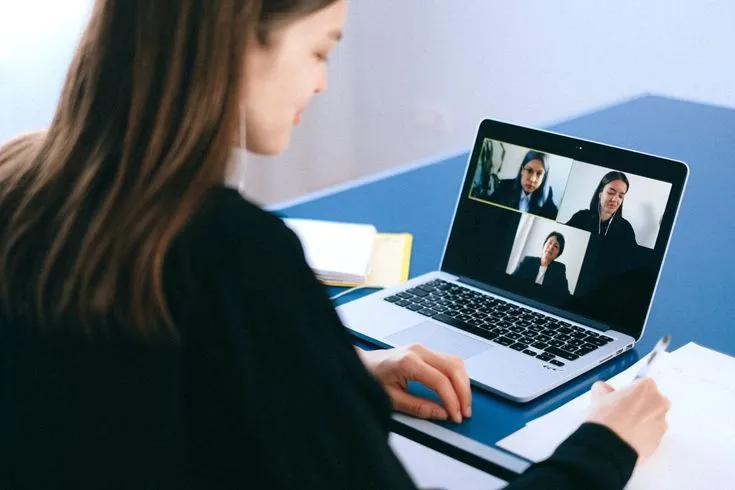
A successful hybrid meeting does not need an elaborate set of ceremonial roles. In a typical workplace meeting, a manager or project lead hosts, employees present their work, and an executive assistant, administrator, HR representative, or project coordinator records the outcome. What matters is that the host keeps one conversation going across the room and the call.
How to Run a Hybrid Meeting Before It Starts
Decide what the meeting must produce
Most meeting invitations describe a subject—“Q4 launch,” “weekly project update,” or “hiring plan”—but not the result expected from the call. Before inviting anyone, finish this sentence:
By the end of this meeting, we need to __.
The blank might be “approve the October launch date,”“choose between two vendors,” or “identify why the rollout is late.” If there is no answer, send an update instead of holding a meeting.
Also decide what kind of conversation will happen:
Reporting: employees give concise updates and the leader asks questions.
Discussion: the group compares perspectives or solves a problem.
Decision: a named decision-maker chooses a direction.
One meeting can contain all three, but the agenda should show the order. A common failure is spending 35 minutes on status reports and leaving five minutes for the decision everyone actually needed.
Make sure the right person will be there
If the outcome requires approval, confirm that the decision-maker can attend. Do not invite 12 people to debate a choice that nobody present can make. If the leader can attend for only part of the meeting, schedule the decision while that person is present and handle background reporting before or after it.
List who will be in the room and who will join remotely. Pay extra attention when only one employee is remote, when the remote person owns the topic, or when a junior employee must challenge a room full of senior colleagues. Those participants will not be included simply because their camera tile is visible.
Ask presenters for the conclusion, not a last-minute slide deck
Real meetings are rarely prepared perfectly. Instead of demanding polished materials from everyone, ask each presenter for three things before the call:
What is the conclusion or current status?
What problem is blocking progress?
What decision or help is needed from the leader?
Put the agenda and materials in one shared link. The invitation should also include the video platform, dial-in fallback, and any document attendees must review. If the company is still choosing a platform, this comparison of video conferencing platforms for hybrid teams covers practical selection factors.
Do not rely on a printed handout or a file opened only on the conference-room display. Remote attendees should be able to open the same material themselves. If a document is confidential, test its permissions with a normal attendee account rather than assuming the link works.
Confirm who leads, presents, and records
The manager, team lead, or project owner normally opens the meeting, controls the agenda, and confirms decisions. Employees responsible for individual topics present their updates and answer questions. An executive assistant, administrative coordinator, HR representative, or project coordinator may record the decisions and follow-up work.
Before the call, confirm these three responsibilities:
Meeting lead: keeps the discussion focused and states the final decision.
Presenters: explain their conclusion, problem, and requested decision.
Recorder: writes down decisions, owners, deadlines, and unresolved questions.
A separate “chat monitor” or “technical contact” is unnecessary for most routine meetings. Someone familiar with the room can help if equipment fails, but the meeting should not be designed like an event production.
Test what the remote employee will actually experience
Looking at the room display proves only that the room can see the call. It does not prove that the call can understand the room.
For an important meeting, have someone join from a remote account for 10 minutes. Sit in the nearest and farthest seats and speak at a normal volume. Let two people exchange comments at the pace they would use in a real discussion. Share the actual spreadsheet or presentation. If a physical whiteboard will be used, check whether its writing is readable online.
The test should answer four practical questions:
Can the remote person tell who is speaking?
Can they understand normal speech without asking for repetition?
Can they read the shared content?
Can they interrupt or ask a question without fighting the room conversation?
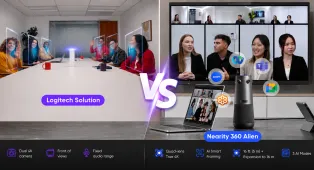
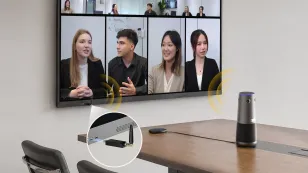
A 360-degree camera can help when several people around a table speak in quick succession. For example, the Nearity 360 Alien uses four cameras for a 360-degree view, offers speaker-focused meeting modes, and includes a six-microphone array with support for up to two expansion microphones. These capabilities may improve visibility and audio coverage, but they will not fix overlapping conversations, private side comments, poor acoustics, or a host who never pauses for remote input. Test the occupied room instead of treating specifications as proof.
During the Meeting: Control the Room Without Ignoring the Call
Open with the decision and the order of discussion
The host should begin with something more useful than “Can everyone see my screen?” State what the meeting needs to produce and where the decision will happen:
“We need to decide whether the launch stays on October 15. Product will report first, sales will explain the customer risk, and then Sarah will make the final call.”
Briefly confirm that remote attendees can hear normal voices and open the shared material. If they cannot, fix it before beginning the substantive discussion.
Make employee reports decision-ready
When someone starts reading a long slide deck, the host should redirect the report:
“Give us the conclusion first. What changed, what is blocked, and what do you need from this group?”
This is especially important online because remote attendees have fewer ways to judge when background information will end. Keep reports short enough that there is still time for questions and decisions.
When a presenter finishes, summarize the issue before opening discussion. If the meeting has drifted into details that do not affect the outcome, assign a smaller follow-up instead of making everyone watch two specialists solve it live.
Intervene when the room takes over
Good hybrid meeting facilitation is visible in the host's interruptions. The host should step in when several people speak at once, when someone comments outside the microphone range, or when the room reacts to something remote attendees cannot see.
Useful language includes:
“Pause for a moment—three people spoke at once. Jason, please repeat the conclusion so the online team can hear it.”
“Emily, this affects the remote sales team directly. I want your view before we continue around the table.”
“There is a comment happening at the far end of the room. Please bring it into the main conversation or hold it until afterward.”
Hybrid meeting etiquette does not require a complicated speaking protocol. It requires one audible conversation. Ask people to finish one point at a time, use the shared chat for questions, and pause after asking remote attendees for input. Calling someone by name is often more effective than asking the screen, “Any thoughts?”
Stop when the meeting cannot support a fair decision
If remote attendees say the audio is breaking up, do not answer “We can hear you” and continue. They need to hear the room, not merely be heard by it. Check the selected microphone, reduce simultaneous speech, move people within the tested pickup area, or use the dial-in fallback.
If the missing audio, video, or document prevents an essential person from contributing, postpone that decision. A fast decision is not useful if the person responsible for executing it could not follow the discussion.
Record the decision while everyone is still present
The recorder should not write a transcript. Capture only what people will need after the call:
Decision or action
Owner
Deadline
Open issue
Keep the October 15 launch date
Sarah
—
Final approval given
Send revised customer notice
Jordan
September 10
Legal review required
Confirm support staffing
Miguel
September 12
Weekend coverage unclear
“Marketing to follow up” is not an action item. A department cannot acknowledge a deadline; a named person can.
Reserve the final two minutes for the host to read back the decisions, actions, owners, and unresolved questions. This often exposes false agreement: an owner may say the deadline is impossible, or the leader may realize that no decision was actually made.
After the Meeting: Make the Outcome Hard to Misunderstand
Send one recap to everyone who attended, regardless of location. It should contain the decision table, links to the final materials, and the time of the next check-in. Move assigned work into the team's normal project system so it does not disappear inside meeting notes.
The recorder can prepare the recap, but the meeting lead remains responsible for confirming that it represents the outcome. For a high-stakes decision, the leader should correct unclear wording before the recap is distributed.
Do not send a generic satisfaction survey after every weekly meeting. Ask for targeted feedback when the format is new or a repeated problem needs diagnosis:
“Which person or part of the room was hardest to hear?”
“Was there a point when you wanted to speak but could not enter the conversation?”
“Did you receive the decision and supporting material at the same time as the room?”
Then change one thing before the next meeting. Move the device, shorten reports, ask the remote owner to speak first, or require side comments to be repeated. Feedback without an assigned change becomes another administrative exercise.
Before: define the required outcome; confirm the decision-maker; ask presenters for their conclusion, problem, and request; share one working document link; confirm who leads and records; test the room from a remote account.
During: state the decision and agenda order; keep reports short; stop overlapping or room-only conversations; invite relevant remote employees by name; pause when they cannot hear or contribute; record every decision and action live.
After: send one decision record; give every action one owner and deadline; move work into the normal tracking system; fix one repeated remote-experience problem before the next call.
Frequently Asked Questions
How can Nearity 360 Alien help remote participants follow a room discussion?
Nearity 360 Alien uses four cameras to provide a 360-degree view and offers meeting modes that can focus on active speakers. This can help remote participants connect a voice with a person during discussions around a table, particularly when speakers change quickly.
Where should Nearity 360 Alien be placed for a hybrid meeting?
For a table-based discussion, place the device where its cameras have a clear view of the occupied seats and where people remain within the tested audio area. Do not rely on the center of the table as a universal rule; test the actual seating plan from a remote account before the meeting.
The system includes a six-microphone array and supports up to two expansion microphones for additional audio coverage. Whether it works for a particular larger room still depends on seating distance, acoustics, background noise, and occupied-room testing.
Does a 360-degree conference camera make a hybrid meeting inclusive automatically?
No. A 360-degree view and speaker-focused framing can improve visibility, but they cannot stop overlapping speech, bring private side comments into the main conversation, or invite a remote employee to contribute. The meeting lead still has to manage the discussion.