Wireless Meeting Room Solutions: What Can Actually Be Wireless?
Separate wireless casting, BYOM, camera links, network, and power before choosing a room solution.
Conference Room AV
Meeting Room
Wireless Meeting Room
Updated: Aug 28, 2026 · 7 minutes read
Global Business, Brought Near.
No Installer, No Hassle, Just Works.
Wireless meeting room solutions remove specific connections, not every cable. Evaluate five layers separately: content casting, BYOM access to room peripherals, camera and audio transport, network, and power. The best design is the simplest one that fits guest policies, laptop variety, recovery needs, and room layout while keeping a labeled wired fallback where failure would stop the meeting.
Key Takeaways
Wireless casting sends content to a display; wireless BYOM also connects the host laptop to the room camera, microphones, and speakers.
Keep power, network, display, and camera-audio paths separate on the room diagram, even when one dongle replaces the user-facing USB cable.
Choose a dedicated dongle when guest simplicity matters; choose native or app-based sharing when dongle loss and USB policy create greater support risk.
A ready-to-go room needs a documented fallback: if wireless fails, an ordinary host should know which labeled cable restores camera, audio, and content.
The biggest risk in buying wireless meeting room solutions is discovering that “wireless” referred only to screen sharing. A practical solution names exactly which connection disappears and which remain. Separate five layers—casting, BYOM, camera/audio transport, network, and power—then choose the simplest combination that guests can start and ordinary staff can recover.
This distinction matters because a clean table can hide a complicated room. A presenter may cast slides without a cable yet still use the laptop's weak camera and microphone. A wireless dongle may connect the room camera but still require camera power and display routing. Wi-Fi may carry the meeting while a USB cable still connects the room peripherals. None of those designs is dishonest if it is described precisely; the failure is using one word for five different systems.
This article refreshes the existing buyer guide at its current URL. It removes volatile cost comparisons and unsupported market percentages, avoids the promise of a completely cable-free room, and focuses on decisions that remain useful when products and prices change.
What Is a Wireless Meeting Room Solution?
A wireless meeting room solution replaces one or more user-facing AV connections with wireless transport so a host can share content, use room peripherals, or start a meeting with less cable handling. It usually still depends on power, a display, network access, and internal connections between installed components.
The definition should always include an object:
Wireless content sharing.
Wireless BYOM conferencing.
Wireless camera and audio connection.
Wireless network access.
Wireless control.
“The room is wireless” is too vague to buy, test, or support. “The host uses a dedicated USB dongle to access the room camera and audio, while the camera and display retain permanent power” is testable.
The first-principles reason is that wireless is a transport choice, not a meeting outcome. The meeting still needs images and sound to move among a laptop, camera, microphones, speakers, display, and remote service. Replacing a cable changes how one part travels; it does not eliminate the function or its failure modes.
How to Compare Wireless Meeting Room Solutions Across Five Layers
Separate five layers because each solves a different user problem and creates different dependencies. A useful buyer worksheet has one row for each layer and never allows “yes, wireless” as the complete answer.
Layer
What moves
User problem solved
What usually remains
Wireless casting
Content from device to display
“I just need to show my screen”
Camera/audio path, display power, network
Wireless BYOM
Meeting app access to room AV
“I want my laptop to use the room camera and mics”
“The USB cable cannot reach or clutters the table”
Device power and display connection
Network
Meeting traffic and management
“The room needs internet without a network drop”
AV connections and power
Power
Electrical energy
“I want no visible cords”
Batteries, charging, or hidden mains power
The non-obvious point is that power is not a communications layer. Calling a room “cable-free” because data is wireless ignores the cable most devices cannot avoid. Battery operation can remove it temporarily, but then charging state becomes an operational dependency. Hidden power is still power; it is simply better integrated.
Use this table during demonstrations. Ask the seller to trace what happens from the moment a guest opens a laptop to the moment remote participants see the room and hear the farthest speaker. If any handoff is described as “automatic,” ask what the host sees when it is not.
Wireless Presentation and Wireless BYOM Are Not the Same
Wireless presentation sends content to the room display, while wireless BYOM lets a laptop's meeting app use the room camera, microphones, speakers, and often that display. Confusing them produces the classic room where slides look professional but remote participants still receive laptop-level video and audio.
Choose wireless presentation when the session is local or the room already runs the video call on a dedicated system. The presenter only needs to contribute content. Choose wireless BYOM when hosts bring their own meeting accounts and platforms and must take control of the installed room AV.
Decision condition
Wireless presentation
Wireless BYOM
Local presentation only
Strong fit
Unnecessary complexity
Dedicated room system hosts the call
Useful for guest content
Optional fallback
Guest laptop hosts the call
Content only; insufficient by itself
Strong fit
Organization restricts peripherals
Native casting may be easier
USB/dongle policy must be tested
Fast handoff among presenters
Good if sharing is the only task
Requires clear camera/audio ownership
The hidden comparison dimension is device ownership during the call. Casting asks, “Whose content is on the screen?” BYOM asks, “Whose laptop controls the room camera and sound?” A room can handle the first elegantly and still create confusion about the second.
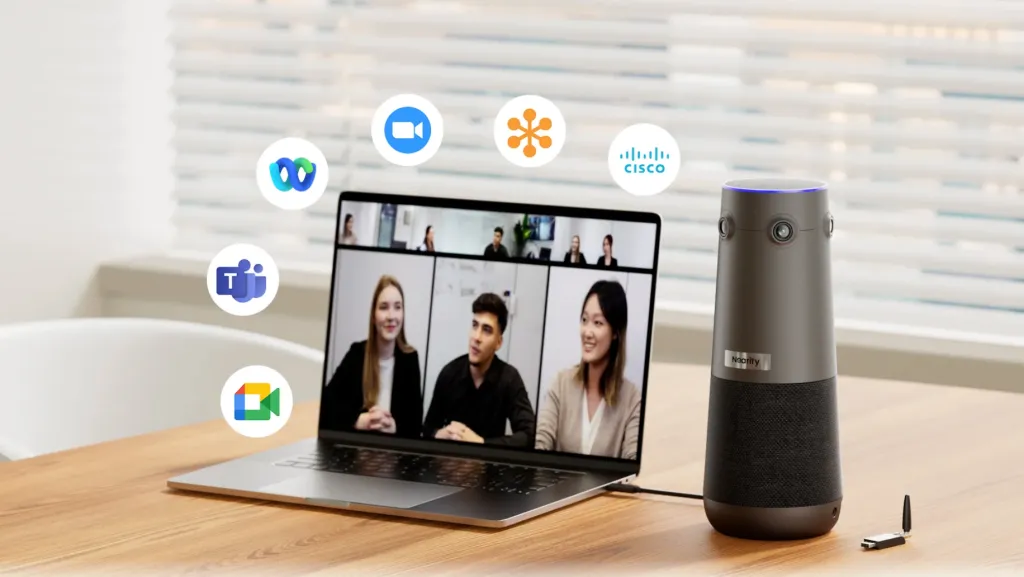
If your condition is a standardized room appliance with frequent guest presentations, prioritize simple casting. If your condition is rotating Zoom, Teams, Google Meet, or Webex hosts bringing laptops, prioritize a platform-flexible BYOM path and test device selection on the managed laptops people actually use.
Choose the Host Model Before the Connection Method
Choose whether the host brings a laptop or uses a dedicated room system before deciding between dongles, native casting, apps, or cables. Connection is downstream of the operating model.
Three host models are common:
BYOD or BYOM-first room
The host brings the account, meeting app, and compute. The room supplies camera, microphones, speakers, and display. This model is flexible across platforms but inherits laptop permissions, ports, battery state, and device-selection behavior.
Dedicated room-system room
The room owns the account and join workflow. Users get a consistent interface, while IT owns platform configuration, updates, identity, and guest-meeting procedures. Wireless sharing may supplement the room without transferring AV control.
Dual-mode room
The room has a default appliance and a guest BYOM path. This expands compatibility but introduces the question “Which system owns the camera right now?” The secondary path needs an explicit switch and recovery procedure.
Most buyers misunderstand dual mode as the safest compromise. It can be, but only if mode ownership is visible. If a user plugs in merely to charge or share content and unexpectedly takes over the room peripherals, the added flexibility creates a new failure.
Select the operating model based on who hosts the difficult meetings, not who hosts the easy internal calls. A guest-facing boardroom may need a simple fallback for unfamiliar laptops. A standardized internal training room may benefit from a room system with a controlled guest-share path.
Compare Dongle, Native, App-Based, and Wired Paths
Compare connection paths by guest friction, policy compatibility, recovery, and replacement—not by the absence of a cable alone.
Path
Best when
Main benefit
Main risk
Recovery question
Dedicated dongle
Guests need a visible, consistent action
Tangible handoff and fewer network assumptions
Lost dongle, blocked USB, pairing state
Is a spare available and paired?
Native wireless protocol
Managed devices support the same method
No accessory handoff
OS and network variation
Can guests use it without joining an internal network?
App or browser workflow
Users are trained and software is allowed
Can support richer control
Install rights, versions, sign-in
What happens on a locked-down laptop?
Single labeled cable
Failure tolerance is low
Predictable physical connection
Port wear, adapter needs, cable reach
Can a damaged user cable be replaced quickly?
The non-intuitive dimension is recovery visibility. Wireless may simplify the successful path while hiding the failed state. A cable can be inspected, reseated, or replaced. A wireless failure may involve pairing, policy, network, receiver ownership, or device permissions. That does not make wireless unreliable; it means the support design must make the state visible.
Choose a dedicated dongle when guest simplicity and a consistent action matter more than accessory control. Choose native wireless when the device fleet and network are well governed. Choose an app-based path when users are trained and policy permits it. Keep a labeled cable when meeting continuity is more important than removing the last user-facing connection.
Design for the Guest Laptop You Do Not Control
Design for an unfamiliar, managed guest laptop because internal demos often use devices already configured for the room. The real test includes port variation, restricted installs, USB policies, display permissions, and a meeting app that has never selected the room peripherals.
Use this guest test:
Invite someone outside the room's normal team.
Give them only the instructions visible in the room.
Ask them to connect, share content, and select room camera/audio.
Do not coach unless the documented path tells them what to do.
Record every ambiguity and permission prompt.
A guest-meeting failure scene
Five minutes before a customer review, the host hands the guest a wireless dongle. The laptop recognizes it as storage but blocks the required launch under corporate policy. Casting works from an internal laptop, so the room owner had considered the setup complete. The guest presents from the laptop camera instead, and the far side cannot hear questions around the table. The customer leaves before the room team understands which layer failed.
The solution is not automatically a different wireless product. It may be a native method, an approved driverless peripheral path, a room appliance that hosts the call, or a clearly labeled wired fallback. The test reveals which constraint is real.
Treat Reliability as a Recovery Design
Reliable wireless meeting rooms are not rooms that never fail; they are rooms whose likely failures are visible, bounded, and recoverable by the intended host. Recovery design should be a purchase criterion.
Trace a three-layer why chain:
Why provide a fallback? Because pairing, permissions, network, batteries, and accessories can fail independently.
Why must the fallback be obvious? Because failures happen when a meeting is already consuming attention, so hidden procedures are rarely followed.
Why must an ordinary host run it? Because a fallback that requires the original installer is support escalation, not recovery.
Define the safe fallback in one sentence. For example: “If wireless conferencing does not connect, attach the labeled USB-C cable and select the room camera and speaker in the meeting app.” Then test it with a different laptop.
But there is an exception. In a highly controlled room with a dedicated appliance and staffed support, a wireless BYOM fallback may add more ambiguity than value. The correct decision can be one standardized join path plus simple wireless content sharing. Flexibility is only useful when the people and policies can operate it.
Plan Power and Cable Management Honestly
Plan every required power and internal cable path even when the presenter experience is wireless. A wireless receiver, camera, display, room computer, and expansion microphone may each retain power or data dependencies.
Draw five lines in different colors:
Mains power.
Network.
Display content.
Camera/audio data.
Control or management.
Then identify which line the wireless solution removes. This visual prevents one eliminated USB run from being marketed internally as a cable-free room.
Clean design can hide necessary infrastructure under the table, within furniture, or along a safe service route. Keep user-touched components replaceable and avoid running critical cables where chairs or movable tables can damage them. If the room changes layout, document how the device and power positions reset.
Decide Whether a Meeting Room in a Box Is Truly Turnkey
A meeting room in a box is turnkey only when the package fits the room, host model, platform policy, and support workflow—not merely because the components arrive together. “One box” describes procurement; “ready to go” describes an operational result.
Ask these questions:
Does the package include every required connection and power component?
Which meeting platforms and host operating systems have been tested?
Does basic operation require an app, account, driver, or administrator permission?
Is wireless used for content, full conferencing, or both?
What is the maximum normal speaking zone, and how is it tested?
Can audio expand without replacing the core system?
Who owns firmware and settings?
What is the wired or room-system fallback?
Can a damaged dongle or user cable be replaced without redesigning the room?
The hidden cost is not the number of devices; it is the number of decisions a host must make at meeting time. A package with several components can feel simple if ownership and states are clear. A single device can feel complex if the host must guess between casting, pairing, BYOM, and room-appliance modes.
Where Nearity 360 Alien Fits the Wireless Decision
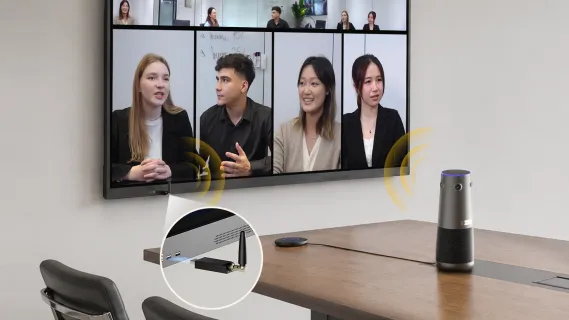
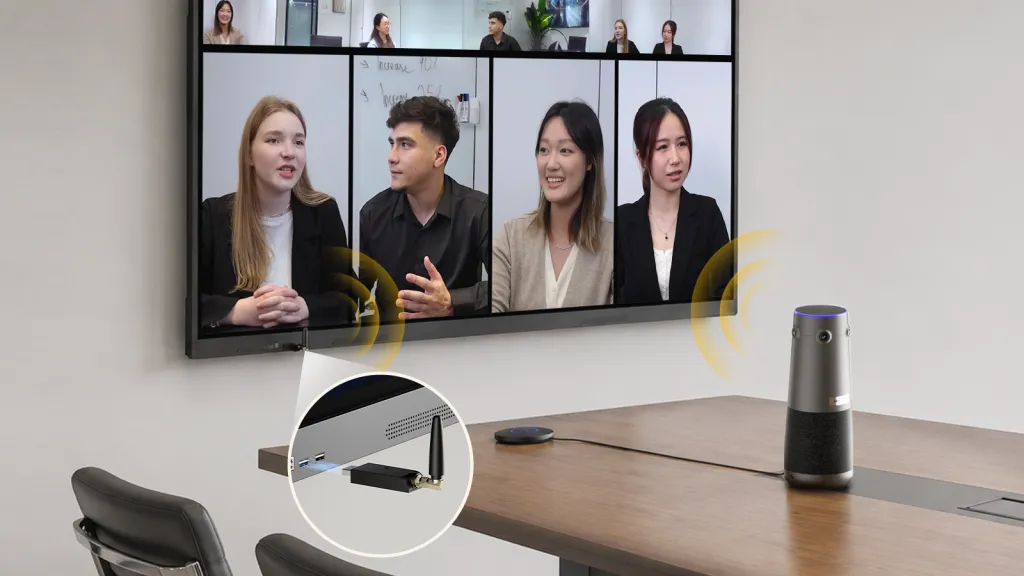
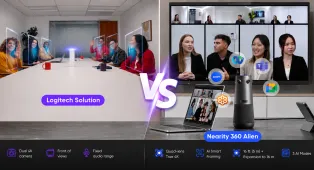
Nearity 360 Alien fits buyers who want a table-centered room camera and audio device that can connect through USB or an optional wireless dongle. The official product page states that basic use does not require drivers or apps, and it lists compatibility with common meeting platforms and desktop operating systems.
For a rotating-laptop room, the optional wireless-dongle connection addresses one specific problem: removing the host-to-camera USB run while keeping the laptop's familiar meeting app. Why it matters is that the host can use the room's shared camera and audio without routing a long data cable across the table. The result can be a cleaner, more consistent BYOM touchpoint.
That does not make the room completely wireless. The camera still needs power; the display and network remain separate; the dongle must be available and allowed by the laptop. If those conditions are not acceptable, the same product's USB connection may be the more reliable choice.
Use the official 360 Alien setup instructions for device-level pairing and selection. This buyer guide deliberately stays at the room-architecture level.
Use a Five-Layer Buyer Scorecard
Use this scorecard during demos and pilots. Rate each item as Pass, Conditional, or Fail and write the condition; do not average failures into a high total.
Layer 1: Content
Can internal and guest devices share typical content?
Does the room preserve remote faces while content is shared?
Is the method native, dongle-based, app-based, or cabled?
Layer 2: Conferencing ownership
Does the laptop or room system host the call?
Can the host use the installed camera, microphones, and speakers?
Is ownership visible when switching modes?
Layer 3: Device transport
Which physical data cable is removed?
What receiver, dongle, or pairing state replaces it?
Can the host recognize and recover a failed state?
Layer 4: Network and policy
Does guest use require the internal network?
Are apps, USB devices, or wireless protocols restricted?
Has the path been tested on managed Windows and macOS devices used by the organization?
Layer 5: Power and service
What remains powered, and where?
Are user-touched items secured and replaceable?
Is a labeled fallback available?
Reject the solution if a required normal meeting receives a Fail. Accept a Conditional only when the condition has an owner and a test—for example, “guest BYOM requires the provided dongle; a paired spare is stored in the room.”
Match the Wireless Path to the Room Scenario
Match the path to the scenario rather than standardizing every room blindly.
Scenario
Recommended starting point
Why
Small internal BYOD room
One clear wired or dongle path
Few users, simple recovery
Client boardroom
Room-hosted call plus guest content, or tested BYOM fallback
Guest laptop policy is unpredictable
Flexible training room
Repeatable BYOM path with marked camera positions
Instructors and furniture change
Multipurpose shared room
Mode labels plus a safe default
Different groups need different workflows
High-stakes executive room
Standardized primary path and immediate fallback
Continuity outranks maximum flexibility
For a training environment where presenters rotate, connect the wireless choice to the training room camera modes. For a U-shape, boardroom, or flexible layout, begin with the conference room setup styles comparison so the wireless path does not force the camera into the wrong physical position.
Frequently Asked Questions
What is a wireless meeting room solution?
It is a room system that replaces one or more user-facing AV connections with wireless transport. It may support screen casting, BYOM access to room peripherals, wireless camera/audio data, or control. Most rooms still require power, a display, network access, and some installed connections, so buyers should ask exactly what is wireless.
What is the difference between wireless presentation and wireless BYOM?
Wireless presentation sends content from a device to the room display. Wireless BYOM goes further by letting the laptop's meeting app use the installed camera, microphones, speakers, and often the display. A room can support excellent casting while still leaving video and audio on the laptop, so test both functions separately.
Are wireless meeting rooms less reliable than wired rooms?
Not inherently. Reliability depends on device policy, network conditions, pairing state, accessory control, compatibility, and how quickly users can recover. Wireless can remove a fragile daily cable touchpoint, while wired connections can make failures easier to inspect. Keep a tested fallback when a failed connection would stop an important meeting.
Do wireless meeting rooms still need cables?
Yes. Displays, cameras, room computers, receivers, and other components usually require power, and some retain network or internal AV cables. Wireless most often simplifies the connection handled by the presenter. A clean installation hides and protects necessary infrastructure rather than pretending it does not exist.
Record the pilot as a support artifact, not just a buying demonstration. Note the laptop operating system, meeting platform, network used, connection method, time to recover from a failed attempt, and the exact fallback that restored the call. Repeat the test with the dongle or receiver removed from the table so the host must find the backup path. A solution is ready for rollout only when another room can reproduce the same result from the written record. This also separates a product problem from a room-policy or laptop-permission problem when a later support ticket appears.
Pilot the Failure Path, Not Just the Demo
Your next action is to pilot the room with an unfamiliar managed laptop and a remote reviewer. Test casting, full BYOM camera/audio access, platform selection, power, and the labeled fallback as separate steps. Buy the solution only when the host can explain what is wireless, what remains wired, and how to recover without calling the installer.