Can You Use a SMART Board Without a Computer? A Complete Guide to Standalone Interactive Whiteboards
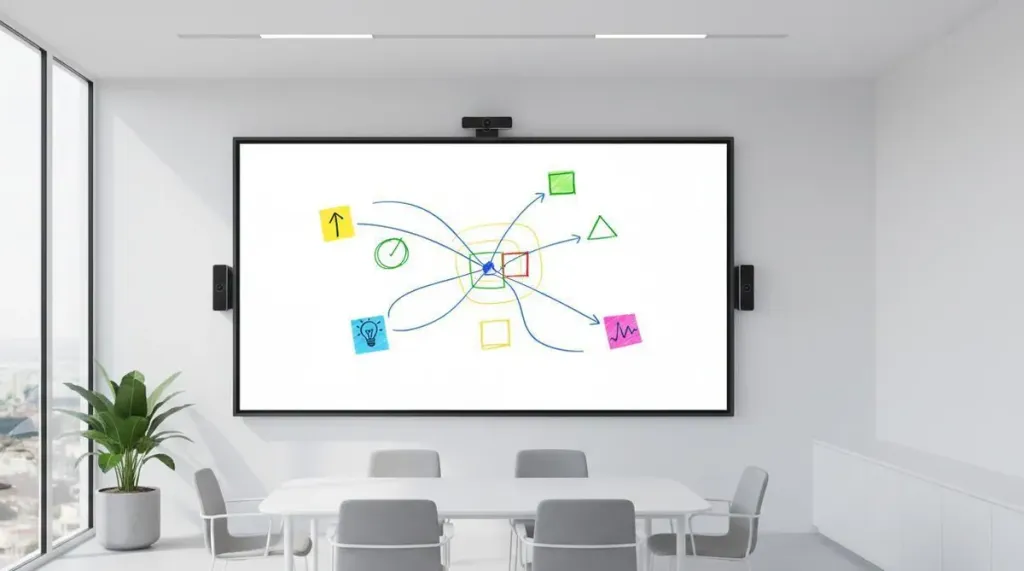
Discover whether SMART Boards work without a computer and explore the NearHub Board Max — a true standalone interactive whiteboard with built-in Windows 11, 4K camera, and multi-touch whiteboarding.
SMART Board
computer
interactive whiteboard
Updated: Aug 19, 2026 · 10 minutes read
Global Business, Brought Near.
No Installer, No Hassle, Just Works.
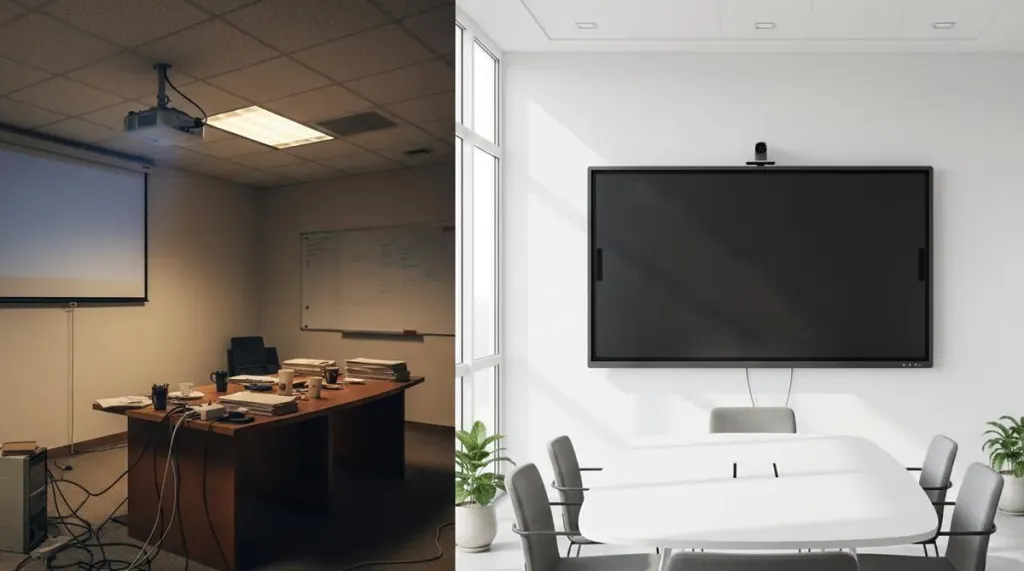
In this guide, we will explain why traditional SMART Boards depend on connected computers, what that means for your classroom or meeting room, and how to evaluate a true interactive whiteboard without computer dependencies.
Key Takeaways
Traditional SMART Boards are just touch displays — they have no built‑in processor or OS, so they require a connected computer to function.
True standalone interactive whiteboards like the NearHub Board Max integrate Windows 11 Pro, a 12th Gen Intel Core i5, 16GB RAM, and a 4K camera.
With all‑in‑one hardware, you can whiteboard, run Zoom, browse the web, and share screens — no external PC needed, no cable clutter.
If you are asking can you use a SMART Board without a computer, the short answer is: traditional SMART Boards cannot function without one. They are essentially large, touch-sensitive displays that rely entirely on an external PC for processing, software, and content. Without a connected computer, a traditional SMART Board is simply a blank surface.
Fortunately, a new category of SMART Board standalone alternatives has emerged. All-in-one interactive displays with built-in operating systems, processors, cameras, and microphones can handle whiteboarding, video conferencing, and running apps — no external PC required.
Why Traditional SMART Boards Still Need a Connected PC
The traditional SMART Board model made sense when interactive whiteboards first entered classrooms and meeting rooms in the early 2000s. But the architecture creates practical problems that add up over time.
Cable and connectivity issues. A typical setup requires HDMI or VGA for video, USB for touch input, and often separate audio cables. If the connected computer goes to sleep, crashes, or gets unplugged, the board becomes unusable. IT support tickets for "the smart board is not working" frequently trace back to a loose cable or a pending Windows update.
No independent functionality. You cannot walk into a room, tap the screen, and start whiteboarding. You cannot launch a video call without first ensuring the connected PC is powered on, logged in, and running the correct software. This dependency creates delays and training overhead.
Hidden ownership costs. Beyond the board itself, you need a dedicated computer, cable management, software licensing for the connected PC, and ongoing IT support. These expenses compound quickly across multiple rooms or campuses.
Can You Use a SMART Board Without a Computer? A Feature-by-Feature Breakdown
Here is how traditional SMART Boards handle common tasks — and what happens when no computer is connected.
Task
With a Connected Computer
Without a Computer
Whiteboarding and annotation
Works via SMART Notebook or similar software
Not possible — no software layer to capture touch input
Web browsing
Possible through the connected PC
Not possible — the board has no processor or OS
Video conferencing
Possible with the PC's camera and mic
Not possible — no built-in camera, microphone, or speakers
File access and cloud storage
Possible through the connected PC
Not possible — no storage or authentication capability
Screen sharing and casting
Limited casting may work via a receiver module
Not possible — requires external hardware to process the stream
Traditional SMART Boards are peripheral devices. Sophisticated ones, but peripherals nonetheless. If you need a board that works the moment you walk into the room, the traditional architecture will disappoint.
What to Look for in a Standalone Interactive Whiteboard
If you want an interactive whiteboard without computer tethering, you need an all-in-one device. Here are the key capabilities to evaluate.
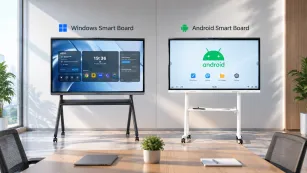
Built-in operating system and processing power. Look for a full desktop OS — ideally Windows 11 — with a modern multi-core processor, at least 8GB of RAM, and enough internal storage for your apps and files. Android-based boards handle basic whiteboarding but often struggle with full-featured video conferencing and complex web applications. Boards running Windows 11 Pro give you access to the full desktop versions of productivity software, not stripped-down mobile alternatives.
Native video conferencing hardware. A built-in 4K camera with a wide field of view, a multi-microphone array with noise cancellation, and quality speakers are essential for hybrid meetings. Without these, you will end up buying external peripherals — recreating the cable mess you wanted to avoid. Check the microphone pickup range: anything under 5 meters will leave people at the back of the room unheard.
Professional application support. Ensure the board runs the software your team already uses: Microsoft Office, Zoom, Teams, Chrome, and any specialized tools. Android boards often force users into mobile app versions with limited functionality. A board that cannot run your existing software forces workflow changes that slow adoption and frustrate users.
Multi-touch and stylus support. Look for 20-point or higher multi-touch support and response times under 10ms for a natural writing experience. If multiple people will collaborate simultaneously, verify that the board supports concurrent writing from several users rather than just recognizing multiple touch points for gestures.
Wireless casting. Support for AirPlay, browser-based casting, and proprietary protocols ensures guests can share content from any device without installing drivers. The best casting solutions let visitors share their screen by simply opening a browser and entering a URL — no app downloads, no accounts, no friction.
IT management compatibility. For organizational deployments, Microsoft Intune support allows centralized policy enforcement, remote management, and software deployment. Boards without MDM support become unmanageable once you deploy more than a handful across a building or campus.
Standalone Smart Board Options: A Comparison
Several manufacturers now offer all-in-one interactive displays that do not require an external computer. Here is how the leading options compare across key criteria.
Feature
NearHub Board Max
Microsoft Surface Hub 3
Samsung Flip Pro
Operating System
Windows 11 Pro
Windows 11 Team (UWP-only)
Android / Windows (optional PC)
Processor
12th Gen Intel Core i5
Custom SQ3 ARM
External PC required
Built-in Camera
4K, 130-degree ultra-wide
4K
No
Microphone Array
8-mic with AI noise cancellation
8-mic
No
Multi-touch
40-point, up to 8 simultaneous writers
20-point
20-point
Wireless Casting
AirPlay, Web Cast, App Cast, HDMI
Miracast only
Smart View (limited)
Intune Support
Yes
Yes
No
Starting Price
$3,699
$9,499
$2,999 (display only)
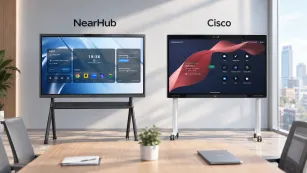
The NearHub Board Max stands out for running full Windows 11 Pro with desktop app support at a significantly lower price point than the Surface Hub 3. Unlike the Samsung Flip Pro, it does not require an optional PC module for full functionality — the computer, camera, microphone, and speakers are all built in.
Common Mistakes When Choosing a Standalone Smart Board
Avoid these pitfalls that IT managers and facility planners encounter most often.
Choosing an OS that limits your software. Android-based boards work for basic whiteboarding but force users into mobile browsers and limited app versions. If your team runs desktop Office, Zoom, Adobe, or enterprise web tools, a Windows-based board prevents compatibility headaches. Many buyers discover this limitation only after deployment, when users complain that familiar applications behave differently or lack key features.
Neglecting audio and video quality. A great display with a poor camera or microphone ruins hybrid meetings. Verify the built-in camera resolution, field of view, and microphone pickup range before buying. A 720p camera or a single microphone in a large room creates a poor experience for remote participants that reflects poorly on your organization.
Ignoring wireless casting compatibility. Some solutions require guests to download proprietary apps or create accounts. Others lock you into a single ecosystem. Browser-based casting and AirPlay support ensure anyone can share content from any device. Test the casting workflow before you buy — if it takes more than 10 seconds for a first-time visitor to share their screen, it is too complicated.
Underestimating management at scale. A single board is easy to manage manually. Ten or fifty across a campus requires enterprise device management. Confirm Intune or equivalent MDM support before committing. Without it, every software update, security patch, and configuration change requires a physical visit to each device.
Buying for screen size alone. A 55-inch works well for huddle rooms up to 8 people. A 65-inch fits standard meeting rooms with 8–15 participants. Larger 75-inch and 86-inch models suit training rooms and boardrooms. Match the display to your space and viewing distance, not your budget ceiling. An oversized board in a small room forces participants to sit too close; an undersized board in a large room leaves people squinting at details.
Frequently Asked Questions
1. Can a SMART Board work without any external device at all?
No. Traditional SMART Boards require a connected computer to function. They have no built-in processor, operating system, or storage. Standalone alternatives like the NearHub Board Max or Microsoft Surface Hub integrate the computer directly into the display and operate independently.
2. Do standalone interactive whiteboards need an internet connection?
An internet connection is required for cloud features like video conferencing, cloud storage syncing, and software updates. However, most standalone boards — including those running Windows 11 — support full local whiteboarding, file access from internal storage or USB drives, and running installed applications without an internet connection.
3. Can I still connect a laptop to a standalone interactive whiteboard?
Yes. Standalone boards typically include HDMI input, USB-C, and other ports for connecting external devices. You can use them as a display for a connected laptop when needed, but the key advantage is that they do not require one for normal operation.
4. How does the NearHub Board Max compare to the Microsoft Surface Hub?
Both run Windows and support enterprise management, but there are important differences. The NearHub Board Max runs full Windows 11 Pro, supporting all desktop applications. The Surface Hub 3 runs Windows 11 Team OS, which is limited to Universal Windows Platform apps. The NearHub also supports multiple casting protocols including AirPlay and browser-based Web Cast, while the Surface Hub relies primarily on Miracast. Price is another differentiator: the NearHub starts at $3,699 versus the Surface Hub 3's $9,499 entry point.
5. What size interactive whiteboard should I buy?
Match the display to your room and audience. A 55-inch suits huddle rooms and small classrooms (up to 8 people). A 65-inch works for standard meeting rooms with 8–15 participants. Go with 75-inch or 86-inch for large training rooms, auditoriums, or boardrooms where visibility from a distance matters.
Conclusion
Traditional SMART Boards cannot function without a connected computer. They are display peripherals, not independent devices. If you need a board that starts working the moment you tap the screen, you need a standalone alternative.
When evaluating options, prioritize a full desktop operating system (Windows 11 Pro), built-in video conferencing hardware, multi-touch support, broad wireless casting compatibility, and enterprise management tools. Compare total cost of ownership — not just the display price — and match the screen size to your actual room dimensions.
The NearHub Board Max is one option worth considering, particularly if you need full Windows desktop app support, AI-powered video conferencing, and enterprise IT management at a lower price point than alternatives like the Surface Hub. With a 30-day risk-free trial, you can evaluate it in your own environment before committing.