Interactive Displays for Education: Classroom & Campus Solutions
How interactive displays actually succeed or fail in K-12 classrooms, universities, and training rooms — and how to choose, budget, and deploy them so teachers actually use them.
classroom interactive display
education technology display
school classroom screen
Updated: Aug 19, 2026 · 8 minutes read
Global Business, Brought Near.
No Installer, No Hassle, Just Works.
First period, 8:04 a.m. A seventh-grade science teacher has a lesson built around a short video and a diagram she wants to annotate live. The board from last year's bond measure is dark. She holds the power button. It boots — slowly. Her laptop dongle is in her other bag, so she tries the wireless app, which wants an update. Twenty-nine twelve-year-olds watch her troubleshoot. By 8:17 the video is playing, but the class's attention is gone, and she spends the next ten minutes buying it back. The board worked exactly as manufactured. The lesson still died.
If you've taught with classroom technology, some version of this story is familiar. And it reveals the thing most buying guides for a classroom interactive display get wrong from the first paragraph: they evaluate the board as hardware. Schools should evaluate it as time.
A Classroom Display Is a Time-Allocation Device
Here's the first-principles version. A lesson is a fixed budget of attention — call it 45 minutes, with the first ten carrying outsized weight: that's when routines start, expectations set, and attention either locks in or scatters. Anything that consumes those minutes doesn't just delay the lesson; it degrades the whole period, because attention recovered at minute twelve is not the same as attention held from minute one.
Now run every "feature" through that filter:
Boot time isn't a convenience spec. Three minutes of boot is 30% of the attention-formation window, six times a day.
Login and account switching isn't an IT detail. Six teachers share one room; every handoff either costs lesson minutes or it doesn't.
Casting isn't about cables. A student showing their work from a Chromebook in five seconds is a pedagogical event — peer modeling, instant feedback, public revision. A student waiting two minutes while the teacher re-plugs is a classroom management problem.
This is why two boards with identical panels produce opposite outcomes in adjacent schools. One returns minutes to teachers; the other taxes them. When you evaluate an education technology display, the primary metric is time-to-lesson: the seconds between "teacher walks in" and "students are looking at learning content." Everything else — resolution, touch points, app stores — is secondary to that number.
Most people shopping for schools don't realize this metric is even measurable. It is: during any demo, don't watch the sales engineer drive. Hand your laptop to the most skeptical teacher on your committee, give them no instructions, and time them. That number predicts adoption better than any spec sheet.
What Interactive Displays Actually Change in Learning
Strip away the marketing and interactive displays change exactly three things in a classroom — when the time-to-lesson problem is solved:
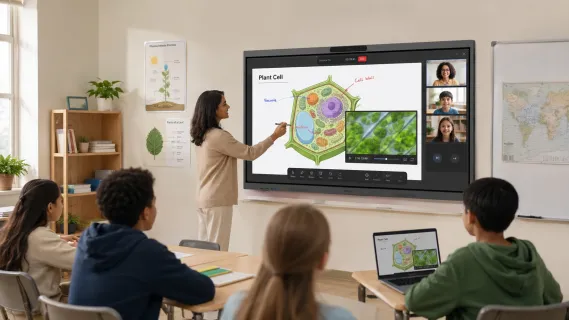
1. The board becomes a shared workspace, not a presentation surface. Multi-touch means a student can annotate a text while the teacher highlights structure beside them. The artifact of the lesson — the annotated diagram, the worked math problem, the brainstorm — can be saved and sent home instead of erased. For students who were absent, the lesson leaves a trace.
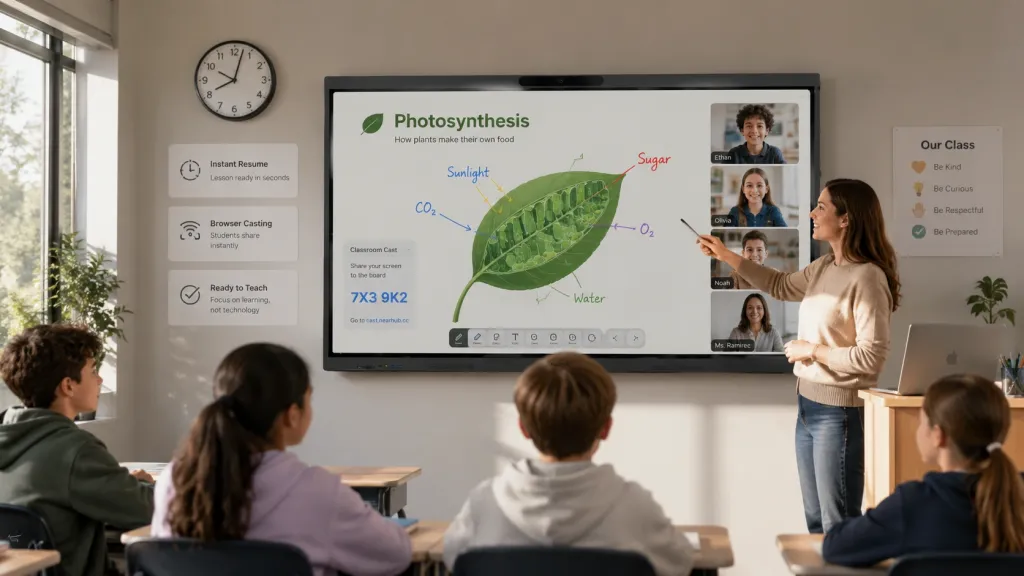
2. Student devices join the room. Wireless casting flips the direction of the screen: from "everyone look at my content" to "let's look at yours." Teachers who use this well run error-analysis routines (cast a wrong answer, fix it together), quick writes, and gallery walks without anyone leaving their seat. This is where a school classroom screen stops being a projector replacement and starts changing pedagogy.
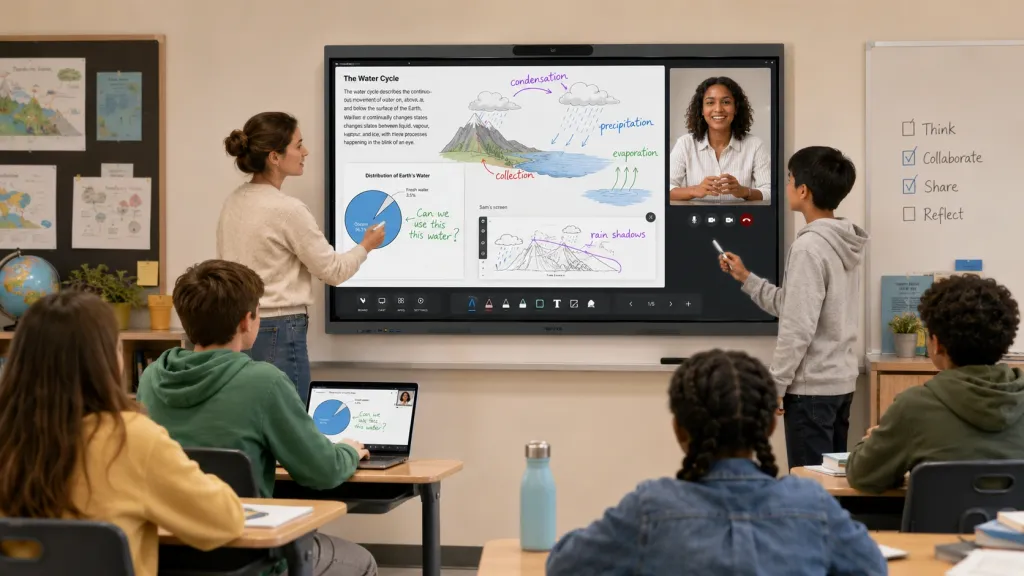
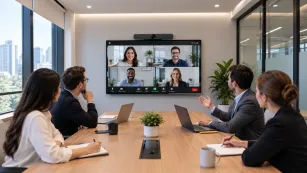
3. Hybrid and recorded lessons become normal. A board with a real camera, mics, and native Zoom or Teams turns snow days, homebound students, and guest experts into ordinary events rather than productions. Universities learned this at scale; K-12 is catching up.
Notice what didn't make the list: "engagement" as a vague aura. Interactive displays don't engage students by glowing. They engage by removing the friction between a teacher's idea and the room's shared attention — and friction removal is a solvable, measurable engineering problem.
K-12 vs. University vs. Corporate Training
"Education" covers three buying situations that look similar from a distance and are completely different up close.
K-12 classroom
University / lecture hall
Corporate training room
Primary user
Rotating teachers, all tech levels
Faculty + guest lecturers
Trainers, L&D teams
The minute that matters
First 10 of every period, 6x/day
First 5 of a 50–90 min session
First 5 of a paid session
Killer feature
Durability + instant resume
Hybrid cohort support, lecture capture
Whiteboarding + remote participant parity
Content source
Teacher laptop, student Chromebooks
Faculty devices, document cameras
Trainee devices, company software
Buyer
District IT + school board
Campus AV/IT + departments
L&D + IT
Hidden constraint
Summer install windows, training budget
Room scheduling across departments
Trainer credibility with a skeptical audience
A few consequences of the table:
If you're K-12: optimize for the fleet, not the flagship. Sixty durable, fast-booting boards with teacher training beat eighty feature-loaded boards nobody was trained on. Student-device casting is your pedagogical unlock.
If you're a university: the room serves hybrid cohorts and guest speakers who arrive with unknown devices. Camera quality, mic pickup across a wide room, and browser-based guest casting outrank almost everything. Lecture capture is a workflow, not a checkbox — test it end to end.
If you're corporate L&D: a training room display system has a credibility economy. The trainer charging hundreds per seat-hour cannot troubleshoot in front of clients. Here the board doubles as a sales asset — clients in the room judge your organization's competence by it. One more wrinkle: if your training room sits inside a hospital, agency, or firm, the room inherits that industry's compliance rules too — our guide to meeting room technology in regulated industries covers that overlay.
Museums, libraries, and community centers sit between rows: a library interactive screen or museum touch display serves walk-up strangers with zero instructions, so the home screen has to be self-explanatory in a way classroom boards never need to be. If that's your environment, judge the out-of-box home screen above all else.
Research labs are another edge case worth naming: a research lab screen lives at the intersection of education and enterprise — graduate students annotate data and papers together, PIs join remotely, and the content is dense (figures, microscopy, code). Legibility of fine detail and painless remote guest access matter more here than any classroom-specific feature, which is why labs should shop closer to the university column than the K-12 one.
The Features That Matter — Mapped to Real Problems
Feature lists are useless until each feature is tied to a failure you've actually experienced. Here's the mapping for education:
Fast boot + instant resume → the 8:04 problem. Ask vendors for a cold-boot-to-usable time and a wake-from-standby time, and test both. This single pair of numbers predicts daily teacher sentiment better than anything else on the spec sheet.
Multi-user handling → the shared-room problem. A board that requires one person's account, or leaves the previous teacher's files visible, creates both friction and a privacy wrinkle (a board that remembers the last user's cloud drive is a FERPA-flavored headache waiting to happen). Look for clean session switching.
Student casting without installs → the participation problem. Browser-based casting — student enters a code, screen appears — works on Chromebooks, iPads, and whatever else your BYOD reality contains, with nothing to deploy. This is also the answer for guest lecturers and substitute teachers, the two highest-friction users in any building.
A real whiteboard app → the erased-lesson problem. Infinite canvas, save, and share. The test: can a teacher end class and send the board's contents to absent students in under a minute?
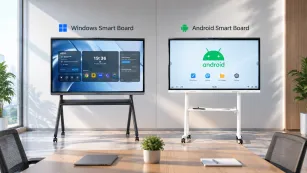
Built-in video conferencing → the hybrid problem. This is where operating system choice quietly decides everything. Boards running a full desktop OS (Windows) run the same Zoom and Teams your district already manages, at the quality those platforms deliver on desktops. Boards built on mobile-style platforms often run app versions with reduced capability. If hybrid teaching matters to you, the difference between Windows and Android boards is worth ten minutes before you shortlist anything.
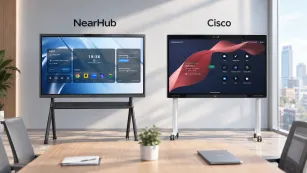
The NearHub Board Max is built around this exact mapping: Windows 11 Pro with native Zoom and Teams, web casting by browser code (nothing for students or guests to install), a cloud whiteboard that saves and shares without downloads, and 4K touch in 55"–86" sizes. It exists because its designers treated time-to-lesson as the primary spec. NearHub's K-12 education page maps board sizes to typical room types, and the education solutions page covers campus-wide configurations, including university lecture halls.
Budgeting the Way Districts Actually Buy
Schools don't buy displays; they buy deployments. The budget line that survives a school board meeting accounts for the whole lifecycle:
Hardware at fleet pricing. Always ask for education pricing and bulk tiers — meaningful discounts typically start well below the quantities buyers assume. NearHub, for instance, offers 10%+ off on bulk orders and works routinely with tax-exempt institutions.
Installation and infrastructure. Wall load ratings, power, and network drops. Older buildings routinely add 10–20% here.
Training — budgeted as a line, not a hope. This is the line that decides ROI. A defensible rule of thumb: every hour of training buys back weeks of avoided friction. Skimp here and you've purchased projector screens.
Spares and warranty logistics. A panel down for three weeks is a classroom without a front wall. Clarify warranty length (a 12-month warranty is a floor, not a ceiling), advance-replacement options, and who pays shipping on repairs.
Refresh horizon. Size the purchase for a 5–7 year life, and prefer platforms whose software updates rather than ecosystems that sunset.
For grant-funded purchases, timing is a feature: delivery windows must land inside the fiscal year or grant period, so confirm lead times before the PO, not after. For a broader cost picture, our interactive whiteboard cost comparison breaks down the price tiers and what actually moves the number.
Deployment Lessons from Real Rollouts
Patterns from schools that got adoption right — synthesized, not copied from any single district:
Start with a volunteer cohort, not a mandate. The first boards go to teachers who asked for them. Their classroom routines become your training content, and their hallway testimony outperforms any district memo.
Deploy in summer, train in August, support in September. The physical install is the easy part. The schools that struggle are the ones where the first time a teacher touches the board is the first day of school.
Standardize the home screen, not just the hardware. Every room should boot to the same three or four buttons. A teacher covering a colleague's room should feel like walking into their own.
Name a board captain per hallway. Not IT — a teacher who gets a small stipend or release time and answers the "how do I…" questions in the moment. Adoption lives or dies in the hallway, not the help desk.
Measure time-to-lesson monthly for the first semester. What gets measured gets defended at budget time.
When You Should NOT Buy an Interactive Display
The honest counter-argument, because it builds the right purchase:
Don't buy if your teaching is overwhelmingly lecture-and-slides with no annotation, no student sharing, and no hybrid need. A quality 4K TV plus a document camera covers that workflow for a fraction of the cost, and the money is better spent on curriculum or training.
Don't buy ahead of your network. Boards that depend on cloud whiteboarding and casting need real Wi-Fi capacity — thirty student devices per room. Upgrade the access points first or the board gets blamed for the network's sins.
Don't buy fleet-wide without a pilot. One board, one semester, one honest time-to-lesson measurement. The pilot costs you almost nothing and tells you almost everything — including whether your teachers want this at all.
And one more: don't buy for the demo. The demo shows a board at its best. Your hallway on a Tuesday in November is the real environment — and the parent pillar guide on industry-specific display solutions explains how to evaluate any room from that starting point.
Frequently Asked Questions
What size interactive display does a classroom need?
Match the screen to the farthest student, not the wall. In a standard classroom of 25–32 students, 65" to 75" usually keeps body text legible from the back row; larger rooms, labs, and lecture spaces push toward 86". The reliable test: put your smallest real content (a spreadsheet cell, a footnote in a primary source, a line of code) on screen and read it from the farthest seat. If you squint, size up. Our whiteboard size guide walks through the room-to-size math.
Why do so many classroom smart boards end up unused?
Rarely because the hardware failed. The pattern is workflow friction plus missing training: slow boots eat the first minutes of class, shared-room login hassles make teachers avoid the board, and nobody showed them the two or three routines (casting a student's work, saving an annotated lesson) that make the board worth turning on. Deployments that budget training hours alongside hardware — and measure time-to-lesson — routinely see high daily usage; deployments that don't, don't.
How should schools budget for interactive displays?
Think deployment, not device: hardware at education/bulk pricing, plus installation (walls, power, network), plus training as a real line item, plus warranty and spares logistics, sized for a 5–7 year refresh horizon. Ask every vendor for fleet pricing tiers, tax-exempt handling, and confirmed delivery within your fiscal window. The cheapest panel is rarely the cheapest deployment once friction and downtime are priced in.
Are interactive displays worth it for corporate training rooms?
Yes — arguably more than in K-12, because the trainer's credibility is on the line and remote participants are paying customers. The board's job is to make hybrid sessions feel like one room: trainers whiteboard and annotate live, remote trainees see both content and faces clearly, and nobody watches a cable ritual for the first ten minutes. If your sessions are purely one-way lectures, though, a simpler setup may be the honest answer.
An interactive display succeeds in education when it returns minutes to teachers and turns the front wall into a shared workspace — and fails when it taxes the first ten minutes of every period. Measure time-to-lesson, budget training like hardware, pilot before you scale. When you're ready to test a board designed around exactly these constraints, put the NearHub Board Max through its 30-day trial in your most demanding classroom — and let your most skeptical teacher drive it.