Android Smart Board: What to Check Before Buying, and When You Need Windows
Learn what to check before buying, how Android smart board pricing works, and when Windows makes more sense.
android smart board
android smart board price
android vs windows smart board
Updated: Sep 16, 2026 · 8 minutes read
Global Business, Brought Near.
No Installer, No Hassle, Just Works.
An Android smart board is a large interactive display with an Android-based operating system. It can handle whiteboarding, annotation, presentation, web access, and many meeting workflows without an external PC. This guide explains Android smart board pricing, the hardware specifications that matter, the role of OPS and EDLA, and when a Windows smart board may be a better fit.
Key Takeaways
Android smart boards can handle core meeting, whiteboarding, presentation, and classroom workflows without an external PC.
NearHub Board S is an Android-based smart board available in 55, 65, 75, and 86-inch sizes, and Board Max, its Windows counterpart, stops at 75 inches.
An OPS slot can preserve an upgrade path when future Windows requirements are uncertain, but compatibility has to be verified rather than assumed.
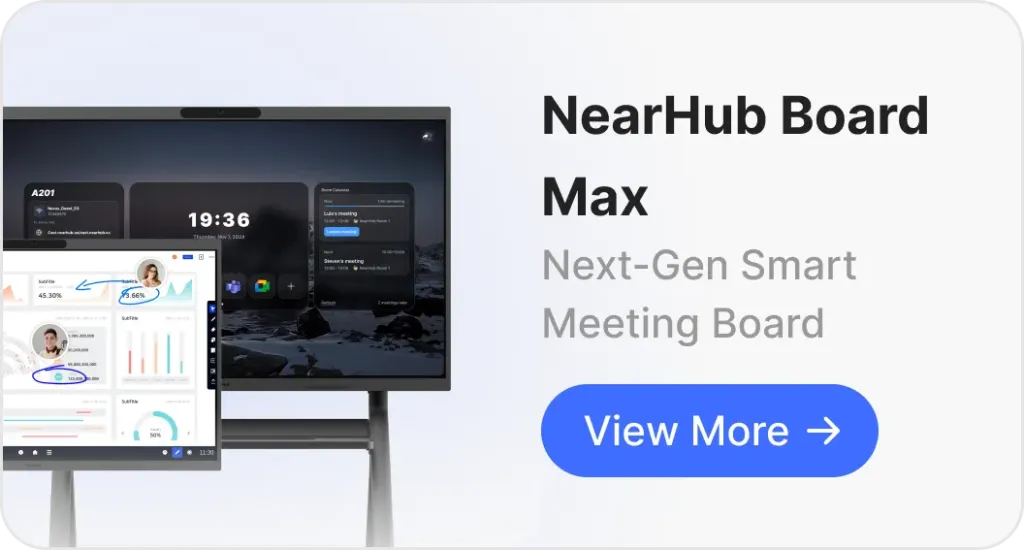
NearHub Board Max uses Windows 11 Pro for desktop applications and enterprise Windows workflows.
An Android smart board is a large interactive display with an Android-based operating system built into the device. Instead of connecting a separate computer for every basic task, users can open supported applications, write on the screen, annotate documents, browse the web, share content, and run meetings directly from the board.
You may also see the same type of product described as an interactive flat panel (IFP) or digital board. The terminology varies by market, but the core idea is similar: a large commercial display combines touch interaction, computing, and collaboration features in one device.
For most meeting rooms and classrooms, the important question is not whether Android is "better" than Windows. It is whether the board can run the applications, collaboration workflows, and management tools your organization actually needs.
NearHub offers both approaches: the Android-based NearHub Board S for core interactive display workflows and the Windows 11 Pro NearHub Board Max for more demanding PC-level workflows.
What Is an Android Smart Board?
An Android smart board is an interactive display that runs an Android-based operating system and provides common collaboration functions without requiring an external PC for everyday use.
At a minimum, the category is designed around a few core activities:
Digital whiteboarding and handwriting
Screen annotation
Presenting documents and media
Web browsing
Wireless or wired content sharing
Running supported meeting and productivity applications
Displaying dashboards, signage, or other content when supported by the platform
An Android smart board is also different from an Android tablet. The screen is designed for shared environments rather than individual use. For example, the NearHub Board S is available in 55-, 65-, 75-, and 86-inch configurations, giving it a physical presence appropriate for meeting rooms, classrooms, and training spaces.
The difference matters when evaluating specifications. A smart board is not simply a large tablet. The display, touch layer, speakers, camera, microphone array, mounting options, operating system, and device-management capabilities all affect how it works in a real room.
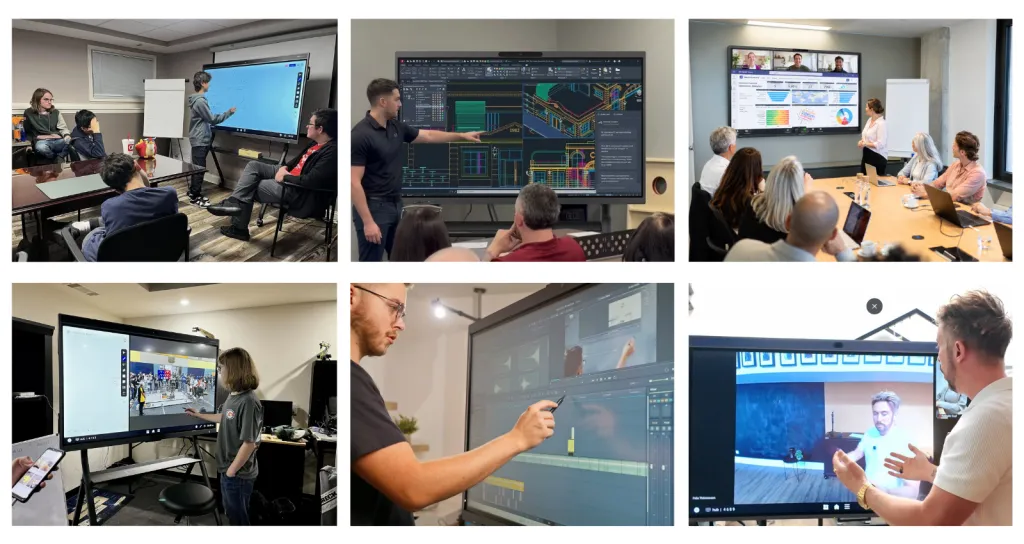
Who Uses Android Smart Boards?
Android smart boards fit environments where the primary requirement is interacting with content rather than running a full desktop workload.
That pattern repeats in a handful of settings.
K-12 classrooms and school district buildings. The board runs from first period to last, usually with three or four different teachers using it in a day. What it needs is to start instantly, keep the lesson app and the browser available, and work for someone who has never touched it before. This is where appliance behavior matters more than any specification on the sheet: no user profiles to switch between, no antivirus agent, no patch cycle, no “who has the password for the room PC.”
Training rooms and workshop spaces. Corporate onboarding, safety briefings, product training, vocational classrooms. Sessions run long, participants annotate over slides and export the result, and the value sits in the shared canvas rather than in any one application. The 86-inch configuration exists largely for these rooms, where someone in the back row has to read the board without moving.
Standard meeting rooms inside companies that run Teams or Zoom. Standups, retros, client calls, weekly reviews. The board is shared and bookable; the meeting starts when the first person walks in, and whatever happened in the previous meeting is wiped.
Retail back rooms, hospitality, and branch operations. A single display doing two jobs: onboarding and shift briefings during the day, targets or announcements when nobody is using it. It gets bought because there is no budget for a second screen, not because it is the ideal device for either job.
Industrial and operations floors. Shift handovers, production dashboards, safety standups, often on a mobile stand rather than a wall. There is usually no IT support nearby, which is the strongest argument for a device that has no PC inside it to maintain.
The boundary appears when the board stops being a shared display and becomes somebody’s workstation. An architecture studio marking up plans in a desktop application, an engineering team running CAD or simulation software, an analyst who needs a Windows-only model open all day — the room may still want touch, but the workload has moved to Windows. That is the point where an OPS slot or a Windows-based board belongs in the evaluation rather than an afterthought.
Matching the board to the workflow is the whole exercise. If a room needs meetings, whiteboarding, annotation, and content sharing, Android covers the core experience. If it needs to replace a Windows PC, the evaluation changes.
Android Smart Board Price: What Does One Cost?
The price of an Android smart board depends on much more than screen size. Two 65-inch interactive displays can have very different prices because of differences in the panel, touch technology, computing hardware, camera and microphone system, management software, mounting accessories, warranty, and service.
For NearHub Board S, the confirmed starting price is $2,599 for the 55-inch model, reduced from an original $3,299 price. Pricing for other S Series sizes should be checked against the current product configuration rather than assuming that every size follows the same pricing ladder.
Size
NearHub Board S
Typical use
55"
$2,599
Small meeting rooms and compact collaboration spaces
65"
$3,299
Standard meeting rooms and classrooms
75"
$4,699
Larger rooms and training spaces
86"
$7,699
Large classrooms and training rooms
What Are You Paying For?
When comparing Android smart board prices, look beyond the display diagonal. A commercial interactive display typically combines several systems that would otherwise need to be purchased separately.
The display: Resolution, brightness, viewing angle, anti-glare treatment, and bonding technology affect how easily people can read and interact with content under different lighting conditions.
The touch system: Touch-point count and response time influence how many people can write simultaneously and how natural handwriting feels.
The collaboration hardware: An integrated camera and microphone array can reduce the need for separate conference-room peripherals when the built-in system meets the room's requirements.
The computing platform: The Android operating environment determines which applications can run directly on the board. An OPS slot can also provide an upgrade path for a compatible PC module.
Management and accessories: Remote device management, wall mounting, mobile stands, warranty coverage, installation, and shipping can all affect the total cost of deployment.
That is why the lowest purchase price is not necessarily the lowest deployment cost. If a low-cost board requires a separate PC, camera, microphone, stand, and additional support, the comparison should be made using the complete room setup rather than the display alone. For a fuller breakdown of what a room actually costs to equip, see the smart board cost guide.
What Should You Look for in an Android Smart Board?
A specification sheet tells you what a board contains. The more useful question is what each specification changes in the room.
Display brightness and anti-glare performance
Brightness affects how easily content can be seen when a room has windows or strong overhead lighting. Anti-glare treatment can reduce reflections that otherwise compete with text and handwriting.
For a meeting room beside a window, this can matter more than a small difference in processor specifications. A display that looks excellent in a dark showroom may behave differently under afternoon sunlight.
Touch response and simultaneous touch
Touch-point count describes how many simultaneous touch inputs the system can recognize. A small meeting with one or two people writing does not require the same experience as a classroom or workshop where several people may interact with the board at once.
NearHub Board supports up to 40 touch points depending on configuration, with the 55-inch model supporting 20-point touch, and a response time of 6 ms or less according to the outlined product specifications.
The practical test is simple: have several users write at the same time and see whether the board keeps up with the activity.
Camera field of view
For an all-in-one smart board used for meetings, the camera's field of view determines how much of the room can fit into the image without moving the table or asking participants to sit farther back.
NearHub Board S uses a 4K camera with a 120° field of view in the specified configuration. The relevant question is not whether 120° is a large number on a product sheet. It is whether the camera can frame the largest table or group that will actually use the room.
Microphone pickup
Microphone coverage matters when the board is also used as a meeting endpoint. A stated pickup distance is useful, but room geometry matters just as much. A long conference table, hard reflective surfaces, and participant seating at the edges can produce a different result from a simple distance specification.
NearHub Board S is specified with a 24-element microphone array and up to 8 m pickup coverage. Use the room's longest seating distance and table layout when evaluating whether that coverage is sufficient.
Storage and multitasking
Storage capacity and memory become relevant when users open multiple applications or content sources. NearHub Board S is specified with 8 GB of memory and 128 GB of storage.
For basic meetings and whiteboarding, that may be more than enough. The important question is what "multitasking" means in your environment. A user who wants to run several content sources at once should test the exact workflow instead of assuming that a specification number automatically predicts performance.
OPS support
An OPS slot, or Open Pluggable Specification slot, provides a standardized way to add a compatible computing module to an interactive display.
This can be particularly important for organizations that are comfortable starting with Android but are uncertain about future software requirements. Before buying, ask:
If we need Windows two years from now, can this display be upgraded without replacing the entire board?
If the answer is yes and the implementation is compatible with the organization's requirements, an OPS slot can preserve more flexibility than a display with no upgrade path.
Panel lifespan
NearHub S Series specifications include a stated panel lifespan of 50,000 hours. That figure should not be interpreted as a promise that every part of the product will remain supported for the same period.
For a commercial smart board, there are at least two different questions:
How long can the physical display operate?
How long will the software platform, applications, firmware, and security updates remain supported?
The second question can become more important than the first when the board is expected to remain in service for many years.
7 Questions to Ask Before Buying an Android Smart Board
Instead of asking whether Android is good enough in general, use these questions to determine whether it fits your workflow.
1. Does the board run the applications you actually need?
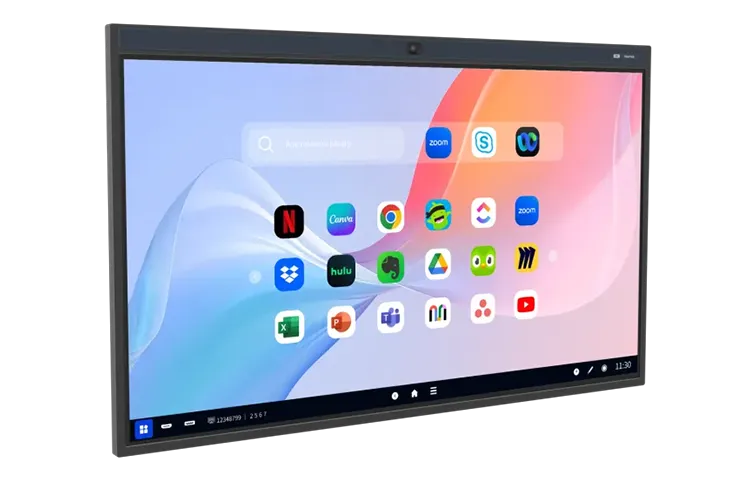
NearHub Board S supports mobile versions of applications such as Zoom, Microsoft Teams, and Google Meet. For many meeting rooms, that covers the essential workflow: join a call, share content, annotate, use the whiteboard, and communicate with remote participants.
The boundary appears when the room becomes a substitute for a desktop computer.
Examples include:
Local .exe applications
Excel workflows that depend on desktop macros or add-ins
CAD applications
Desktop ERP clients
Enterprise systems that require Windows-only software or plugins
Internal applications that cannot run through the supported Android environment
The question to ask your IT or facilities team is:
What is the heaviest application someone will need to run on this board?
If the answer requires a desktop operating system, an Android-only configuration may not be sufficient.
2. Can the display be upgraded later?
This is where OPS becomes more than a technical specification.
An organization may know exactly what it needs today but have less certainty about what it will need after a technology refresh. A board with a compatible OPS slot can provide an option to add computing hardware later.
Ask:
If our software requirements change, can we upgrade the computing platform instead of replacing the display?
The answer depends on the board's hardware design, the available OPS module, compatibility, power requirements, and the organization's deployment policy. Verify those details before purchase rather than treating "OPS" as an automatic guarantee of future Windows support.
3. How long will the software platform be supported?
Physical panel lifespan and software support are different issues. Before purchasing a large fleet, ask the vendor how long it plans to provide operating-system updates, firmware updates, application compatibility, and security maintenance.
The useful question is:
How many years of software support are included or committed, and where is that commitment documented?
Industry discussions sometimes use broad three- to four-year figures for Android device support, but those figures should not be treated as a NearHub commitment or as a universal rule for every Android smart board. The vendor's actual support policy is the relevant evidence for procurement.
Four more things to confirm before signing
Does the organization require Google Admin console management? If yes, confirm whether EDLA certification is required and request documentation from the vendor in writing.
Does the camera's field of view cover the largest room configuration? Test the actual table and seating arrangement rather than relying only on the FOV number.
Is the microphone coverage sufficient for the room's geometry? Compare the stated pickup distance with the farthest participant and the room's acoustic conditions.
What is included with the display? Confirm wall mounting, stand options, warranty, installation, shipping, and trial or return policies before comparing total costs.
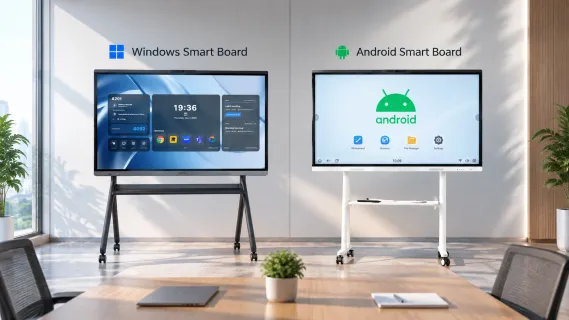
Android Smart Board vs. Windows Smart Board: Where Is the Practical Difference?
The practical difference between an Android and Windows smart board is less about the display itself and more about the computing environment behind it.
Android smart board
Windows smart board
Operating system
Android-based; Google certification depends on EDLA status
Windows 10/11 Pro or IoT Enterprise
Computing platform
ARM processor, mobile-class memory and storage
x86 processor, PC-class memory and storage
Applications
Android or mobile versions from an app store
Full desktop software, including .exe installers
Certified room systems
Rarely certified as a Teams Rooms or Zoom Rooms system
Can run certified room-system clients, though certification is still model-specific
IT management
Vendor device management, or Google Admin console where EDLA applies
Active Directory, Group Policy, Microsoft Intune
Upgrade path
An OPS slot on some models can add a PC later
Already a PC, so no module is needed
Day-to-day behavior
Appliance-like: quick start, stays in the board interface
Full PC: boots Windows, takes Windows updates, runs endpoint software
Entry price
Usually lower at a comparable panel size
Usually higher at a comparable panel size
Fits best when
The board's job is display, whiteboarding, and meetings
The board also has to replace the room PC
The rows describe the categories, not a particular product. Individual models move around inside them: a well-specified Android board can outperform a thin Windows one, and neither column guarantees a certified room system.
The fork is narrower than nine rows suggest. It usually comes down to one thing — whether the board has to replace the room PC. If it does, Windows is the shorter conversation. If it does not, Android covers the work at a lower entry price, and an OPS slot keeps the Windows option open for later.
Running a meeting application is not the same thing as being a certified Teams Rooms or Zoom Rooms system. Certification is checked against a specific model and a specific software build, so it has to be confirmed separately from whether the app installs at all.
NearHub builds both types: NearHub Board S on the Android side and NearHub Board Max on Windows. In practice, the decision is usually made before the brand enters the picture, at the point where you decide what the room actually has to do.
The right question is therefore not "Which operating system wins?" It is: What do you expect the board to do after the meeting starts?
Google EDLA: When Does It Actually Matter?
Google Enterprise Devices Licensing Agreement, or EDLA, is relevant when an organization specifically requires Google's certified Android ecosystem and associated Google services and management capabilities.
For buyers, the practical issue is not simply whether a product has an EDLA label. Ask what the certification means for the deployment you are planning, including access to Google services, Play Store requirements, security maintenance, and centralized Google device administration.
The NearHub Board S Series has not received Google EDLA certification. NearHub S Series uses NearHubOS and the NearHub App Store, with Google Play and a stated catalog of more than 1,000 applications in the product information provided for this article. NearHub also provides its own remote management platform.
That distinction should be part of the procurement conversation rather than hidden.
Four things an EDLA certification buys you: licensed access to Google Mobile Services, Play Store distribution, ongoing security maintenance, and centralized administration through Google Admin console. The last one is the only item a vendor's own platform cannot really replace.
If your organization already manages a large fleet of Android devices through Google Admin console and requires that same management environment for the smart board, EDLA certification may be a specific procurement requirement. In that case, ask vendors to provide written confirmation of the certification and the exact device-management capabilities included.
If your organization does not depend on Google Admin console, a vendor's own device-management platform may cover the operational requirements you actually have, such as firmware deployment, application management, device controls, or digital-signage deployment. The important thing is to compare the management capabilities against your IT workflow rather than treating certification status as a universal quality score.
Android smart boards have a clear use case, but there are workflows where Windows becomes the more practical platform.
Desktop software
If the board needs to run Windows-only applications, local .exe software, CAD tools, desktop ERP clients, or workflows that depend on Windows plugins, an Android environment may create limitations.
Enterprise Windows management
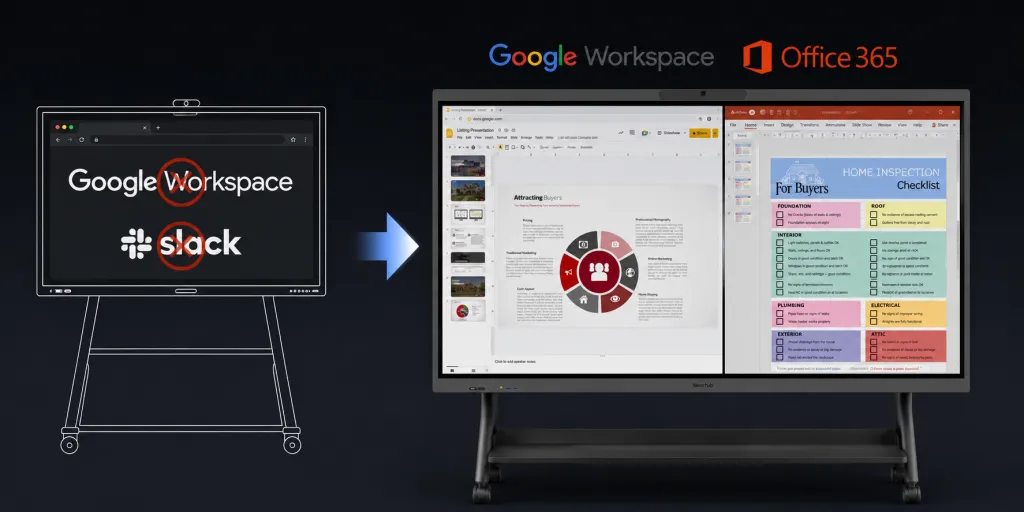
Organizations already using Microsoft Active Directory, Group Policy, or Microsoft Intune may prefer a device that fits directly into the existing Windows management model. NearHub Board Max runs Windows 11 Pro and supports enterprise-oriented workflows including Intune and Okta or Azure AD SSO according to the product specifications used for this article.
Replacing a room PC
If the requirement is not simply "a smart display" but "a smart display that replaces the PC in this room," the operating system becomes much more important.
An Android board can remove the need for an external PC for many common workflows. A Windows board can go further when the room needs desktop computing capabilities as part of the display itself.
Certified room-system requirements
There is an important difference between an interactive display that can run a meeting application and a certified room system designed for a specific meeting-room platform.
If procurement requires a certified Teams Rooms or Zoom Rooms solution, certification should be checked separately from whether the board can install or run a corresponding application. NearHub Board S should not be presented as a certified Teams Rooms or Zoom Rooms room system. For what certification actually involves, see the Teams Rooms hardware guide.
When Should You Choose an Android Smart Board?
NearHub's two interactive board families can be viewed as two levels of computing capability within the same broad category.
Choose NearHub Board S when the board's primary job is interaction. Whiteboarding, annotation, presentation, supported video meetings, content viewing, classroom instruction, and other core interactive-display workflows can all be handled through its Android-based platform.
Choose NearHub Board Max when the board's job also includes computing. Windows 11 Pro, Intel Core i5 processing, 16 GB memory, 256 GB storage, desktop applications, and Windows enterprise management make it suitable for workflows where the board needs to function more like a room computer as well as an interactive display.
The hardware is closer than the operating systems are. Both lines are rated for 8 m microphone pickup. Board S gets there with a 24-element array and a 120° 4K camera; Board Max with an 8-microphone array and a 130° 4K camera. Worth knowing, but rarely the reason to pick one over the other.
The price difference is therefore not simply paying for a larger screen or a slightly better specification. Board S starts at $2,599 for the 55-inch model and Board Max at $3,499 for the same size, and that gap reflects a different operating environment and a different set of software possibilities.
The following scenarios provide a practical starting point:
If your requirement is
Choose
Meetings, whiteboarding, and presentation
Android smart board
Classroom teaching and annotation
Android smart board
A display larger than 75 inches
Android smart board (86-inch option)
Budget-sensitive interactive display rollout
Android smart board
Desktop .exe applications
Windows smart board
CAD or Windows-only enterprise software
Windows smart board
Existing Microsoft Intune-based management
Windows smart board
Replacing the room PC
Windows smart board
Certified Teams Rooms or Zoom Rooms
Verify the certified solution separately
Uncertain future Windows requirements
Android board with a verified OPS path
Existing Google Admin console requirement
Verify EDLA certification with the vendor
For organizations that are uncertain about future requirements, Board S's OPS support can also be part of the decision. However, an OPS slot should be treated as an upgrade option that must be verified for compatibility, not as a substitute for evaluating today's requirements.
This is why an Android smart board should not be evaluated simply as a cheaper version of a Windows board. It is a different starting point for the room's computing architecture.
FAQs
What is an Android smart board?
An Android smart board is a large interactive display with an Android-based operating system. It can support whiteboarding, annotation, content sharing, web access, and selected meeting applications without requiring an external computer for those workflows.
How much does an Android smart board cost?
Prices vary by size, display and touch technology, computing hardware, camera and microphone capabilities, management features, accessories, and support. NearHub Board S starts at $2,599 for the 55-inch model. Pricing for other sizes should be checked against the current product configuration.
Is the NearHub Board S EDLA certified?
No. The NearHub Board S Series has not received Google EDLA certification. It uses NearHubOS and the NearHub App Store, with its own remote management capabilities. If your organization specifically requires Google-certified Android device management or Google Admin console deployment, confirm the EDLA requirement with the vendor before purchase.
Can an Android smart board run Microsoft Teams or Zoom?
An Android smart board can run supported Android or mobile versions of applications such as Microsoft Teams, Zoom, and Google Meet. However, running the application is different from being a certified Teams Rooms or Zoom Rooms room system. If certification is part of your procurement requirement, verify the exact device and certification status.
When should I choose an Android smart board instead of a Windows smart board?
An Android smart board is a practical fit when the main workflows are meetings, whiteboarding, presentation, annotation, web access, and supported mobile applications. A Windows smart board makes more sense when users need desktop applications, Windows enterprise management, or a device that is expected to replace a room PC.
Final Takeaway
An Android smart board is not simply a cheaper Windows computer with a large screen. It is a distinct interactive-display category built around an Android-based operating environment.
For meetings, whiteboarding, presentation, annotation, classroom instruction, and many everyday collaboration tasks, Android can provide a complete room experience without adding a separate PC.
The boundary becomes clearer when the board is expected to behave like a desktop computer. Windows-only applications, enterprise Windows management, PC replacement requirements, and certified room-system requirements can change the calculation. In those cases, a Windows-based product such as NearHub Board Max may be the more appropriate architecture.
The best way to choose is therefore simple: start with the work the board needs to perform, then choose the operating environment that supports that work.