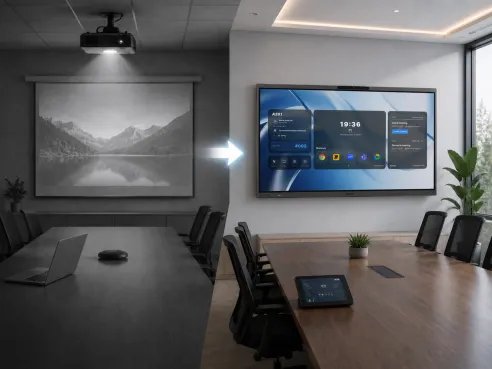
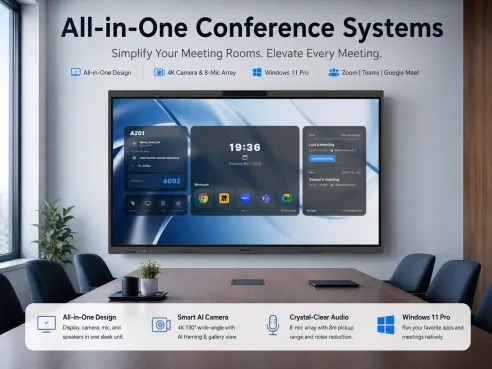
In professional settings, it's common to share computer-based content on a larger whiteboard or display screen, especially during meetings, presentations, or collaborative sessions.
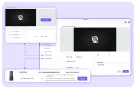
This article outlines a detailed guide on how to use screen mirroring with the NearHub Board, a device designed to help you easily project your computer's screen onto a whiteboard or similar display. It explains step-by-step the process of setting up the NearHub Board, connecting your computer, and ensuring a smooth and seamless screen mirroring experience, making it easier for teams to work together and share information in real time.
Step 1 Switch to USB Display Mode
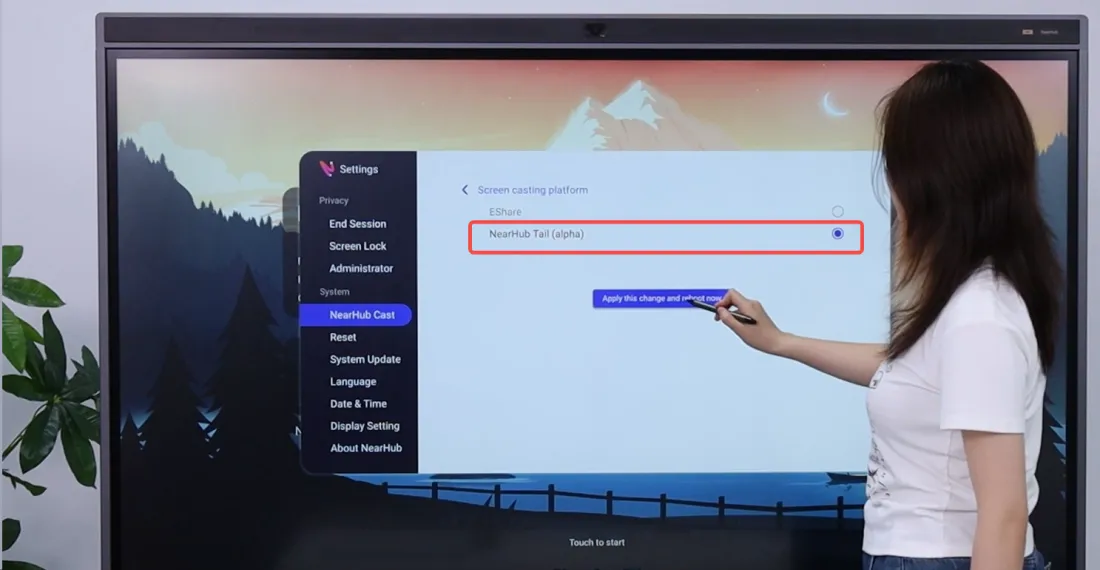
First, switch to USB Display Mode in the settings. The steps are as follows.
Setting - NearHub Cast - Screen casting platform - NearHub Tail(alpha)
*After selecting NearHub Tail, the USB Display screen casting agreement takes effect
Step 2 Download the app
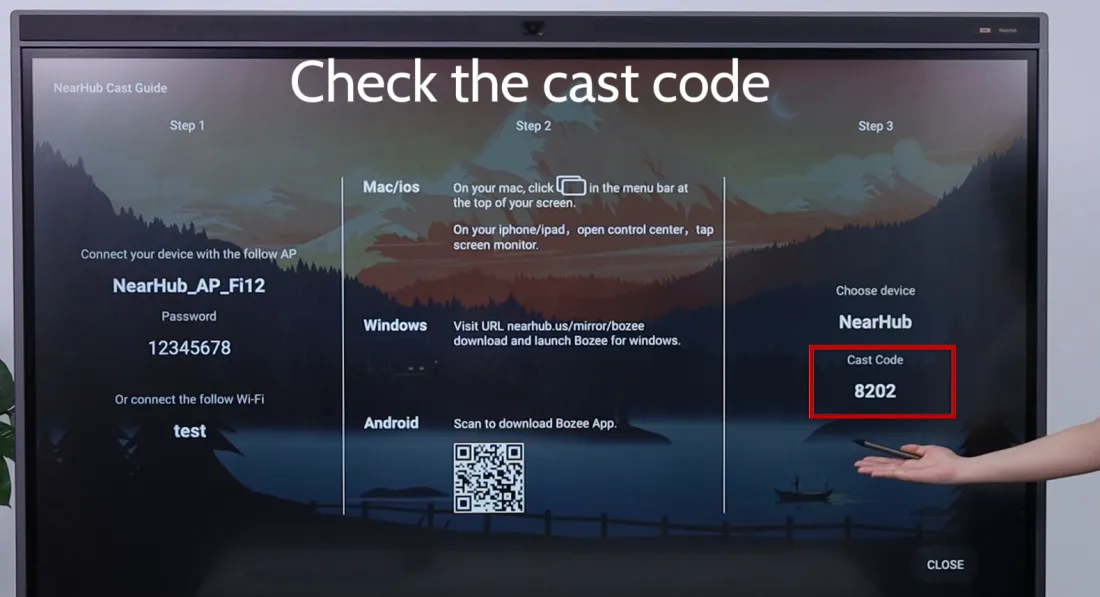
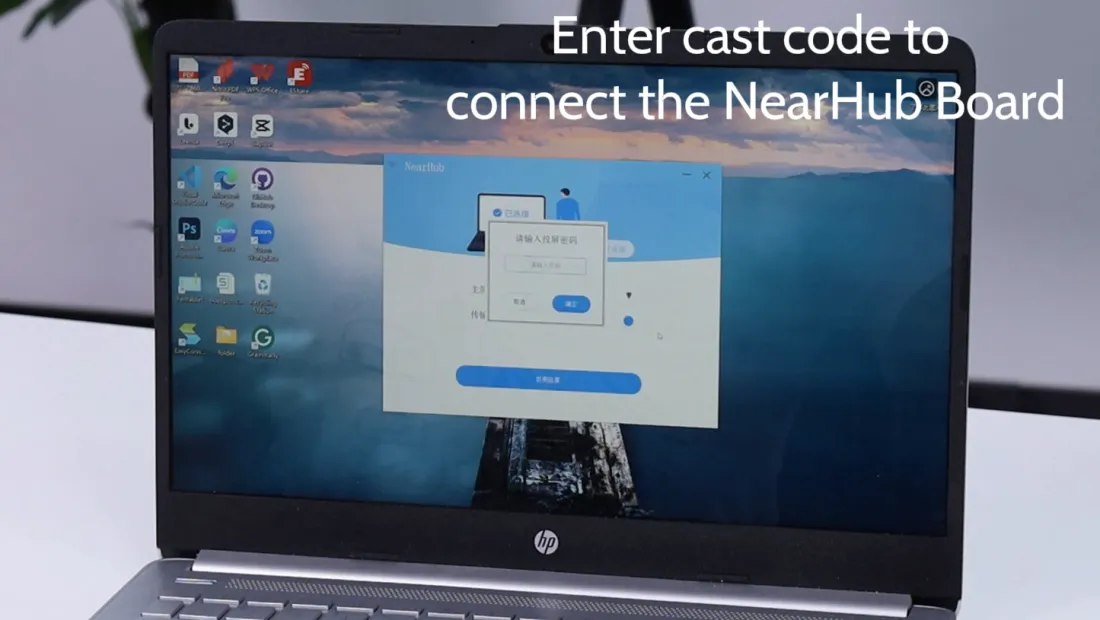
Open 'Cast' on the launcher and follow the three steps of the casting guide: first, confirm the WiFi your whiteboard is connected to and the casting code.
Different devices have different methods of casting the screen:
If you are a Windows user, please visit
USB Display to download the latest screen casting software
If you're an Android mobile user, please scan to download the App
in Google Play.If you're an iPhone user, please scan to download the App in Apple Store.
Step 3 Open the app on your devices
First of all, you need to make sure your device and the whiteboard are on the same WiFi, then follow the steps below step by step:
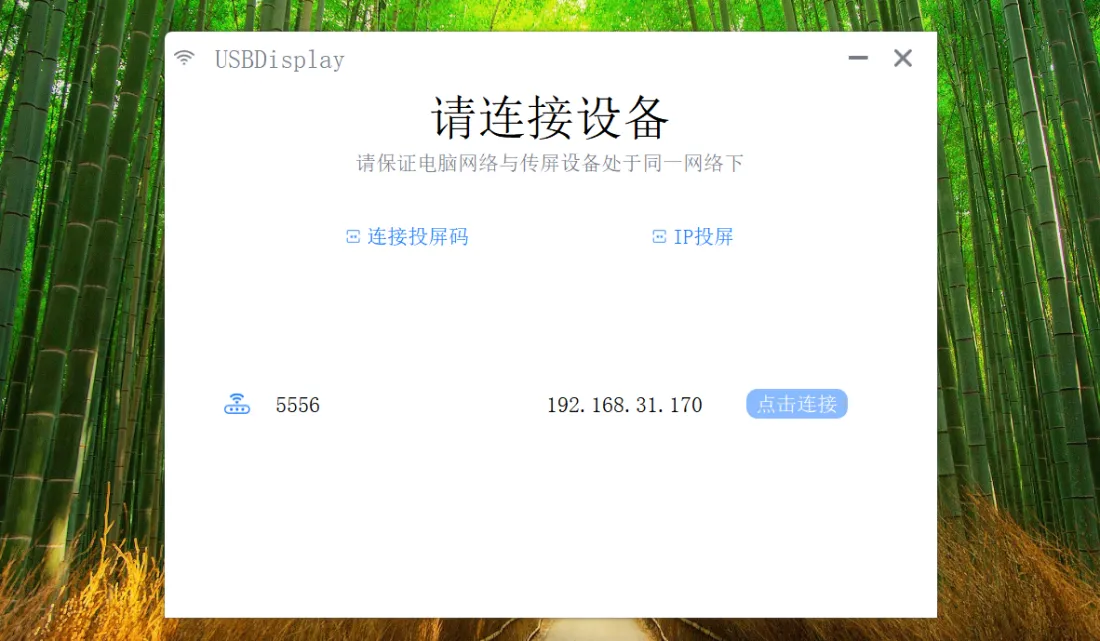
Step 4 One-click cast screen
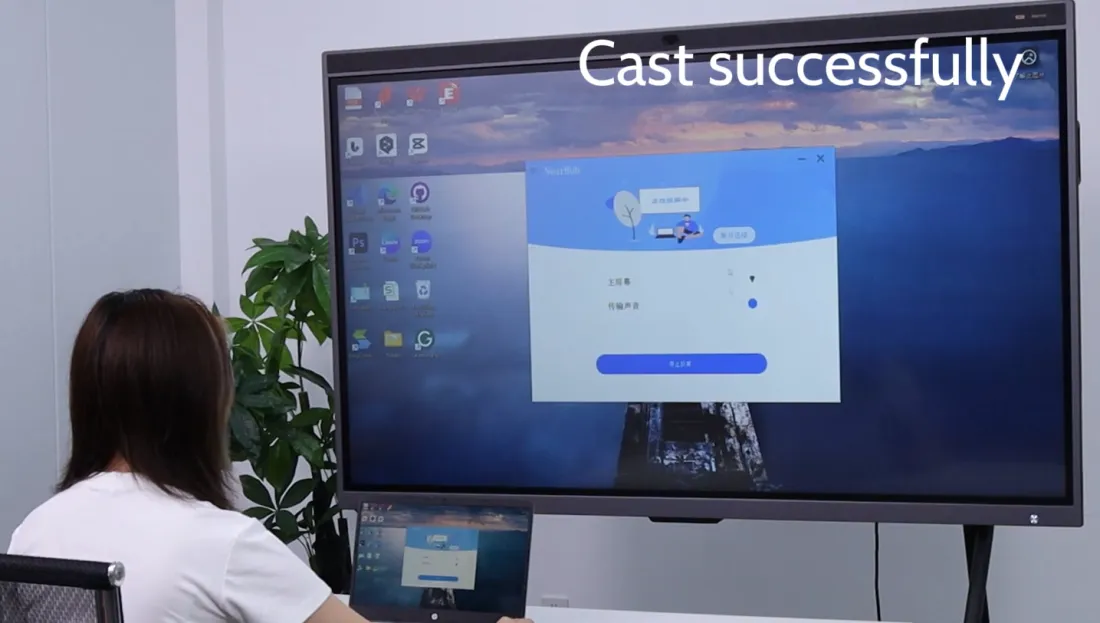
Click on the casting button for one-click mirroring.
2 Kill Feature of USB Display Casting Mode
Touchback
A unique feature USB Display has is the ability to touch back. To touch back means that you can control your computer simply by touching your board.
Annotation
You can annotate on the screen with its smartpen during your screen mirroring. Slide up from the bottom and click the pencil-like button on the right. Then you can write and draw on the screen, and you can also upload the annotated screenshot to your NearHub app by clicking “↓”.