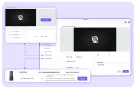
Here are some tips for you to use screen mirroring with NearHub built-in Hotspot.
Introduction of Hotspot
A Hotspot is a physical location where people can access the Internet, typically using WiFi, via a wireless local area network (WLAN) with a router connected to an Internet service provider. So Hotspot can provide a local network to realize the screen mirroring without WiFi.
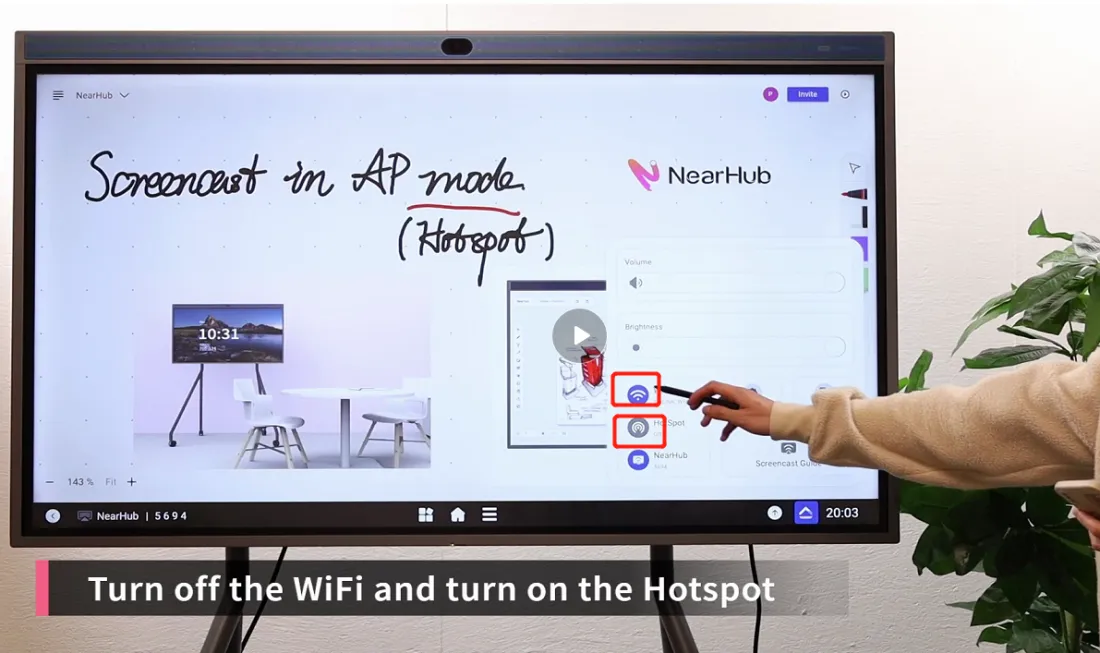
Step 1 Turn off the WiFi and turn on the Hotspot
Click the triangle-like button at the lower right corner and tap “WiFi” to turn it off. Then click hit “HotSpot” function to open it.
Step 2 Turn to the cast page.
Go back to the home page and click “cast”.
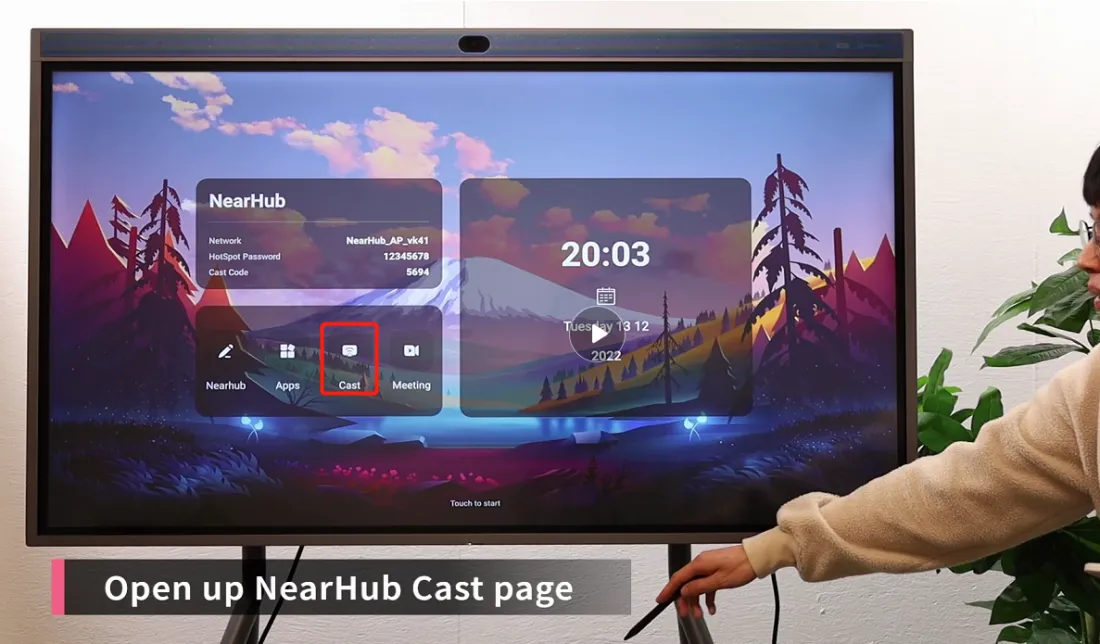
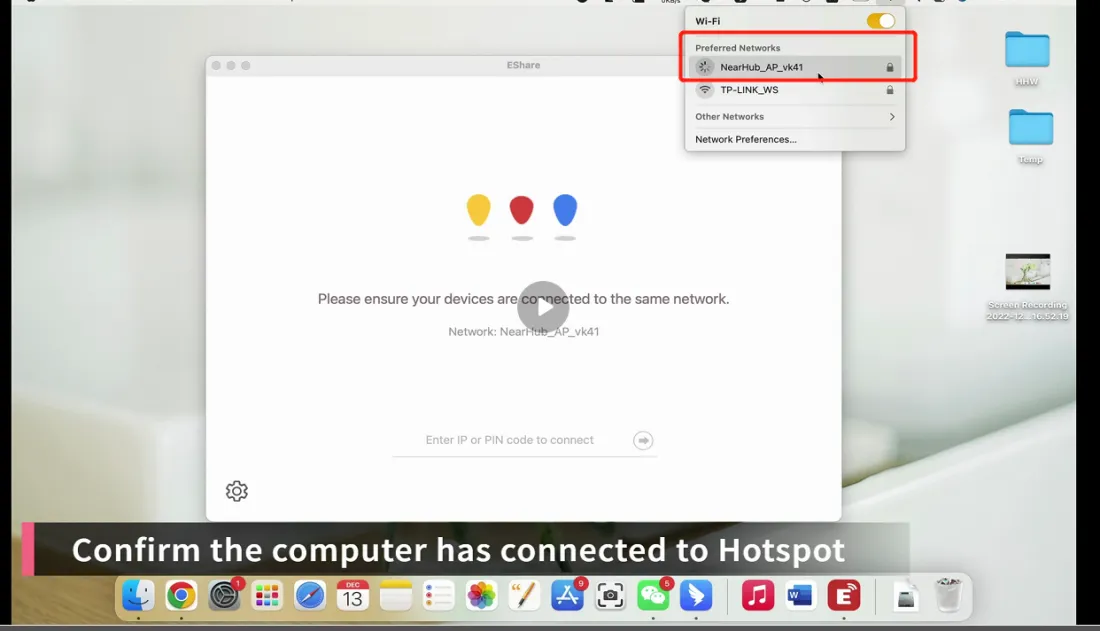
Step 3 confirm the computer has connected to Hotspot
You are suggested to make sure that your computer has connected the hotspot.
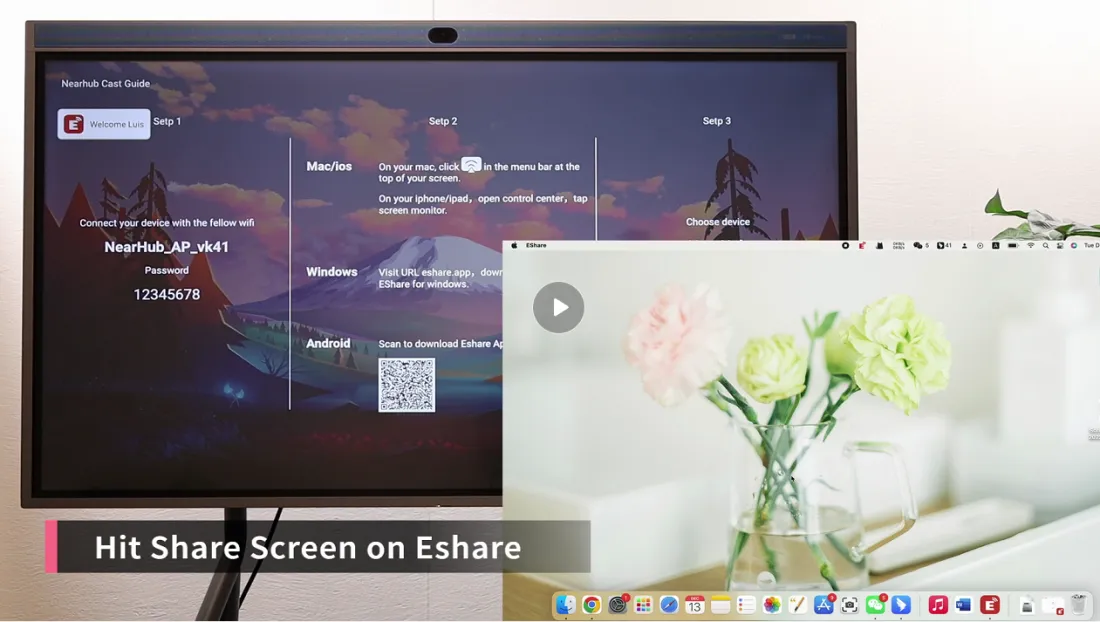
Step 4 Hit Share Screen on EShare
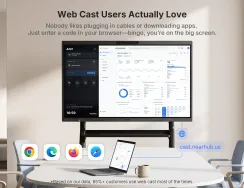
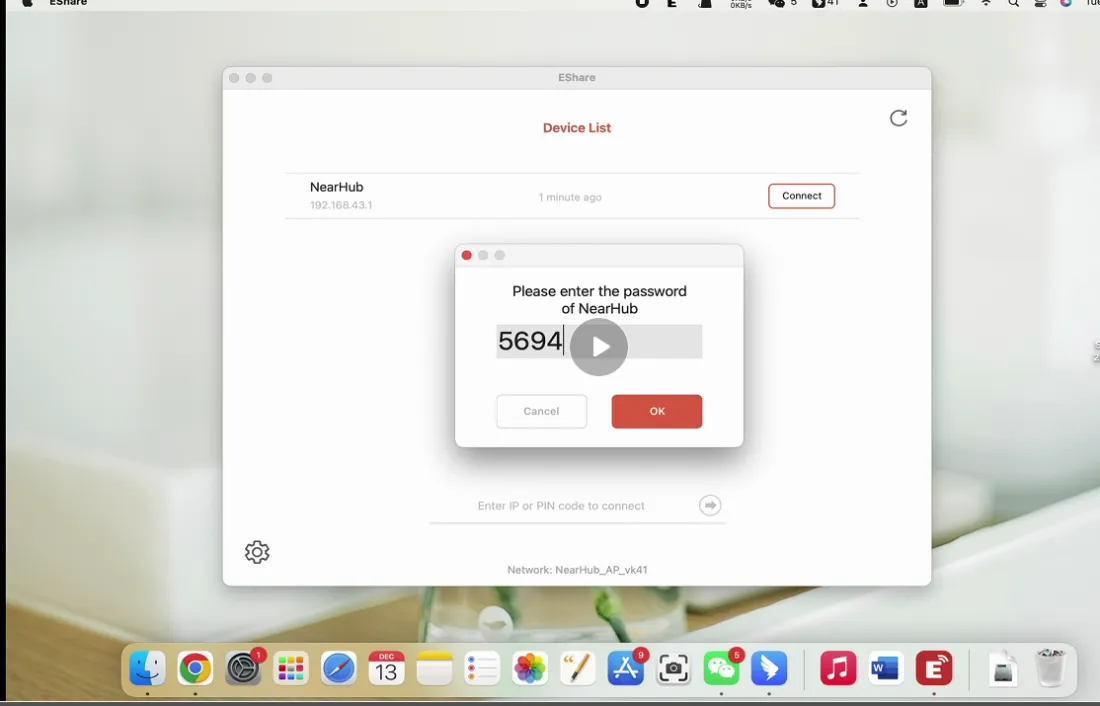
Open your EShare and enter your cast code which you can find in the Step 3 on the cast page. If you don’t have EShare, you can find it by visiting URL eshare.app. Click here to know more about screen mirroring by EShare.
Step 5 Touchback on NearHub Board
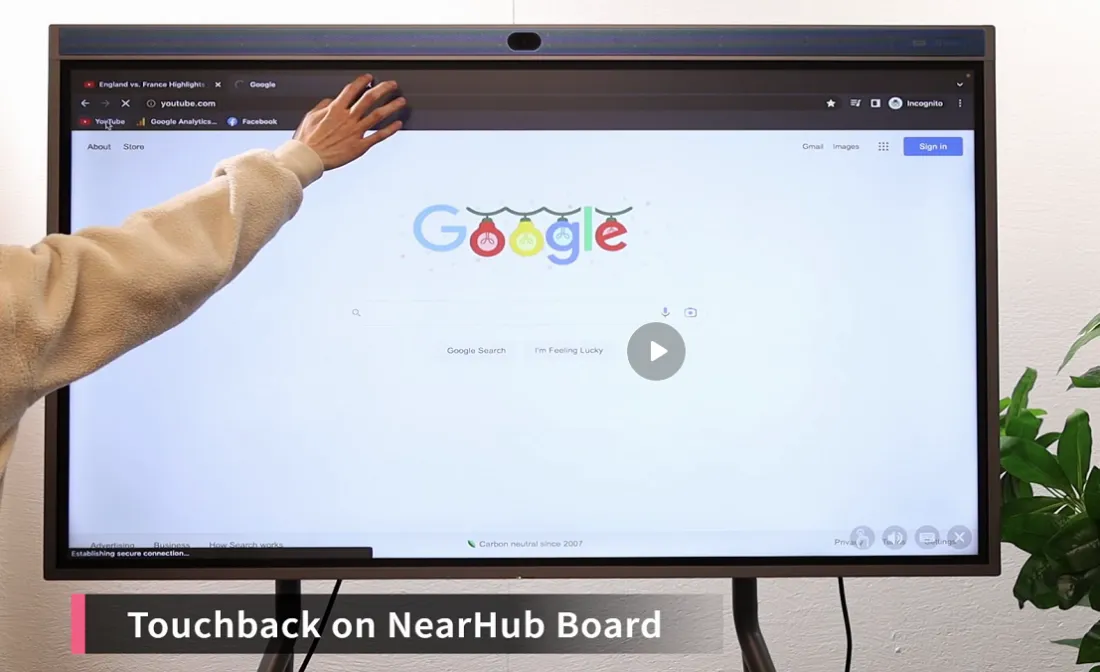
A unique feature EShare has is the ability to touchback. To touchback means that you can control your computer simply by touching your board.
If you meet any problems in the process or have any further questions, please submit a support ticket here. Our support team will respond as soon as possible.