


















In today’s hybrid work environment, video meetings have become ubiquitous. Around 75% of organizations worldwide now rely on video conferencing, and daily or weekly usage is reported by nearly half of all teams (MarketBiz). The quality of your audio and video directly affects professionalism and communication efficiency, yet many issues stem not from network problems but from improper equipment choices.
In this article, we will guide you through choosing the right video conferencing equipment and share practical tips to improve your online meeting experience. We will also spotlight a standout headset for vedio conferencing designed specifically for modern professional use, helping you achieve the best possible performance in every meeting.
Key Takeaways
- Clear audio is essential for professional and effective video conferencing.
- Most meeting issues come from equipment, not the network.
- Key equipment: headset, webcam, proper lighting, stable connection.
- Choose headsets with ENC, noise cancellation, comfort, wireless connectivity, and broad compatibility.
- The Nearity EP320 provides long battery life, multi-device support, and all-day comfort.
- Follow practical tips: test audio, mute when needed, use a quiet space, and keep the camera at eye level.
- Proper equipment and best practices reduce fatigue and improve engagement.
Why Audio Quality Matters More Than You Think
Video conferencing technology has advanced rapidly, with platforms such as Zoom, Microsoft Teams, Google Meet, and Webex optimizing video clarity and collaboration features. Yet, even in high-definition video streams, poor audio quality remains the single most frequent complaint among meeting participants.
Audio issues in remote meetings often fall into a few common categories:
- Ambient noise from the environment
- Echo from speakers
- Low voice clarity
- Poor microphone pickup
These challenges don’t just compromise clarity—they also impact engagement, professionalism, and productivity. In a business setting, miscommunication due to bad audio can lead to costly mistakes, misaligned expectations, and fatigue. For individuals and teams that depend on video conferencing for daily workflow, solving these problems starts with the right hardware—particularly your headset.
Essential Video Conferencing Equipment for Clear Communication
Before we dive into specific headset recommendations and tips, let’s outline the core equipment that should be part of any professional video conferencing setup:
1. Headset (Microphone + Headphones)
This is the centerpiece of your audio setup. Headsets for video conferencing combine a microphone and headphones, providing direct audio input and output while minimizing echoes and background noise. Unlike built-in laptop mics and speakers, a dedicated headset ensures other participants hear your voice clearly even in noisy environments.
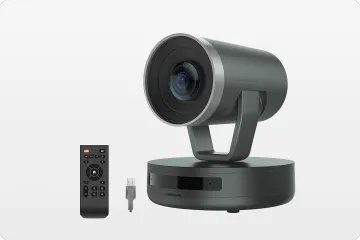
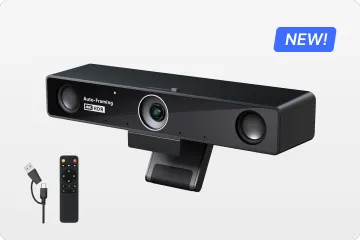
2. Webcam
A decent external webcam dramatically improves video quality, ensuring your face is well-lit and in focus. Even mid-range webcams outperform most built-in laptop cameras, giving a more professional impression.
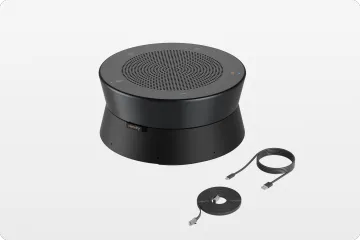
3. Microphone (if not using a headset)
For those who prefer standalone setups, a dedicated microphone can offer superior clarity. However, it requires proper positioning and often additional accessories like mic arms or pop filters.
4. Proper Lighting
Good lighting helps participants see you clearly. Natural light from a window or an inexpensive LED panel positioned behind your camera can make a significant difference.
5. Stable Network Connection
Your video conferencing experience is only as reliable as your network. Wired Ethernet connections reduce latency and interruptions compared with typical Wi-Fi connections.
While all of these components contribute, this article places special emphasis on the headset because research and user feedback consistently show that audio quality influences meeting satisfaction more than video quality.
What to Look for in the Best Headset for Video Conferencing
When evaluating headsets for professional meetings, there are a few key features that stand out:
Noise Cancellation Technology
Active, AI-enhanced, or ENC (Environmental Noise Cancellation) in headsets ensures that background noise—whether keyboard clicks, office chatter, or a lawnmower outside—doesn’t interfere with your voice. With ENC technology, unwanted sounds are filtered out in real time, allowing the person on the other end of the call to focus solely on your speech.
Comfort for Long Sessions
If you’re spending hours on calls weekly, comfort is essential. Look for cushioned ear cups, adjustable headbands, and lightweight designs that won’t cause fatigue over long periods.
Wireless Connectivity and Battery Life
Wireless headsets free you from cable constraints and give you the flexibility to move around. Long battery life ensures you won’t run out of power mid-meeting.
Broad Compatibility
The best headsets for video conferencing seamlessly with a variety of devices—from MacBooks and Windows laptops to tablets and mobile phones—and integrate smoothly with video conferencing software.
Spotlight: A Balanced Choice for Professional Meetings
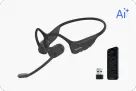
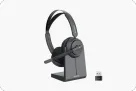
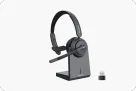
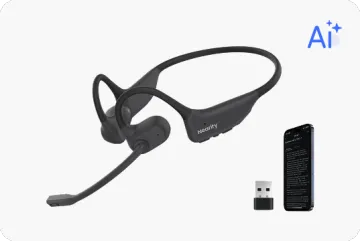
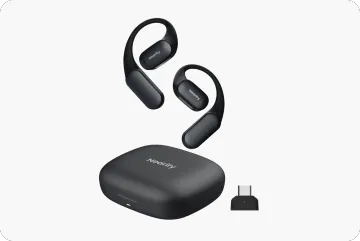
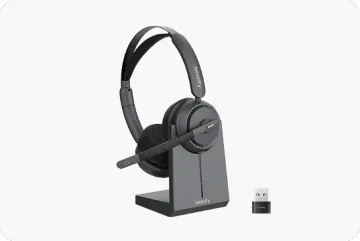
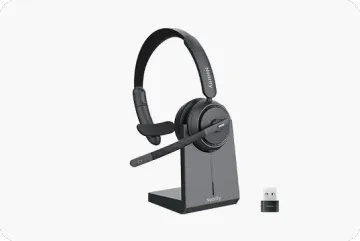
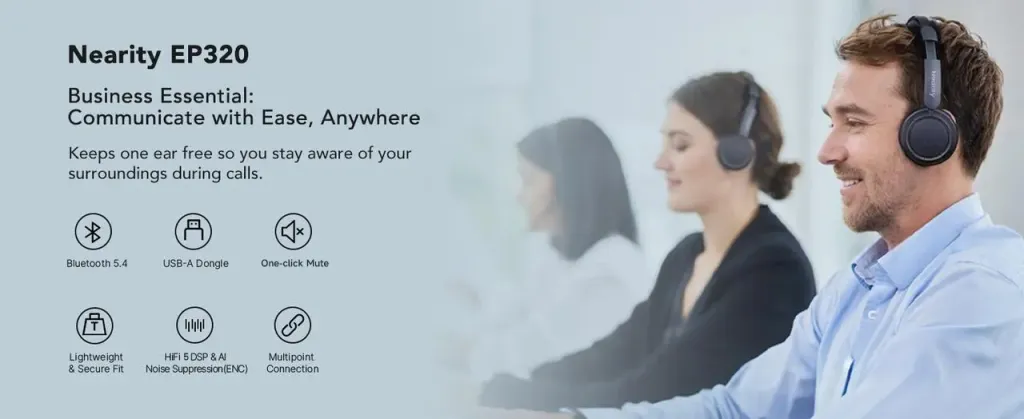
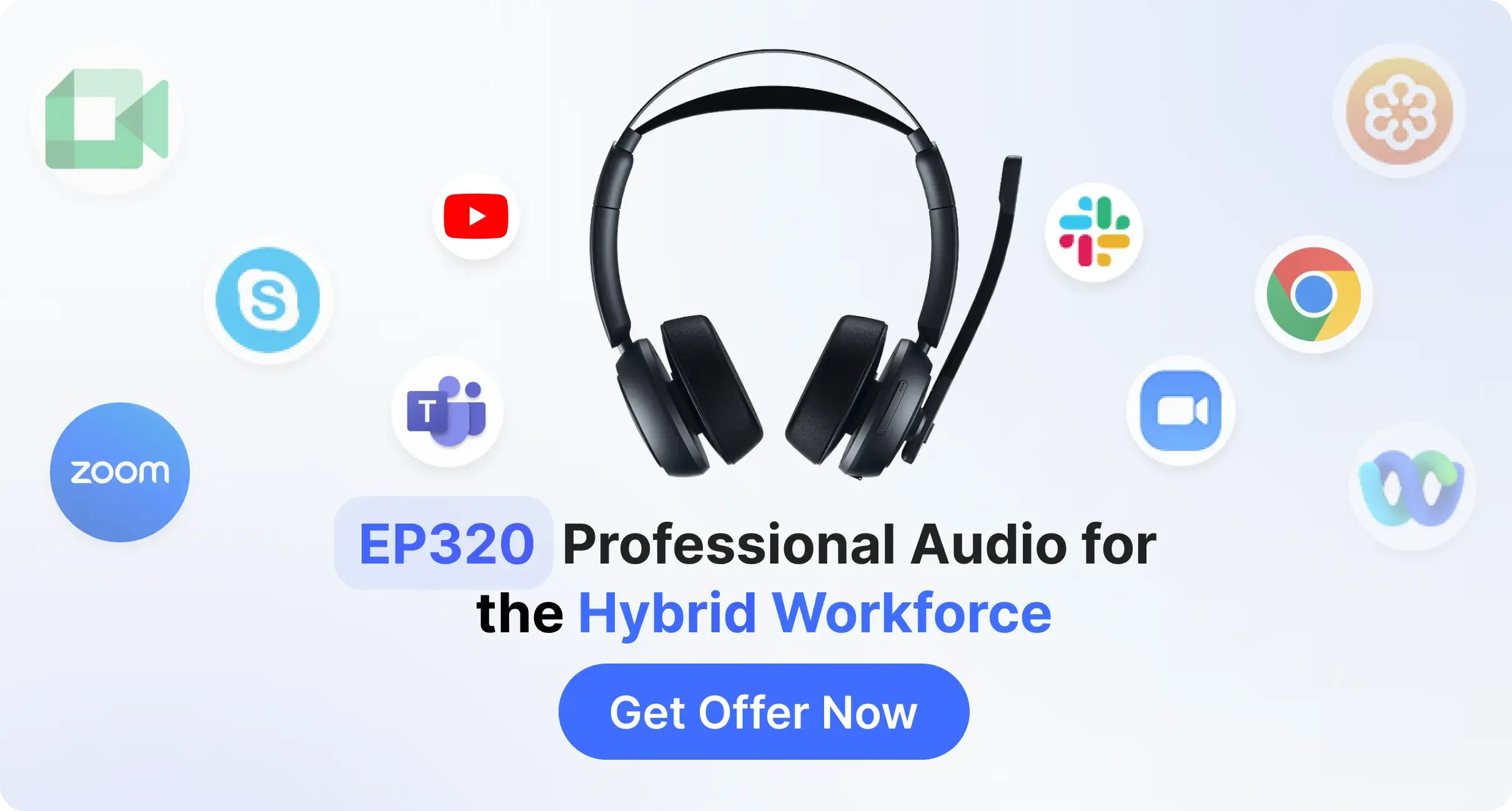
A notable example that combines these desirable features is the Nearity EP320 Wireless Headset. This professional wireless usb headset with microphone designed for hybrid work environments and delivers high-quality audio performance tailored to video conferencing and collaborative workflows.
Key Features and Benefits
- AI-Powered Noise Cancellation: The headset with mic for work uses advanced noise reduction technology powered by a HiFi5 DSP processor to reduce background sounds dramatically, helping ensure your voice is clear and understandable in every call.
- Multi-Device Connectivity: With Bluetooth 5.4 and a USB dongle included, it supports multi-point connections that let you switch effortlessly between devices—perfect for juggling a laptop and smartphone during meetings.
- Extended Battery Life: With up to 35 hours of continuous call time and up to 45 hours for audio playback, the headset easily lasts through multiple workdays without frequent recharging.
- All-Day Comfort: Soft ear cushions and ergonomic design make it comfortable to wear for extended periods, minimizing fatigue during back-to-back meetings.
- Versatile Compatibility: Works with mainstream conferencing platforms and across operating systems, including Windows, Mac, iOS, and Android.
This combination of features makes it a strong candidate for anyone who wants a professional audio solution without over-investing in enterprise hardware.
Best Practices: Video Conferencing Tips for More Effective Meetings
Even with the best equipment, how you use your tools matters significantly. Here are practical video conferencing tips that can elevate your online collaboration:
Test Your Audio Before the Meeting
Before joining a call, always check microphone levels and speaker output. This helps you catch issues early and avoid awkward moments once the meeting starts.
Find a Quiet Environment
Set up your workspace in a quieter area and minimize background disruptions. Even with noise cancellation, less ambient noise means cleaner audio and better focus.
Use Headsets Instead of Speakers
Laptop speakers introduce echoes and make it harder to control sound quality. Using a headset reduces these issues and improves clarity for everyone in the call.
Mute When Not Speaking
This simple habit reduces background distractions and keeps the conversation smooth, especially in larger group meetings.
Position Your Camera at Eye Level
Direct eye contact—simulated by having your camera at eye level—creates a more engaging and natural experience for other participants.
Keep Your Background Professional
A tidy, neutral background minimizes visual distractions and helps maintain a professional impression.
Arrive Early and Prepare
Joining early shows professionalism and gives you a few minutes to troubleshoot any last-minute technical issues.
These small habits, combined with the right hardware, significantly improve meeting quality and team interaction.
Conclusion|Upgrade Your Video Conferencing Experience
Video conferencing is now a core function of professional communication. High-quality audio should be a priority, not an afterthought. The right equipment—especially a purpose-built headset—can dramatically improve clarity, reduce meeting fatigue, and help you present yourself professionally.
By investing in capable hardware like the Nearity EP320 Wireless Headset and applying practical video conferencing tips, you can ensure that your online meetings are smooth, effective, and impactful.
Upgrading your setup doesn’t require an overhaul; focusing on a few key improvements—starting with audio—can make all the difference.
FAQs
Is a Headset Better Than a Standalone Microphone?
For most video conferencing needs, yes. A headset provides both audio input and output together, reducing echo and ensuring the microphone is always optimally positioned. Standalone microphones excel in studio settings but require additional equipment like speakers or headphones.
Can I use one headset for multiple devices?
Yes. Multi-point or Bluetooth-enabled headsets like the EP320 allow seamless switching between laptops, phones, and tablets, making it easier to manage meetings and calls across devices.
How do I maintain headset comfort during long meetings?
Choose headsets with adjustable headbands and cushioned ear cups. Take short breaks if you have multiple back-to-back meetings. The EP320 is designed for all-day wear with soft cushions and ergonomic support.
Are wireless headsets reliable for long video calls?
Modern wireless headsets with Bluetooth 5.x or USB dongles offer stable connections and long battery life. For example, the EP320 Wireless Headset provides up to 35 hours of call time, making it reliable for even extended meetings.




 sales@nearhub.us
