






Want to display your iPhone screen on a big Android TV? Whether you're streaming videos, giving presentations, or gaming on a larger display, screen mirroring bridges the gap between Apple and Android ecosystems. This guide covers 3 proven methods—from built-in AirPlay to third-party apps and wired solutions—complete with step-by-step instructions for Samsung, Sony, TCL, and other popular brands.
Want to Mirror Your iPhone to an Android TV Without Apple TV?
Let’s be real—sometimes, you just want to share your iPhone screen on a bigger display, whether it’s for streaming videos, gaming, or presenting slides. But what if you don’t have an Apple TV? No worries! There are several ways to mirror your iPhone to an Android TV without Apple TV—many of them free and easy to use.
In this guide, I’ll walk you through the best methods step by step. Whether you’re looking for how to mirror an iPhone on a TV without Apple TV for free or a more advanced setup, I’ve got you covered.
Quick Comparison: 3 Ways to Mirror iPhone to Android TV
| Method | Setup Time | Cost | Best For | Lag/Latency |
| Method 1: Screen Mirroring App | 2-3 minutes | Free | Casual streaming, photos | 0.2-0.5 seconds |
| Method 2: AirPlay Receiver App | 5-10 minutes | Free | Apple ecosystem users | 0.1-0.3 seconds |
| Method 3: Lightning to HDMI | 1 minute | $15-30 | Gaming, zero-lag needs | None (wired) |
Why Mirror Your iPhone to an Android TV?
Before we dive into the steps, let’s talk about why screen mirroring can be a game-changer:
- Bigger screen experience – Perfect for watching movies, gaming, or presentations.
- Wireless convenience – No need to pass your phone around.
- Share with family & friends – Easily showcase photos, videos, and apps.
- Enhanced learning & work – Use a large screen for tutorials, remote meetings, or studying.
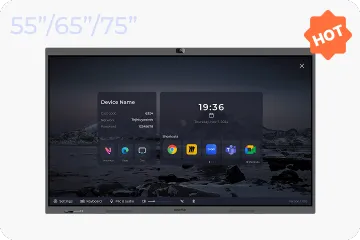
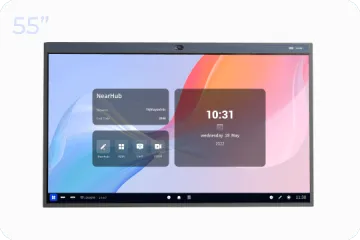
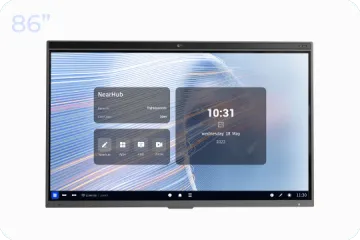
If you frequently need a reliable, high-quality screen-mirroring experience, consider using an interactive display like the shared electronic whiteboard. These smart boards make it easy to project content from multiple devices, enhancing collaboration and productivity.
Method 1: Screen Mirroring App (Quickest Setup)
The easiest way to mirror your iPhone to an Android TV is by using a dedicated screen mirroring app. These apps create a direct connection over your WiFi network—no cables, no complicated setup.
How It Works
Screen mirroring apps use your local WiFi network to transmit video and audio from your iPhone to your TV. The app on your TV acts as a receiver, while the companion app on your iPhone sends the screen data. Most apps support up to 1080p resolution with minimal compression artifacts.
Step-by-Step Setup
- Download a screen mirroring app on your Android TV (e.g., Screen Mirroring - TV Cast, AirScreen, or LetsView)
- Install the companion app on your iPhone from the App Store
- Ensure both devices are connected to the same WiFi network (5GHz recommended for smoother streaming)
- Open the TV app and note the device name or QR code displayed
- On your iPhone, open Control Center → Screen Mirroring → Select your TV from the list
- Enter the PIN if prompted, and your iPhone screen will appear on the TV
Best Free Apps to Try
| App Name | Platforms | Key Features |
| AirScreen | Android TV, Fire TV | Supports AirPlay, Google Cast, Miracast |
| LetsView | Android TV, iOS, PC | Free, no time limits, annotation tools |
| Screen Mirroring - TV Cast | Android TV only | Simple interface, quick connection |
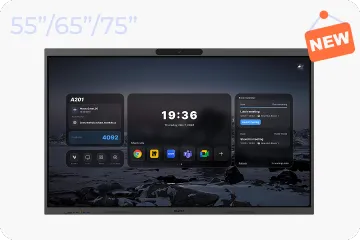
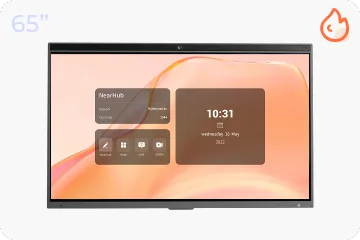
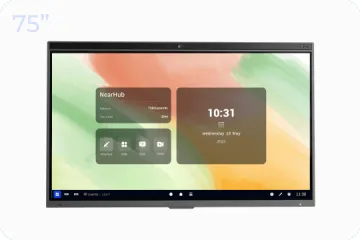
For professional or educational use, you can also mirror your iPhone onto a large interactive display like the 75 smart board, which offers seamless integration with multiple devices.
Method 2: AirPlay Receiver App (Best for Apple Users)
Even though AirPlay is an Apple-exclusive feature, some Android TVs support it via third-party apps.
Apps That Enable AirPlay on Android TV:
- AirScreen
- AirReceiver
- Mirroring360
How to Set Up AirPlay on Android TV:
- Download & Install AirScreen – Find it on the Google Play Store on your TV.
- Connect to Wi-Fi – Make sure both devices are on the same network.
- Open AirScreen & Start AirPlay Mode.
- On Your iPhone – Swipe down to open the Control Center, tap Screen Mirroring, and select your Android TV.
For a more stable and professional-grade experience, NearHub’s whiteboard canvas also allows wireless screen sharing, making it a great option for both work and school setups.
Method 3: Lightning to HDMI Adapter (Zero Lag)
For situations where WiFi is unreliable, or you need absolutely zero latency—such as gaming or professional presentations—a wired connection is unbeatable. Apple's official Lightning to HDMI adapter (or certified alternatives) provides a direct digital connection with no compression.
What You’ll Need:
- Lightning to HDMI Adapter (Apple or third-party)
- HDMI Cable
- Android TV with an HDMI Port
Steps to Connect via HDMI:
- Plug the Lightning Adapter into your iPhone.
- Connect an HDMI Cable to the Adapter.
- Plug the Other End into Your Android TV.
- Switch the TV Input to HDMI.
- Your iPhone Screen Should Appear Instantly!
This method is great because it offers a stable, high-quality connection without lag.
Pros and Cons
| Pros | Cons |
| Zero latency (perfect for gaming) | Requires physical cable |
| No WiFi dependency | Adapter costs $15-30 |
| Highest video quality (no compression) | iPhone must stay near TV |
| Charges iPhone while connected | Not convenient for casual use |
FAQs: Screen Mirroring iPhone to Android TV Without Apple TV
1. Is there a free way to mirror my iPhone to an Android TV?
Yes! Apps like LetsView and TV Assist allow free screen mirroring over Wi-Fi.
2. Do I need Wi-Fi to mirror my iPhone to my Android TV?
Some methods (like AirPlay or third-party apps) require Wi-Fi, but you can use an HDMI adapter for a direct, Wi-Fi-free connection.
3. Why is my screen mirroring lagging?
Lag can occur due to slow Wi-Fi, interference, or low-quality apps. Use a wired HDMI adapter for a lag-free experience.
4. Can I mirror my iPhone to an Android TV without downloading apps?
Yes! If your TV has built-in AirPlay support, you can mirror directly from the Control Center.
5. What’s the best method for gaming or movies?
For minimal lag, go with an HDMI adapter. For convenience, try AirPlay or a screen mirroring app.
Looking for a Better Way to Share Your Screen?
Screen mirroring between different devices can be frustrating—compatibility issues, lag, and constant reconnection headaches. If you're tired of workarounds and want a seamless, professional screen-sharing experience, it's time to consider a dedicated solution.
Why Teams Choose NearHub
- Universal compatibility—works with any device, any operating system
- Zero setup frustration—guests join instantly via browser, no app downloads
- Enterprise-grade security with end-to-end encryption
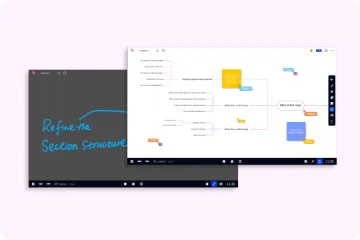
- Built for collaboration: annotations, whiteboarding, and multi-user sessions
Ready to upgrade your screen sharing? Explore NearHub Board solutions
Or schedule a personalized demo to see how NearHub transforms your meetings.
Final Thoughts: Choose the Best Method for You
Screen mirroring your iPhone to an Android TV without Apple TV isn’t as hard as it sounds! Depending on your needs, you can go wireless with apps, use AirPlay, or opt for a wired HDMI connection.
- For a quick and easy solution – Use a screen mirroring app.
- For high-quality streaming – Try AirPlay with an app like AirScreen.
- For zero lag & the best performance – Use an HDMI adapter.
Now, you can enjoy your favorite content on a bigger screen—without needing an Apple TV!
If you’re looking for an advanced interactive display for work, education, or presentations, check out our webcam whiteboard, which supports seamless screen mirroring and collaboration.
Want more tech guides? Stay tuned for more expert tips on screen sharing and digital collaboration!