Team Management on NearHub Canvas is a simple process that allows administrators to share responsibilities with other users. This feature is great for delegating tasks, ensuring smooth team collaboration, and freeing up time for other important tasks.
Here’ s a guide on how to manage your team on NearHub Canvas.
-
Transfer Team Authority
If you don't want to continue managing the team, you can transfer team authority.
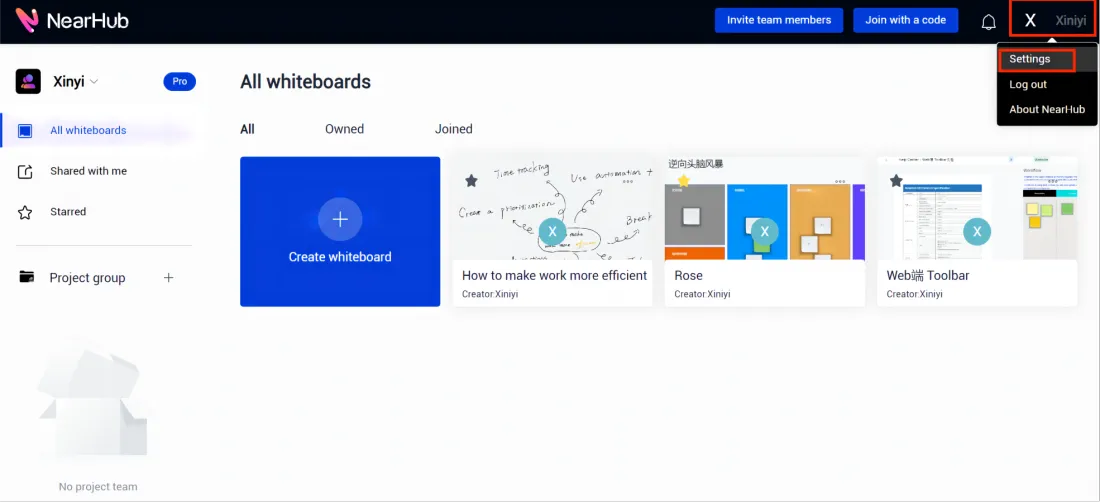
① Select the team to which you want to transfer management authority.
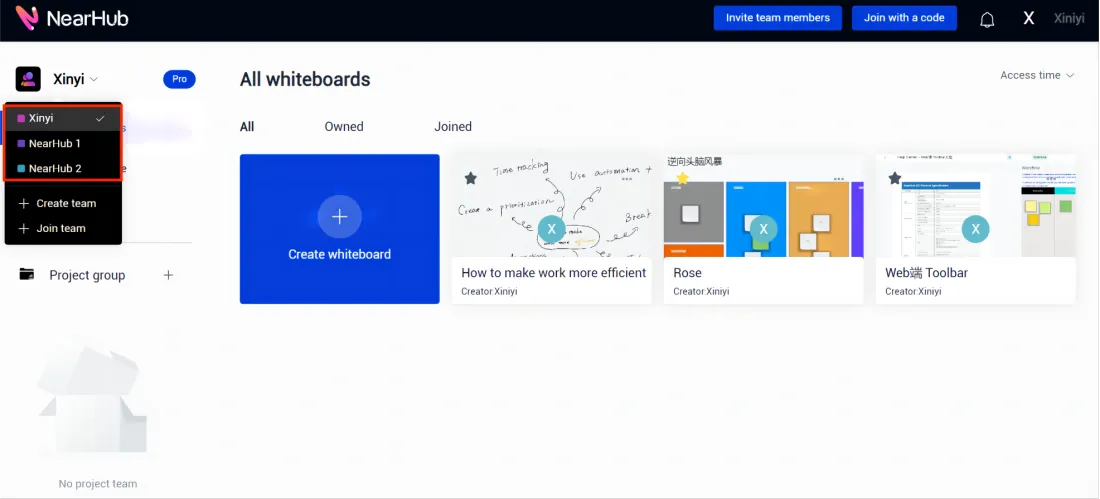
② Click on the nickname in the upper right corner of the home page and select "Settings".
③ Then select "Team members" under "Team profile".
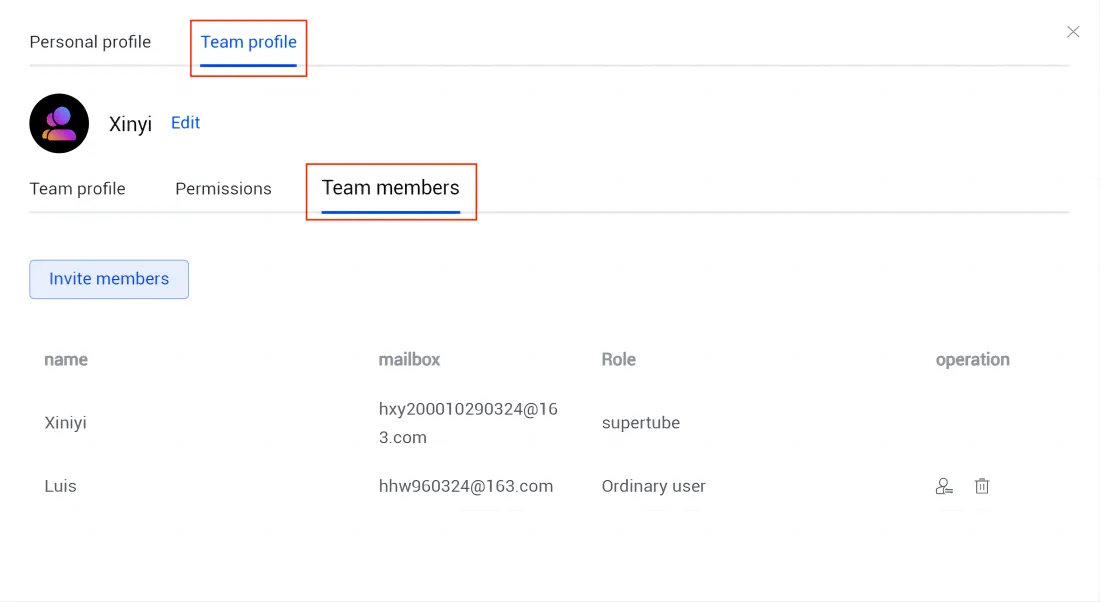
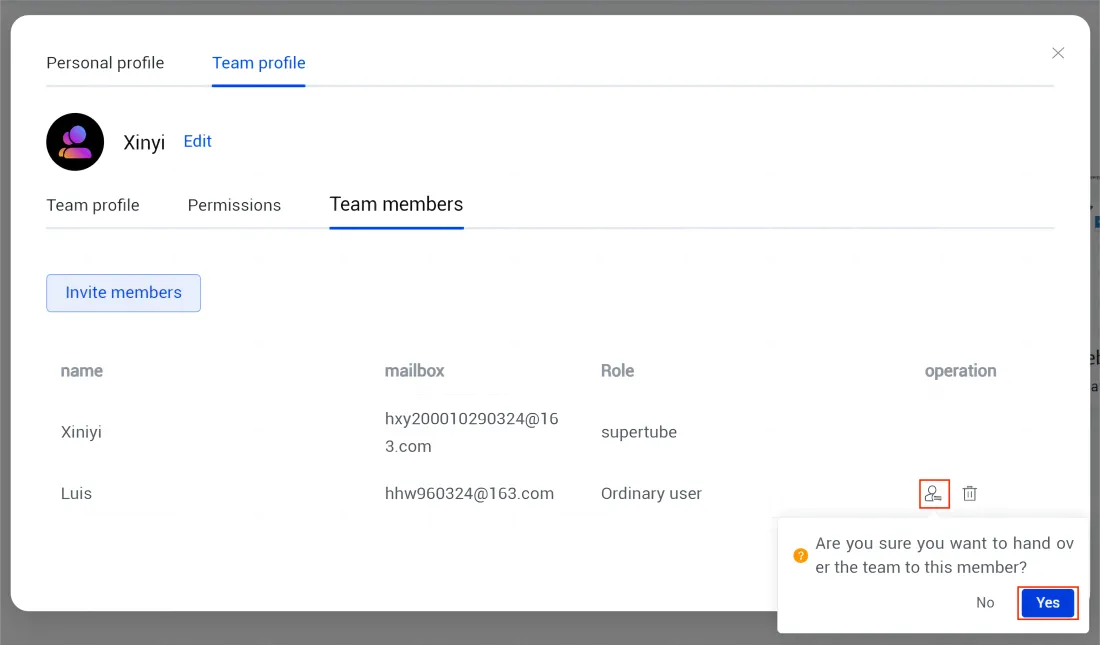
④ Click on the portrait logo under "operation" to choose the person you want to transfer team authority to.
-
Remove Team Members
The first three steps are the same as above.
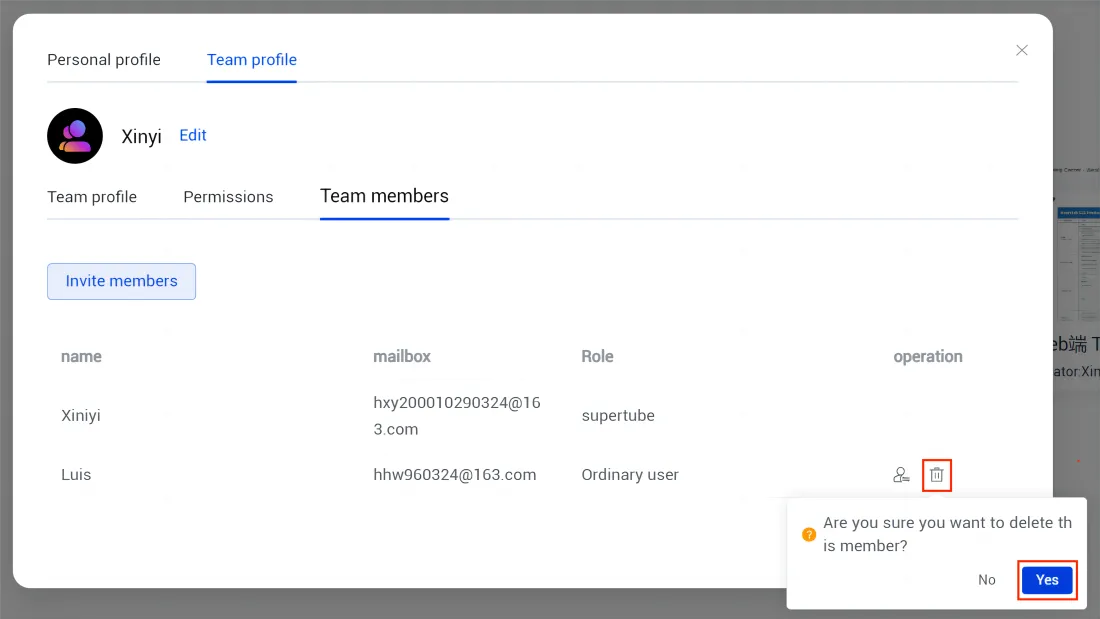
④ If you want to remove a member from the team, you can click deletion logo under "operation".
-
Leave the Team
The first two steps are the same as above.
③ Then select "Team Profile" under "Team profile".
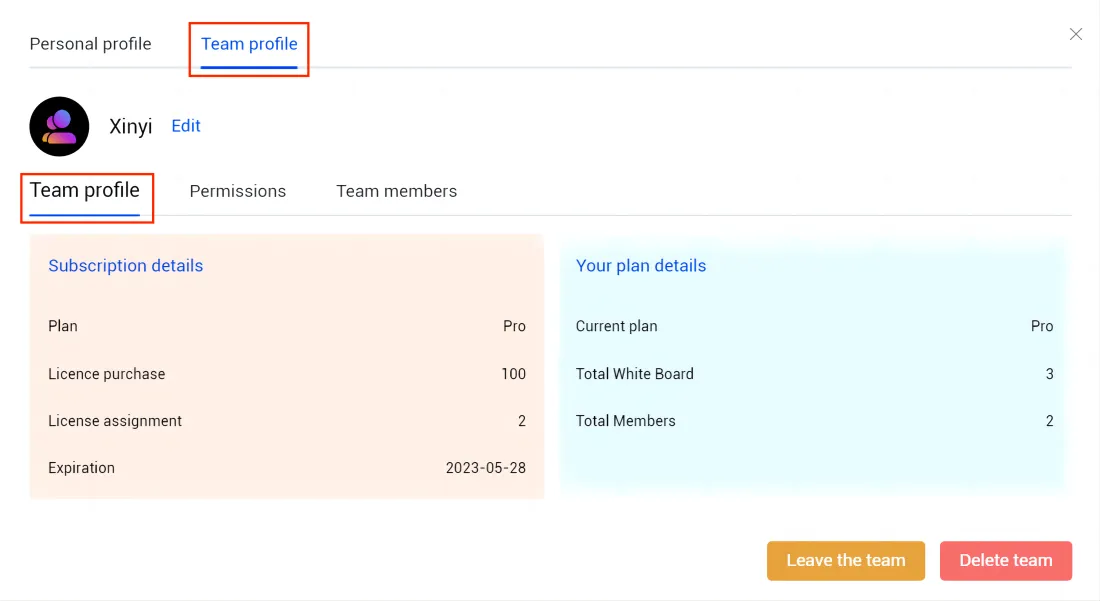
④ Click “Leave the team”.
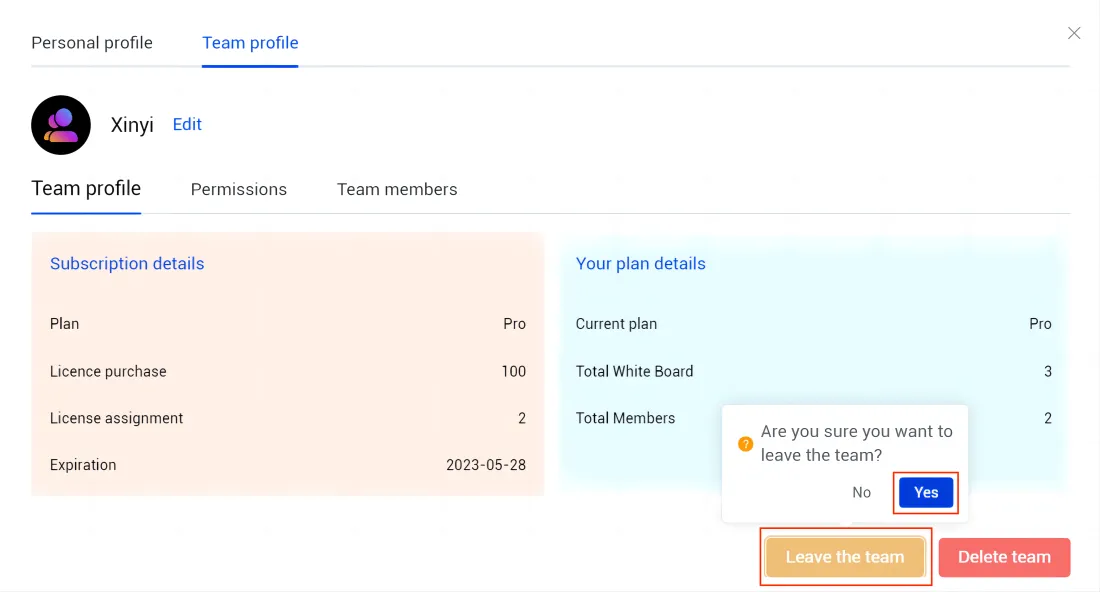
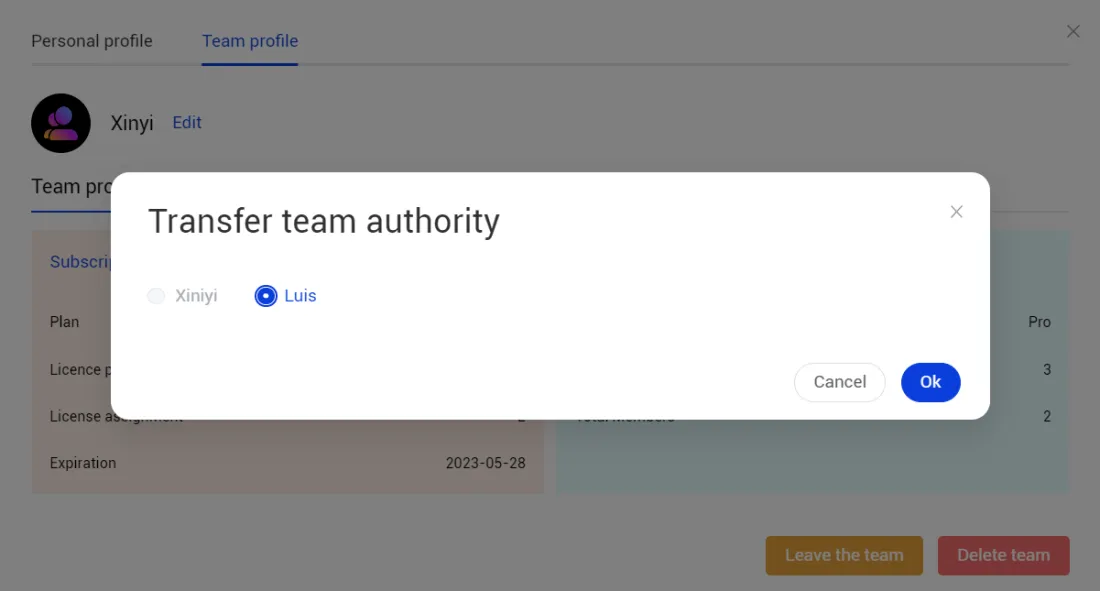
⑤ If you are a team administrator, you must then transfer authority before leaving the team. Choose the person you want to transfer team authority to and click “Ok”.
-
Delete the Team
The first three steps are the same as above.
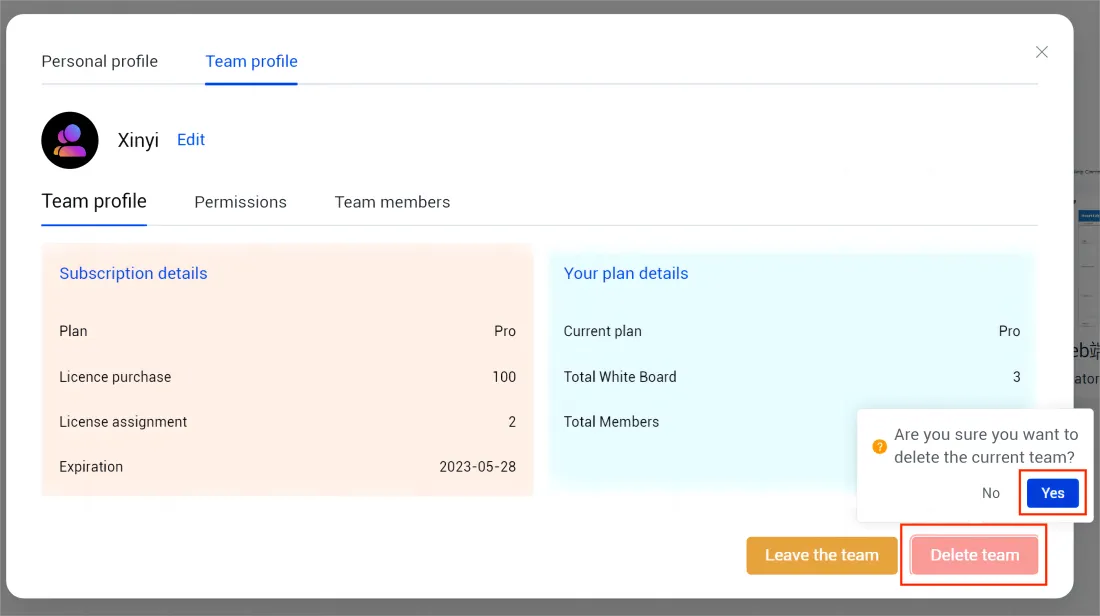
④ Click “Delete the team”.
-
Set Invitation Permissions
The first two steps are the same as above.
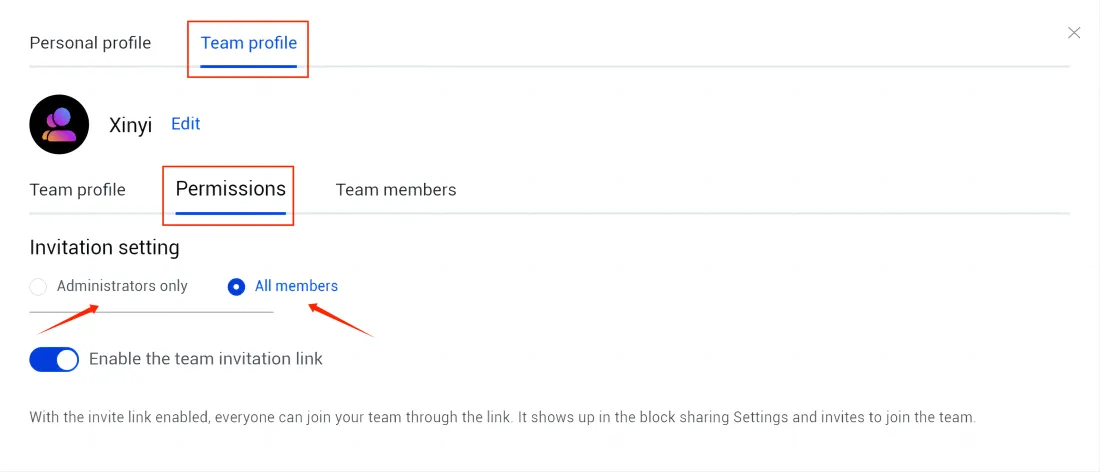
③ Then select "Permissions" under "Team profile".
④ You can set invitation permissions. Choose “Administrators only” or “All members”.
-
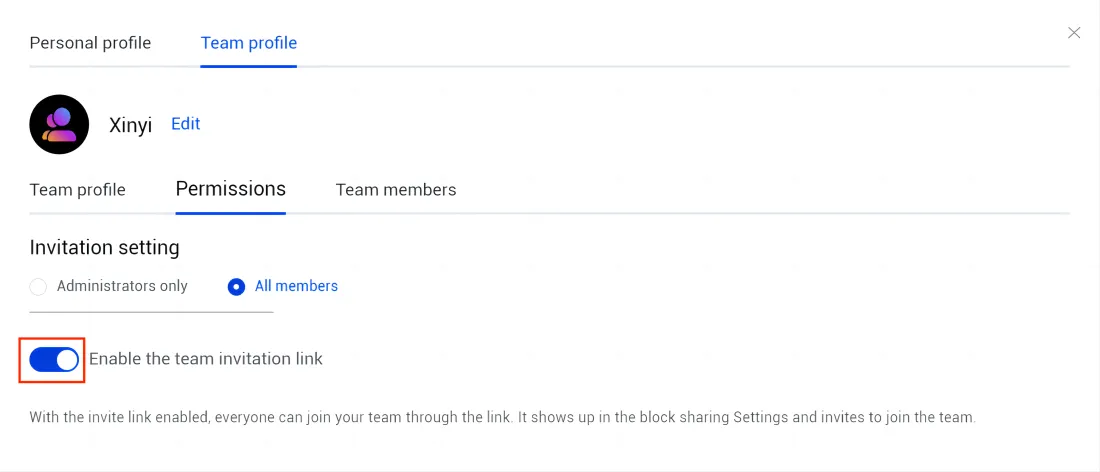
Enable the Team Invitation Link
The first three steps are the same as above.
④ Turn on “Enable the team invitation link” to make it.
If you don’t want to invite People by invitation link, you can just turn it off.
If you meet any problems in the process or have any further questions, please submit a support ticket here. Our support team will respond as soon as possible.