How to Clean Smart Board Screens Safely: 5 Common Mistakes to Avoid
This comprehensive guide teaches you how to safely clean smart board screens and interactive displays, crucial for protecting your investment and ensuring longevity.
how to clean a smart board screen
interactive whiteboard care
Updated: Nov 17, 2026 · 6 minutes read
Global Business, Brought Near.
No Installer, No Hassle, Just Works.
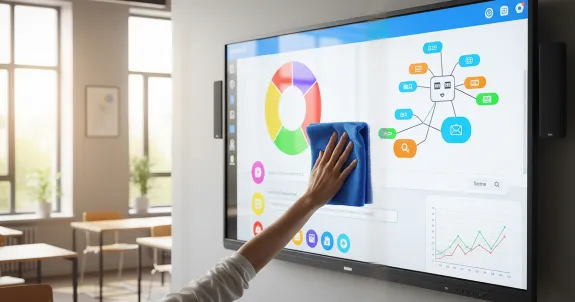
To clean a smart board screen, turn off and unplug the board, prepare a clean microfiber cloth, and use only a screen-safe cleaner permitted by the manufacturer. Apply a small amount to the cloth—not the screen—wipe gently, and wait until the surface is completely dry before reconnecting power.
Check your model’s care instructions before choosing a cleaner. A product approved for one interactive display may not be suitable for another. For NearHub Boards, the official care guide says not to use cleaners containing alcohol, ammonia or other harsh solvents.
This guide covers routine cleaning of large interactive smart board displays. Small smart displays, monitors and projector-based interactive whiteboards may have different care requirements.
Key Takeaways
Read the manufacturer’s instructions first. NearHub’s guide prohibits alcohol, ammonia and other harsh solvents.
Turn off and unplug before cleaning—Reconnect power only when the screen is completely dry.
Apply cleaner to the cloth, never directly to the screen. Keep moisture away from edges, ports and openings.
Use a clean microfiber cloth and light pressure. For NearHub Boards, wipe in one direction rather than circles.
Stop if a mark will not lift gently. Do not scrape, polish, or experiment with solvents; contact support for advice.
The Science of the Screen: Why Standard Cleaning Fails
Before we grab a rag, it is vital to understand what you are actually cleaning. A smart board is not just a glorified dry-erase board. It is a complex piece of electronic equipment comprised of several delicate layers.
1. The Anti-Glare Coating
Most high-quality interactive displays, including the smart electronic whiteboard from NearHub, feature a specialized etched glass surface or an anti-glare coating. This coating is designed to diffuse light so that users can see the screen clearly from any angle without reflection.
The Risk: Harsh chemicals like ammonia or bleach can strip this coating away. Once the coating is damaged, you will notice permanent "shiny" spots where the glare is unbearable, effectively ruining the viewing experience in that area.
2. The Infrared (IR) Touch Frame
Many smart boards use IR technology to detect touch. This involves a frame of invisible light beams crisscrossing the surface of the screen.
The Risk: Dust and debris are the enemies here. If you use a paper towel that leaves behind lint, or if you let dust accumulate in the corners, it can block these IR beams. The result? "Phantom touches" (where the mouse clicks itself) or dead zones where the board stops responding to your finger.
3. The Hydrophobic Layer
Some premium screens have an oleophobic (oil-repelling) layer to reduce fingerprints.
The Risk: Alcohol-based cleaners with high concentrations (above 70%) or abrasive scrubbing pads can wear this layer down over time, making the screen a magnet for oils and grease.
Understanding these components explains why the method matters. You aren't just cleaning glass; you are maintaining a precision instrument.
What Should You Use to Clean a Smart Board?
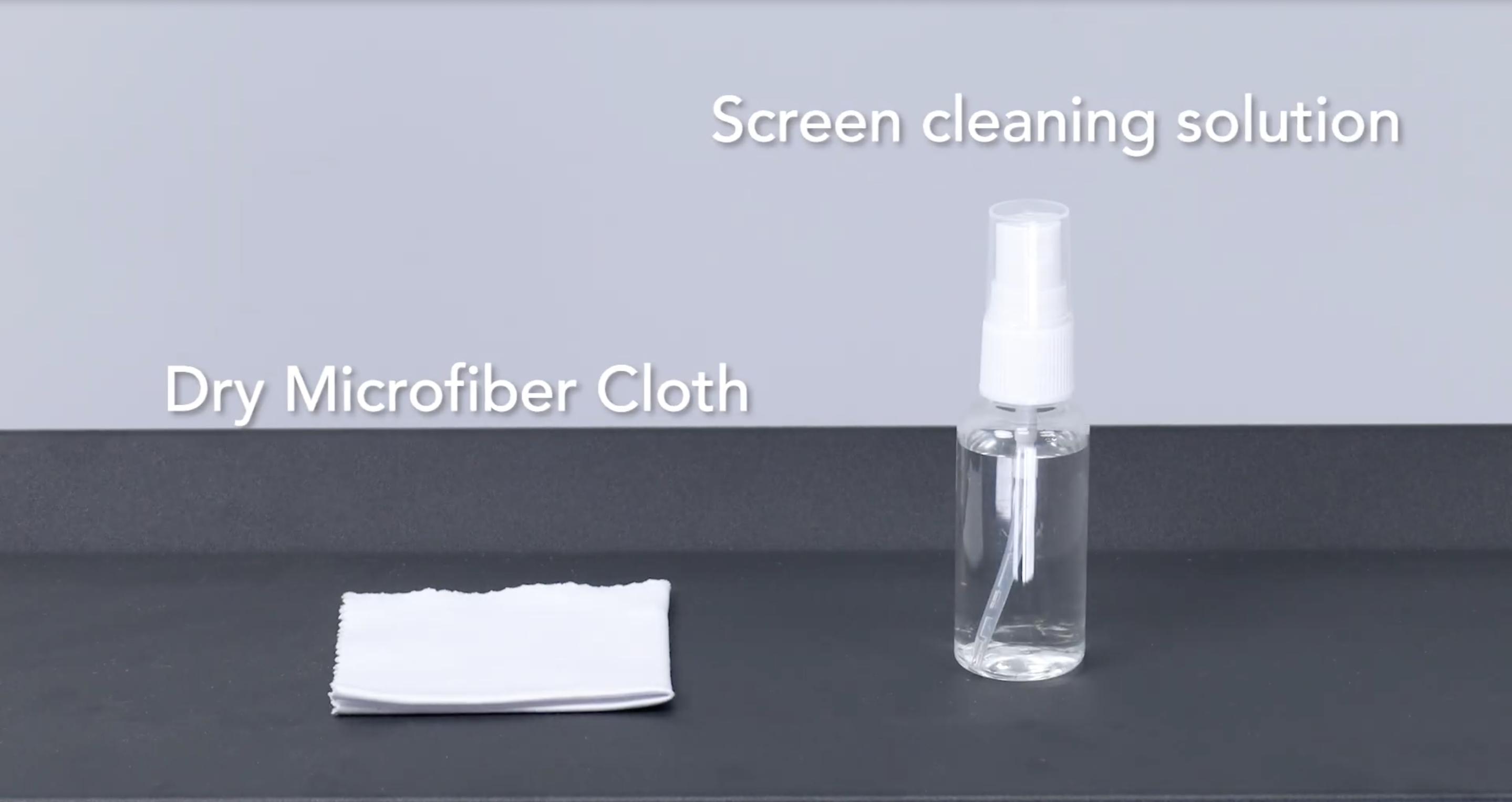
A Soft, Clean Microfiber Cloth
Prepare a soft, dry microfiber cloth dedicated to the display. Check that it contains no grit or residue from cleaning desks, floors, or other equipment.
Do not use paper towels, abrasive pads, or rough fabrics on a NearHub Board. Fold or change the cloth when its cleaning surface becomes dirty.
A Cleaner Approved for Your Display
Choose a screen-safe product that meets the board manufacturer’s instructions. A label such as “glass cleaner,” “electronics cleaner” or “disinfecting wipe” does not establish compatibility with every screen.
For NearHub Boards, check both requirements: the cleaner must be screen-safe, and it must not contain alcohol, ammonia or other harsh solvents. An alcohol-free label alone is not enough to establish that a product is suitable.
If the ingredients or suitability are unclear, ask support before applying it. Do not make an alcohol mixture or substitute dry-erase board cleaner.
The "Green Light" List (Safe to Use)
These items should be in every classroom or conference room that houses a smart writing board.
Microfiber Cloths: This is non-negotiable. Microfiber traps dust rather than spreading it. It is soft enough not to scratch the coating but effective enough to lift oils.
70% Isopropyl Alcohol (IPA): This is the industry standard for disinfecting electronics, aligning with CDC guidelines for electronics and major tech manufacturer recommendations. It dries quickly and cuts through grease without damaging sensitive coatings.
Distilled Water: If you don't need to disinfect, distilled water is the safest solvent. Tap water often contains minerals (calcium/lime) that can leave white streaks or deposits on the screen.
Spray Bottle (Mist Setting): You need a bottle that creates a fine mist, not a jet stream.
Soft Bristle Brush: Useful for dusting the corners and the bezel where the IR sensors live.
The "Red Light" List (Never Use)
Ban these items from your cleaning cart immediately.
Item
Why It’s Dangerous
Potential Damage
Paper Towels / Tissues
Made of wood pulp; abrasive on a microscopic level.
Micro-scratches that cloud the screen over time. Leaves lint that blocks sensors.
Ammonia (Windex)
Highly alkaline.
Strips anti-glare coatings; causes yellowing of plastics.
Bleach / Clorox Wipes
Corrosive.
Can damage the protective layers of the screen and discolor the bezel.
Acetone
Solvent used in nail polish remover.
Can melt plastic bezels and instantly destroy screen coatings.
Tap Water
Contains minerals.
Leaves hard water spots that are difficult to remove without scrubbing.
Shut down the board and unplug the power cord before cleaning. Do not treat standby mode or a blank screen as a substitute for disconnecting power.
Keep cleaning materials away from connected equipment and power outlets.
Step 2: Prepare a Clean, Dry Microfiber Cloth
Inspect the cloth before touching the screen. If there is loose surface dust, lift it gently without pressing or dragging visible grit across the glass.
Do not scrape debris with a fingernail, card or tool. If material will not lift with gentle wiping, stop and seek advice.
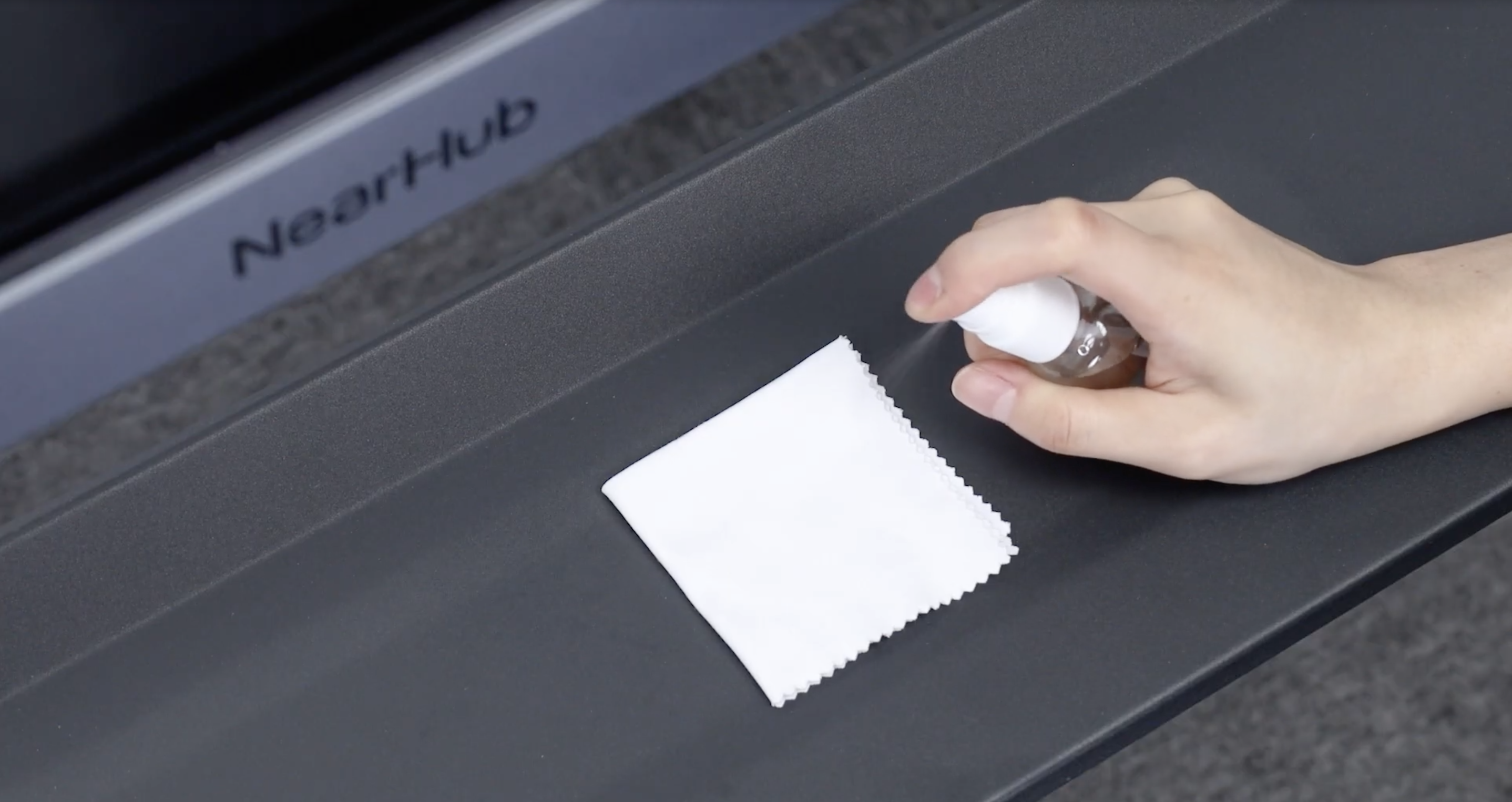
Step 3: Apply a Small Amount of Approved Cleaner to the Cloth
Apply the cleaner to the cloth, not directly to the display. Use a small amount; the cloth should not drip or release liquid when pressed.
Keep cleaner away from screen edges, frame openings, ports and ventilation areas. Do not use alcohol, ammonia or harsh solvents on a NearHub Board.
Step 4: Wipe Gently in One Direction
For NearHub Boards, wipe in one direction—for example, from top to bottom. Do not press hard or wipe in circles.
Move to a clean section of the cloth as needed. If fingerprints remain, check the cloth and cleaning product rather than increasing pressure or switching to a stronger chemical.
Step 5: Let the Screen Dry Completely
Wait until the screen is completely dry before reconnecting the power cord. Do not rely on a fixed number of minutes: the amount of moisture and room conditions vary.
Once the board is dry, reconnect it and check normal operation. If you suspect liquid entered the unit, leave it disconnected and contact support before powering it on.
Watch the Visual Guide
For a quick visual demonstration of these safety protocols, watch this helpful video from NearHub:
Can You Use Alcohol, Windex or Disinfecting Wipes?
Alcohol and Homemade IPA Mixtures
Do not use alcohol on a NearHub Board screen. The official support guide prohibits cleaners containing alcohol; it does not approve 70% IPA, 99% IPA or a homemade diluted mixture.
For a different brand, consult the exact model’s instructions. Advice for a phone, laptop or another interactive display is not approval for your board.
Windex and Household Glass Cleaners
Do not assume a household glass cleaner is safe because the display has a glass surface. Product formulations vary, and the screen may have treatment or coating requirements that differ from ordinary window glass.
For NearHub Boards, avoid ammonia and other prohibited ingredients. Choose a suitable screen-safe cleaner rather than relying on a household brand name.
Clorox and Other Disinfecting Wipes
Do not assume all wipes from one brand have the same formulation. Check the specific product against your board’s care instructions.
If compatibility is not established, do not use it on the screen. For NearHub Boards, a product containing alcohol, ammonia or harsh solvents does not meet the published care instructions.
Cleaning and disinfecting are different tasks. Removing fingerprints is not proof of disinfection. In schools or shared offices that require disinfection, have the facilities team confirm a method compatible with both the display manufacturer’s instructions and the disinfectant’s labeled use requirements. Do not keep the screen wet or apply more liquid to meet a contact time without an approved procedure.
5 Common Smart Board Cleaning Mistakes
1. Spraying Directly onto the Screen
Direct spraying makes it harder to control where liquid goes. Apply a small amount to the cloth and keep it away from openings and edges.
2. Using a Cleaner Approved for a Different Surface
A cleaner suitable for a desk, window or traditional dry-erase board may not be suitable for an interactive display. Check the device instructions and the cleaner’s ingredients.
3. Pressing Harder to Remove a Mark
More pressure is not the next step when gentle wiping fails. Do not scrub, scrape or use polishing compounds to remove scratches or stubborn residue.
4. Reusing a Dirty Cloth
A cloth used elsewhere may carry grit, grease or cleaning chemicals. Keep display cloths separate from general cleaning supplies.
5. Reconnecting Power Before the Board Is Dry
Do not reconnect simply because a timer has ended. Confirm the screen is completely dry, and seek support if liquid may have entered the unit.
Hygiene in Shared Spaces: Why Cleaning Matters More Now
In the post-pandemic era, the cleanliness of shared touch surfaces is under scrutiny. A smart board is a "high-touch" surface.
The Classroom Context
According to various health studies, school desktops and shared electronics can harbor more bacteria than restroom surfaces if left uncleaned. Research by NSF International highlights that electronics in schools are among the top germiest items, necessitating stricter cleaning protocols.
Touch Transmission: In a classroom, 30 students might touch the board in a single period.
The Solution: Teachers should keep a spray bottle of 70% Isopropyl Alcohol (kept out of reach of children) and a clean cloth. A quick "reset" wipe between periods helps reduce the viral load on the surface.
The Corporate Context
In meeting rooms, the specialized stylus is often the vector for germs.
Protocol: Don't just clean the screen; wipe down the pens and the remote controls.
NearHub Advantage: NearHub boards are designed with smooth, edge-to-edge glass that makes sanitization easier compared to older boards with deep bezels that trap bacteria.
Fingerprints, Sticky Residue and Accidental Marker Ink
Fingerprints and Smudges
Use the approved cleaner and gentle wiping procedure above. If a haze remains, check whether the cloth is dirty or the cleaner is leaving residue. Do not repeatedly add cleaner or scrub the same area.
Tape Residue and Marker Ink
Do not scrape adhesive, apply nail-polish remover or use undiluted alcohol. For NearHub Boards, these would conflict with the published instructions or introduce an unapproved solvent.
Do not automatically use the dry-erase-marker-over-permanent-marker trick on an electronic display. Ask the manufacturer for a method appropriate to the screen and the substance involved.
Scratches or Persistent Discoloration
Cleaning cannot repair a physical scratch. Avoid vigorous polishing, abrasive compounds or continued rubbing of a mark that does not change.
Take a clear photo and contact support so the next step can be based on the actual condition.
Frequently Asked Questions
What is the safest way to clean a smart board screen?
Follow the manufacturer’s care instructions. For NearHub Boards, turn off and unplug the board, use a soft microfiber cloth with a small amount of screen-safe cleaner applied to the cloth, wipe gently in one direction, and wait until completely dry before reconnecting power. Avoid alcohol, ammonia and harsh solvents.
Can I use 70% alcohol on a NearHub Board?
No. NearHub’s official care guide says not to use cleaning products containing alcohol. This includes 70% IPA and homemade alcohol mixtures. Follow the instructions for your exact model when cleaning a different brand.
Can I use Windex or Clorox wipes on a smart board?
Do not assume they are compatible. Check the specific formulation and the display manufacturer’s instructions. NearHub Boards require a suitable screen-safe cleaner without alcohol, ammonia or harsh solvents.
How often should a classroom smart board be cleaned?
Inspect it regularly and clean when visible dirt, fingerprints or residue require attention. Follow the school’s approved cleaning procedure and the manufacturer’s instructions. Disinfection requires a separately confirmed compatible method.
Can I remove permanent marker with a dry-erase marker?
Do not assume this method is suitable for an electronic display. Contact the manufacturer for instructions before applying another marker or solvent. NearHub’s published care guide does not authorize this removal method.
Why is the screen still streaky after cleaning?
A dirty cloth, unsuitable cleaner or excess product may leave visible residue. Stop adding chemicals or increasing pressure. Check the care instructions and contact support if the streaks remain.
Keep the Care Instructions with the Board
A reliable routine starts with the correct cleaner, a clean cloth and clear instructions. For NearHub Boards, use the official cleaning and care guide as your reference and share it with anyone responsible for the room.
If you are unsure about a cleaning product, stubborn mark or spill, contact NearHub Support before trying a different chemical or technique.