Digital Whiteboard vs Interactive Display: Which One Does Your Team Actually Need?
A buyer-focused breakdown of what separates a digital whiteboard from an interactive display, and how to pick the right one for your room.
digital whiteboard
interactive whiteboard
interactive display
Updated: Aug 20, 2026 · 8 minutes read
Global Business, Brought Near.
No Installer, No Hassle, Just Works.
Digital whiteboard and interactive display are often sold as the same product, but they solve different problems: one replaces a marker board, the other replaces an entire meeting room's hardware stack. Match the choice to whether your room needs writing surface or a full collaboration hub, and evaluate total cost over 3-5 years, not sticker price.
Key Takeaways
If a room only needs annotation and brainstorming without video calls, a lighter digital whiteboard avoids paying for conferencing hardware nobody uses.
If a room hosts hybrid meetings weekly, an interactive display with a native OS and built-in camera/mic typically costs less over 3 years than a whiteboard plus separate video bar.
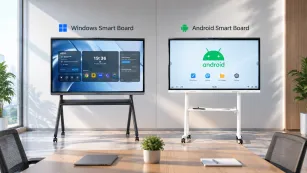
The 'non-intuitive' cost driver isn't the screen — it's software lock-in: Android-based boards that cannot run full desktop apps (Zoom, Teams, CRM, CAD) force a second device into the room anyway.
For rooms under 150 sq ft, 55-inch is usually sufficient; rooms over 300 sq ft need 75-inch or larger, or the back row can't read the screen.
Total cost of ownership favors the all-in-one display once a room hosts more than roughly 3 hybrid meetings per week — below that, a simpler board can still make sense.
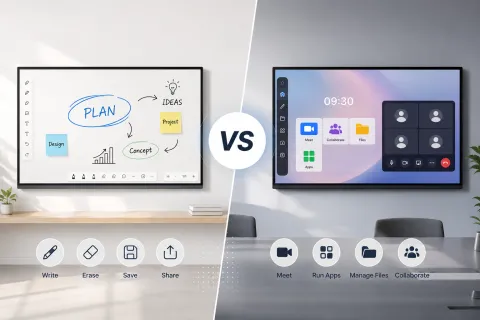
A digital whiteboard and an interactive display are not automatically the same product, even though most vendors use the terms interchangeably. A digital whiteboard is, at its core, a writing surface that has gone digital — the emphasis is on capturing ink. An interactive display (also called an interactive flat panel) is a full computer built into a large touchscreen, designed to run software, host video calls, and replace an entire room's hardware stack. If your team just needs to brainstorm and save notes, you want the first. If your room needs to run meetings, presentations, and daily software, you want the second.
What Is a Digital Whiteboard?
A digital whiteboard is a touch-enabled surface built primarily to capture and digitize handwriting, sketches, and notes — the digital equivalent of a marker board. Its core job is ink: writing, erasing, saving, and sharing pages, usually with basic file export and cloud sync layered on top.
Most digital whiteboards trace their design lineage to classroom projector-and-panel setups from the 2000s, where a projected image was made interactive by adding a touch-sensitive overlay. The pain point they solved was simple: teachers and presenters wanted to write on a screen the way they wrote on paper, without erasing valuable content by accident. That's still the strongest use case for a whiteboard-first device — a session where the primary output is the notes themselves, not a video call or a software demo.
The most common misunderstanding: buyers assume "digital whiteboard" means the device is lightweight and cheap, and "interactive display" means it's expensive and complex. In reality, both terms now describe products spanning the same price range — the real differentiator is what's running underneath the glass, not the label on the box.
What Is an Interactive Display or Interactive Flat Panel?
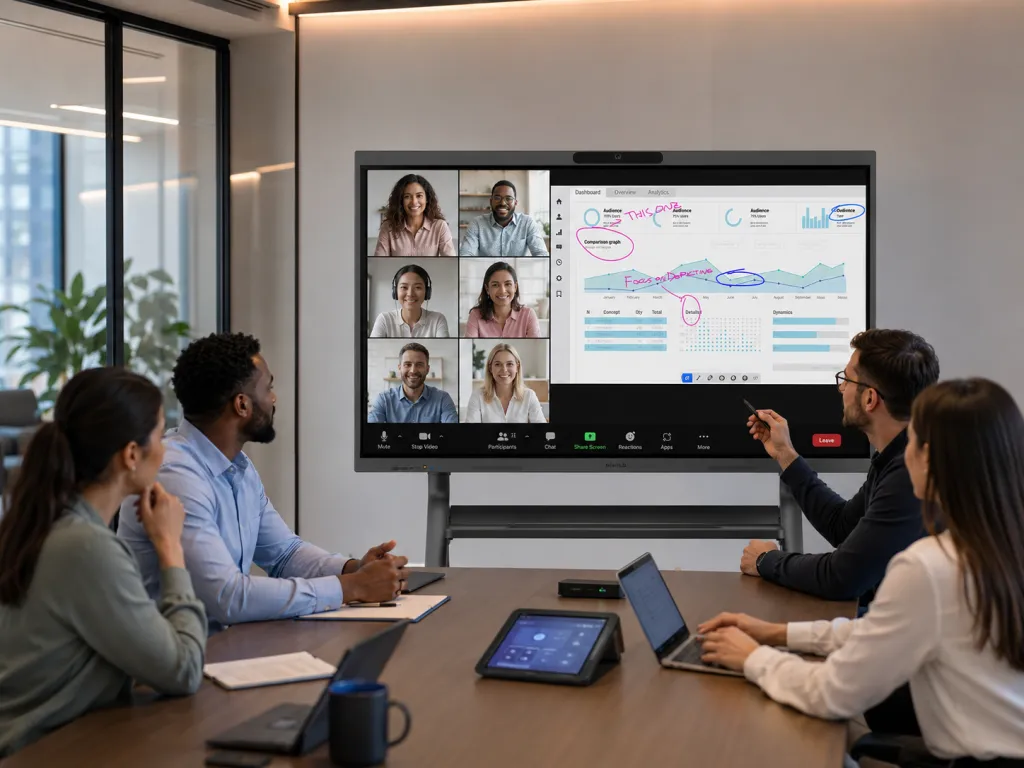
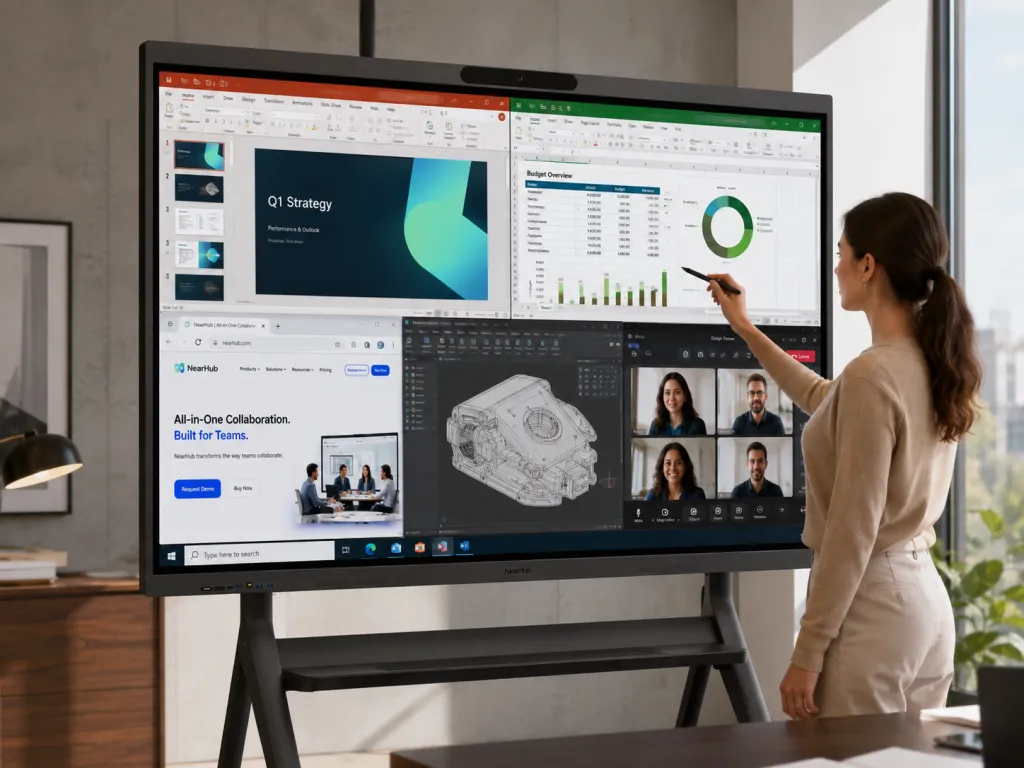
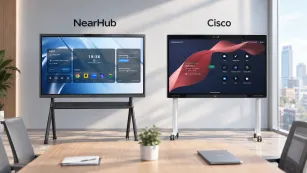
An interactive display is a large touchscreen with a full computer built in — not just a surface that captures ink, but a device capable of running an operating system, native software, video conferencing, and file management, the same way a laptop does. NearHub Board Max is one example: it runs Windows 11 Pro on a 12th Gen Intel Core i5 processor, with a built-in 4K camera, 8-microphone array, and native support for Zoom, Microsoft Teams, Google Meet, and Webex, so a meeting starts from the same platform a remote participant would recognize — no separate laptop or video bar required.
This is the category most conference rooms actually need today, because meetings rarely stay in "just writing" mode. A planning session that starts with a whiteboard sketch usually pivots to pulling up a spreadsheet, dialing in a remote teammate, or reviewing a shared document — and a pure whiteboard device can't do any of that on its own.
Feature-by-Feature Comparison
The two categories genuinely differ across several dimensions — but the dimension that determines your total cost isn't screen quality. It's software compatibility.
Dimension
Digital Whiteboard (writing-first)
Interactive Display (compute-first)
Who It Matters For
Primary job
Capture and save ink/notes
Run software, host meetings, display content
Depends on how the room is actually used
Operating system
Often Android or a proprietary lightweight OS
Frequently Windows, sometimes Android/Windows hybrid
IT teams standardizing device management
Built-in video conferencing
Rare or app-limited
Native camera, mic array, and platform apps (on compute-first models)
Any hybrid meeting room
App compatibility
Limited to bundled whiteboard/browser apps
Runs full desktop software (Office, CRM, CAD, browser-based tools)
Teams that need more than sketching
Enterprise device management
Uncommon
Available on Windows-based models (e.g., Microsoft Intune)
Multi-room deployments, IT-managed fleets
Typical starting price
Lower for basic writing-only units
Higher, but replaces multiple separate devices
Budget owners comparing sticker price vs total spend
The non-obvious dimension here is software lock-in. Two boards can look identical on a showroom floor — same screen size, same touch response — and still lead to very different outcomes six months later. A board running a locked-down or Android-based OS often can't run the full desktop version of Zoom, a CRM dashboard, or CAD software; teams discover this only after purchase, when someone has to plug in a laptop anyway. At that point, the "all-in-one" device has quietly become a second monitor, and the room ends up with the exact cable clutter it was bought to eliminate.
When to Choose a Whiteboard vs an Interactive Display
Rather than comparing specs in the abstract, run your room through this three-step framework:
Step 1 — What does the room actually do in a typical week? If the primary activity is sketching, sticky-note-style brainstorming, or teaching a concept with diagrams, and video calls are rare or handled elsewhere, a writing-first digital whiteboard is enough. If the room hosts client calls, cross-office standups, or software demos more than a couple of times a week, you need compute-first capability.
Step 2 — Does the team already carry a laptop into the room? If yes, and that's acceptable long-term, a simpler whiteboard paired with screen-casting can work. If the goal is to remove that step — "walk in and the meeting just starts" — you need a display with native OS and conferencing apps, not a screen that depends on an external device.
Step 3 — Who manages the hardware, and how many rooms are there? A single room can tolerate a bit of manual upkeep. Five or more rooms cannot — inconsistent devices become a support burden. At that scale, prioritize a platform with centralized device management (Intune, SSO via Azure AD/Okta) over any other single spec.
One exception worth naming: a boardroom used almost exclusively for formal presentations to clients, where touch interaction happens rarely, may still be better served by a high-quality non-touch large-format display paired with a separate conferencing camera — paying for full interactivity in a room that never uses it is money spent on a feature nobody touches.
Pricing & Total Cost of Ownership
Sticker price is the wrong number to compare on its own. The right number is the 3-year cost of the room, including every device the "cheaper" option quietly requires later.
A basic writing-only board with limited software support often needs a separate compute stick or laptop, an external speakerphone once video calls become common, and possibly a wireless presentation dongle — each purchased after the fact, each adding its own point of failure. An all-in-one interactive display consolidates those into one purchase and one support relationship.
As a concrete reference point, NearHub Board Max starts at $3,499 for the 55-inch model, with financing available from $128/month, and includes the camera, 8-microphone array, speakers, wall mount, and Windows 11 Pro licensing that would otherwise be purchased as separate line items. Every NearHub Board purchase also carries a 12-month warranty and a 30-day return window, which matters when comparing against vendors that price hardware and support separately.
The math that actually predicts outcomes: rooms hosting three or more hybrid meetings per week generally recover the price gap of an all-in-one display within the first year, once you account for the separate camera, speaker, and cabling a whiteboard-only setup would otherwise need. Rooms that rarely run video calls may never close that gap — for them, a simpler board remains the more rational purchase.
Top Recommendations by Use Case
Daily hybrid meeting rooms (boardrooms, team rooms): prioritize an interactive display with native video conferencing — see our breakdown of conference room TVs and large-format displays sized by room type for how to match screen size to seating.
Rooms replacing a projector setup entirely: the maintenance math (lamps, focus drift, dimming) tends to favor a flat panel — our guide to why organizations are moving away from meeting room projectors walks through the transition cost.
Rooms that want camera, mic, speaker, and display in a single unit rather than assembling separate components: see how all-in-one conference systems combine displays, cameras, and audio and where that consolidation does and doesn't pay off.
Rooms that just need a place to sketch, with no conferencing need: a lighter writing-first whiteboard is a legitimate, lower-cost choice — don't pay for compute capability the room won't use.
For a closer look at how an all-in-one Windows-based board fits a hybrid meeting room specifically, the NearHub Board Max product page covers current sizing options and specifications.
Frequently Asked Questions
Is a digital whiteboard the same thing as an interactive display? Not always. Vendors use the terms interchangeably in marketing, but technically a digital whiteboard emphasizes the writing surface, while an interactive display or interactive flat panel is a full computer built into a large touchscreen. Before buying, ask what operating system runs the unit and whether it needs an external device to run meeting software — that answer tells you which category you're actually looking at.
Can a digital whiteboard replace a conference room TV and a video conferencing camera? Only if it's a true all-in-one interactive display with a built-in camera, microphone array, and a full desktop OS. A basic digital whiteboard with a locked-down or Android-based interface often cannot run desktop conferencing apps at full functionality, which means teams end up adding a separate camera and compute stick anyway — defeating the point of consolidation.
How much bigger should the screen be than what we currently use? Size to the room, not to habit. As a starting point, 55-inch fits huddle and small rooms up to roughly 150 sq ft, 65-inch fits 150-250 sq ft, and 75-inch or larger suits rooms over 300 sq ft or U-shaped layouts. If people in the back row squint or lean forward to read text, the display is undersized for the room.
Does an interactive display need IT support to manage across multiple rooms? It depends on the OS. Windows-based interactive displays that support enterprise device management (such as Microsoft Intune) let IT push updates, enforce sign-in policies, and monitor a fleet of rooms the same way they manage laptops. Boards without enterprise management support usually require someone to walk to each room to update or troubleshoot them individually.
Is it worth paying more for a Windows-based interactive display instead of an Android board? For rooms that run real meeting software — Zoom, Teams, Google Meet, or industry apps like CAD or CRM tools — yes. Windows-based displays run the full desktop version of these apps, while Android boards often run cut-down mobile versions with missing features. For a whiteboard used purely for brainstorming with no software needs, the OS matters far less.