How to Edit a PDF in Word (2025 Guide for Windows & Mac)
This 2025 guide explains how to easily edit PDFs in Microsoft Word for both Windows and Mac.
how to edit a pdf
Updated: Aug 19, 2026 · 8 minutes read
Global Business, Brought Near.
No Installer, No Hassle, Just Works.
Editing PDFs is no longer a headache with the right tools. In this guide, you'll learn how to edit a PDF in Microsoft Word on both Windows and Mac, how to unlock uneditable PDFs, and how to modify signed PDFs without breaking the signature. We also explore free options like Preview and Google Docs, and professional alternatives like Adobe Acrobat. With practical tips and simple solutions, you’ll be able to handle all your PDF edits with ease.
"Can I really edit a PDF in Microsoft Word? What if I'm on a Mac? And how do I unlock a PDF that's not editable?"
If you've ever asked yourself any of those questions—trust me, you're not alone. PDFs are everywhere, from contracts and invoices to school forms and marketing materials. But editing them? That’s where the headache begins. Whether you're trying to fix a typo in a client proposal, update a price sheet, or edit a signed PDF, it can feel like you hit a wall.
In this ultimate guide, I’ll walk you through exactly how to edit a PDF in Word, how to do it on Mac, how to deal with locked or uneditable PDFs, and even what to do if you need to edit a signed PDF. I’ll keep the language simple, use real-life examples, and make sure you're never left guessing.
1. Can You Really Edit a PDF in Word? (Yes, and Here's How)
Word as a PDF Editor: What You Need to Know
Starting with Microsoft Word 2013, you can open and edit PDFs directly in Word. It’s not perfect, but for basic text edits, it works surprisingly well.
Step-by-Step: How to Edit a PDF in Word
Open Microsoft Word.
Go to File > Open and select the PDF you want to edit.
Word will convert the PDF into an editable Word document.
Make your edits.
Save it as a Word doc or export it back to PDF.
⚠️ Note: The formatting might shift, especially if the PDF has lots of images or unusual fonts.
2. How Can I Edit a PDF on Mac? (Multiple Options, No Stress)
Preview: Your Mac's Built-In Hero
You don’t need to buy expensive software to edit PDFs on a Mac.
Open your PDF in Preview.
Use the Markup toolbar to add text, draw, or highlight.
For basic form-filling or comments, this works great.
Using Word on Mac to Edit PDFs
If you're more comfortable in Word:
Open Microsoft Word (Mac version).
Drag your PDF into Word.
Let Word convert it into a doc format.
Edit as usual.
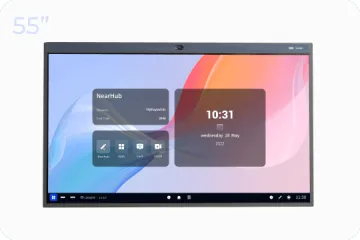
💡 Tip: Want a smoother experience editing on a large screen? Try a 75 smart board to make multitasking easier.
3. How to Edit an Uneditable PDF (Unlock Your PDF!)
Why Some PDFs Are Locked
They’re password protected
They were scanned images with no text layer
They were created with restricted permissions
Fix #1: Use Word for OCR
If your PDF is scanned, Word might automatically run OCR (Optical Character Recognition) to turn it into editable text.
Fix #2: Use Google Docs
Upload your PDF to Google Drive
Right-click > Open with Google Docs
It converts to editable format
Fix #3: Unlock with Online Tools
Some online tools can remove editing restrictions. Use with caution, especially with sensitive data.
🔐 Respect copyright and privacy laws when unlocking any document.
4. Edit a Signed PDF (Without Breaking the Signature)
Is It Legal to Edit a Signed PDF?
Depends. If the signature is digital and verified, any change may void the signature.
Workarounds:
Add comments or a new page with updates
Use Adobe Acrobat to place an additional signature block
Revert to the unsigned original if allowed
Microsoft Word Solution:
Open signed PDF in Word
Word may remove signature blocks when converting (make sure you have permission!)
Edit content, then resign digitally or print and sign again
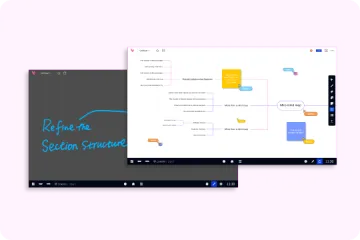
📸 Pro Tip: If you’re explaining revisions over a call, try using a whiteboard canvas for visual walkthroughs in real time.
5. Formatting Tips When Editing PDFs in Word
Use standard fonts (Arial, Times New Roman) to avoid conversion errors
Keep images anchored as "in line with text"
Use tables instead of multiple text boxes for layout control
6. When Word Isn't Enough: Other PDF Editing Tools
Adobe Acrobat (Paid)
The gold standard for PDF editing—but it’s pricey.
Online PDF Editors
SmallPDF
PDFescape
ILovePDF
These tools are good for quick edits like:
Adding signatures
Merging pages
Filling out forms
7. Save and Export Options After Editing
Once you’re done editing in Word:
Save as .docx for future changes
Export as PDF (File > Save As > PDF)
Double-check formatting post-export
FAQs: Editing PDFs in Word
Can I edit a PDF in Word without losing formatting?
Not always. Text-heavy PDFs convert best. Complex layouts may shift.
Is Word better than Adobe for editing PDFs?
For basic edits—yes. For advanced layouts or signatures—Adobe wins.
Can I edit a scanned PDF in Word?
Yes, if Word detects the image and runs OCR.
How can I edit a PDF on Mac for free?
Use Preview for basic edits or Word/Google Docs for more control.
Can I undo PDF edits in Word?
If you saved a .docx version—yes. Once exported to PDF, undo is limited.
Final Thoughts: Don't Let PDFs Stress You Out
PDFs may seem like unbreakable walls, but with the right tools (and a bit of know-how), you can make almost any change you need. Whether you're on Windows or Mac, editing a PDF in Word can save you time and money—and give you a lot more flexibility than you'd expect.
And if you're working remotely or need better tools for explaining, teaching, or presenting changes? Check out the full lineup of NearHub's smart boards and interactive canvas tools—they’ll make PDF collaboration feel like a breeze.
Got a tricky PDF situation? Drop a comment or send a message—I'm here to help!