








































Ever found yourself in a situation where you needed to talk to two people at once? Maybe you’re a professional needing to connect a client with a colleague for a quick question. We’ve all been there—fumbling with our phones, trying to figure out the right buttons to press, and hoping we don’t accidentally hang up on someone.
The good news? It’s a lot easier than you think, especially on an iPhone. It’s a simple, everyday tool that can make your life a whole lot simpler. I’m here to walk you through exactly how it works, what to watch out for, and how to master the art of the 3-way call.
Why Even Bother with a 3-Way Call?
Before we get into the "how-to," let's talk about the "why." You might be thinking, "I'll just use a conference call app or a group chat." And that's totally fine for some situations. But for quick, spontaneous conversations, a 3-way call is unbeatable.
- Speed: You don’t need to send invites, create a room, or wait for everyone to log in. You just dial.
- Simplicity: No special apps or software are required. It's built right into your iPhone.
- Clarity: You can hear the tone of voice and get real-time feedback, which is crucial for important conversations.
- Convenience: Whether you're on the go, or in the car, you can start a 3-way call with just a few taps. It's the ultimate in mobile communication.
So, if you’re ready to ditch the confusion and embrace a simple, powerful communication tool, let's dive into the details.
How to Do a 3-Way Call on iPhone: The Step-by-Step Guide
This is the main event. Let's break down the process into easy, digestible steps. You'll be a pro in no time. I’ll even throw in some pro tips to make sure everything goes smoothly.
- Call the first person and wait until they answer.
- Tap Add Call and dial the second person.
- Once the second call connects, tap Merge Calls.
- Now you’re on a three-way call!
- Repeat the process to add more participants (if your carrier supports it).
This works on most iPhone models, whether you’re using an iPhone 15, iPhone 16, or later. There’s no need to install extra apps or subscribe to services—just tap and merge.
Troubleshooting Common Issues
Even with a simple process, things can sometimes go wrong. Here are a few common hiccups and how to solve them:
- The "Add Call" button is grayed out: This usually means your carrier doesn't support 3-way calling, or you're on a plan that doesn't include it. Check with your provider if you run into this issue.
- The "Merge Calls" button doesn’t appear: Make sure the second person has actually answered the phone.
- Accidentally hung up on someone: You can always redial the person who was disconnected and merge them back into the call. The conference call will stay active with the remaining person.
- Poor audio quality: Try moving to a different location or using Wi-Fi calling if available.
Alternative Options for Seamless Group Communication
While the traditional 3-way call is great for quick conversations, sometimes you need something more robust. Your iPhone has you covered there, too, and there are a ton of great apps out there that can take your group communication to the next level.
FaceTime: The Apple-Native Solution
If everyone in your group has an Apple device, FaceTime is a fantastic alternative to a standard conference call. It’s built right into your iPhone, and you can have a group call with up to 32 people!
- Video and Audio: You have the option for a Group FaceTime video call, where you can see everyone in a grid.
- Easy to Start: You can start a group FaceTime call directly from a group iMessage conversation, which is super convenient.
- Live Photos and Effects: Add a little fun to your calls with Live Photos and other effects. It's a great way to make group chats feel more personal.
Third-Party Apps for Versatile Communication
For situations where not everyone is an iPhone user or you need more professional features, a third-party app is the way to go. There's a wide world of options out there, each with its own strengths.
- Zoom: It's great for both personal and professional use, with features like screen sharing, chat, and recording. The free tier is generous, making it perfect for smaller groups and meetings.
- Google Meet: It integrates seamlessly with Google Calendar and other Workspace apps. It’s known for its reliability and security, which is a major plus for business calls.
- Microsoft Teams: If your workplace uses Microsoft 365, Teams is the natural choice. It's an all-in-one platform for messaging, video calls, and document collaboration, keeping all your work in one place.
- WhatsApp, Messenger, and Signal: For more casual group chats, these messaging apps offer group audio and video calls. They’re a breeze to use and are likely already on everyone’s phones
Choosing the right tool for the job is key. While the 3-way call is an excellent and immediate solution, knowing these other options exist means you're prepared for any kind of group conversation, big or small.
| Option | Best For | Required Setup | Max Participants |
|---|---|---|---|
| 3 Way Call (iPhone Phone App) | Quick & direct chats | iPhone & carrier support | ~5 (varies by carrier) |
| FaceTime Audio | Apple ecosystem users | iOS devices only | 32+ |
| Messaging Apps | Cross-platform users | Internet + app download | 32+ |
The Right Gear: Hardware to Enhance Your 3-Way Call Experience
The beauty of a 3-way call is its simplicity—all you really need is your iPhone. But for anyone who's ever been on a conference call in a noisy coffee shop, a busy office, or even a home with a lot going on, the quality of your audio can make or break a conversation. That's where the right hardware comes in.
Using the right equipment can dramatically improve your call clarity and overall experience. Investing in a good headset isn’t just a nice-to-have; it's a game-changer for professionalism and productivity.
Why a Headset is Your Best Friend
A good headset for making a three-way call on iPhone offers a few key benefits that you just can't get with the phone's built-in speaker and mic:
- Noise Cancellation: High-quality headsets often have advanced noise-canceling microphones. This ensures the people on the other end hear you, and only you, loud and clear.
- Audio Clarity: Headsets are engineered for better sound quality. You'll hear every word the other people say without any tinny sound or static.
- Hands-Free Freedom: A headset gives you the freedom to move around, take notes, or use your computer while you talk. This simple convenience can significantly boost your productivity.
- Comfort: If you’re on back-to-back calls, a comfortable, lightweight headset is essential. Nobody wants to hold a phone to their ear for an hour straight.
Top Hardware Options to Consider
When you're looking for a headset to use with your iPhone, you have a few different styles and features to choose from.
- Wireless Bluetooth Headsets: These are perfect for flexibility. They connect to your iPhone via Bluetooth, giving you the freedom to walk around your office or home while staying on the call.
- Wired USB Headsets: While they might not offer the same freedom of movement, wired headsets provide a stable, reliable connection and never run out of battery during a call. They’re a great choice for a fixed office setup.
- Noise-Canceling Headphones: Many modern headphones offer excellent noise cancellation for both listening and speaking. They are great if you're in a shared workspace and want to block out distractions.
No matter which option you choose, just remember that the goal is to make your 3-way call as seamless and professional as possible.
MemPod Pro 2s: A Top-Tier Solution for Professionals
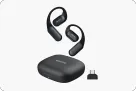
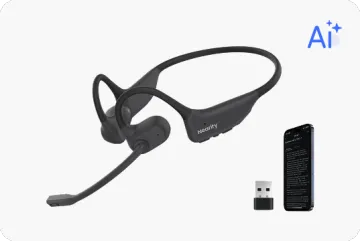
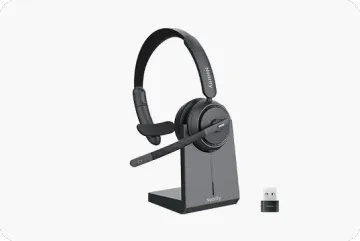
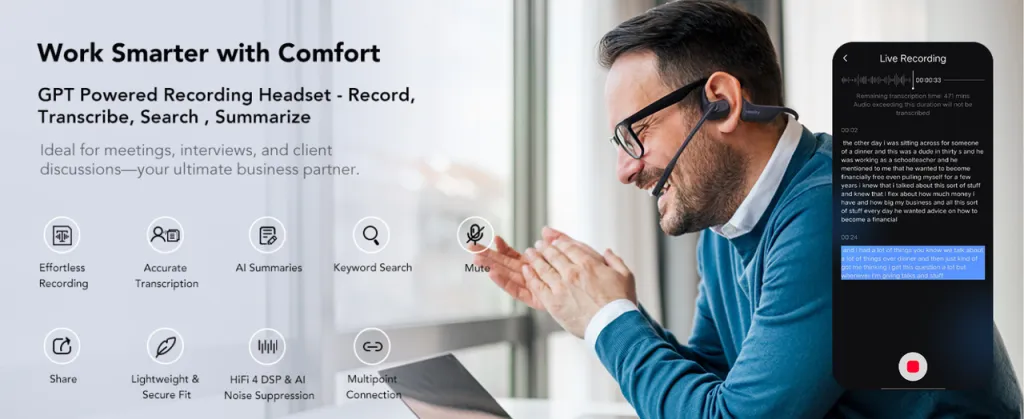
When you're looking for a headset to use with your iPhone, MemPod Pro 2s really shines. It's a wireless office headset that goes beyond basic audio quality, offering a suite of features tailored for professionals.
- Dual ENC Microphones: Ensures your voice is clear and backgr
- ound noise is suppressed.Open-Ear Design: Allows you to stay aware of your surroundings while on a call.
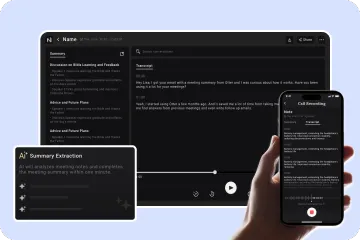
- AI-Powered Functionality: With a simple button press, you can record calls and meetings.
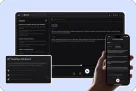
- Transcription and Summaries: The accompanying app provides high-accuracy transcriptions and AI-generated summaries of your conversations.
- Battery Life: Offers up to 12 hours of talk time, perfect for all-day use.
FAQs about 3 Way Call on iPhone
Can I merge more than three people into a call?
Yes! You can add up to five people to a single conference call on an iPhone. The process is the same—just keep tapping "Add Call" and then "Merge Calls" until everyone is in.
Does a 3-way call cost extra?
No, in most cases, it doesn't. A 3-way call is billed as two separate calls. So, if your phone plan has unlimited minutes, it won't cost you anything extra.
Can I use this feature with Wi-Fi Calling?
Yes, you can. If you have Wi-Fi Calling enabled, you can still create and manage conference calls. This is especially useful in areas with poor cellular reception.
Is there a difference between a 3-way call on an iPhone and an Android?
AWhile the functionality is similar, the process and button labels might be slightly different. On an iPhone, the buttons are typically "Add Call" and "Merge Calls," while on an Android, they might be labeled something similar, like "Add Person" and "Merge." The core concept, however, is the same.
3 Way Call iPhone: Conclusion
Making a 3-way call on your iPhone is a simple, powerful feature that can save you time and make communication more efficient. Whether you're a professional coordinating with clients and colleagues, a parent trying to arrange a ride, or a friend planning a get-together, this feature is a real-life saver.
So go ahead, give it a try. The next time you need to talk to two people, don’t overthink it. Just grab your iPhone, tap a few buttons, and start connecting. You’ll be surprised at how much easier it makes things.






 sales@nearhub.us
