- View products

Windows OS (2nd Gen)
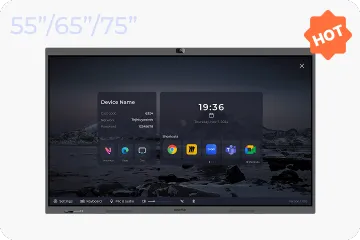
NearHub Board Max
Windows OS
NearHub Board S Pro
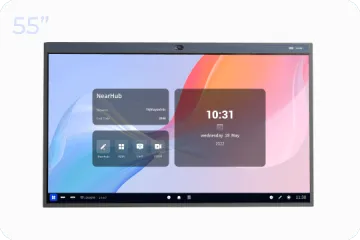
For Huddle Rooms
NearHub Board S55
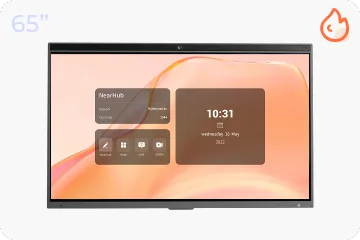
For Medium Rooms
NearHub Board S65
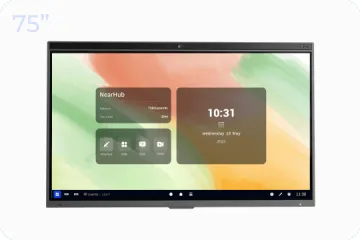
For Large Rooms
NearHub Board S75
For Broad Rooms
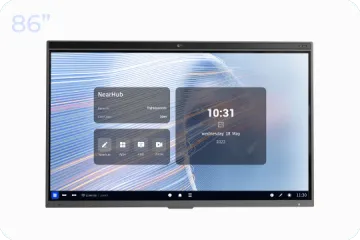
NearHub Board S86
Smart Digital Photo Frame with Air Quality Monitor
NearHub Frames 10
USB Drawing Tablet
NearHub MagicPad ST1160
Real-time Online Whiteboard
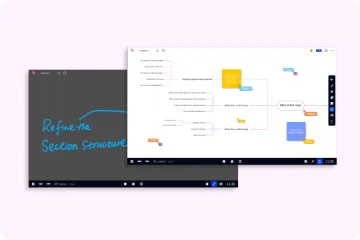
NearHub Canvas
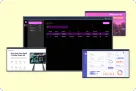
Digital Signage and Batch Management
NearRooms
- View products
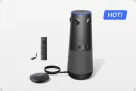
True 4K 360° All-in-1 Camera for Hybrid Meetings
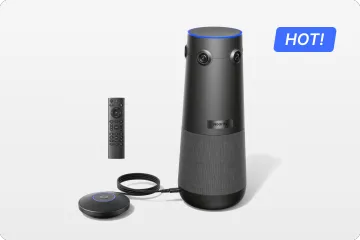
Nearity 360 Alien

True 4K 120° All-in-1 Camera for Team Collaboration
Nearity 120 Max

Professional Audio&Pioneering Daisy-Chain
Nearity A20S
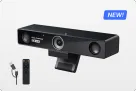
4K UHD 120° Webcam for Hybrid Meeting
Nearity V30S
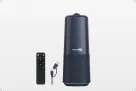
360° All-in-one Camera for Pro Group Chat
Nearity 360 Basic
All-in-one Camera for Group Meeting
Nearity C45
Powerful PTZ Camera with 10x Hybrid Zoom
Nearity V410
Firmware Updater and Device Controller
NearSync
- View products
- Meeting Room
- Meeting Scenario
- Whiteboard
In workplace we usually need to view the content from our computer on our whiteboard screen. This article offers concrete steps for you to use screen mirroring of NearHub Board.
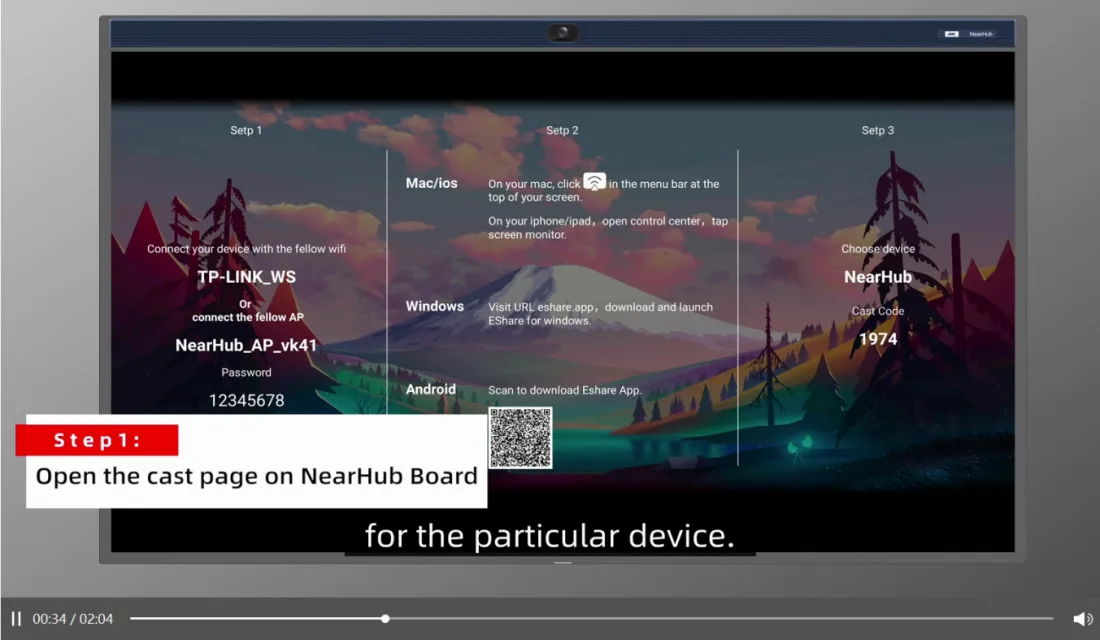
Step 1 Open the cast page on NearHub Board
EShare is a third party screen mirroring software which is free to use. And it is also a good option if you want to share your screen without Airplay or Chromecast. You can open the home page of your NearHub Board and click the "cast" here.
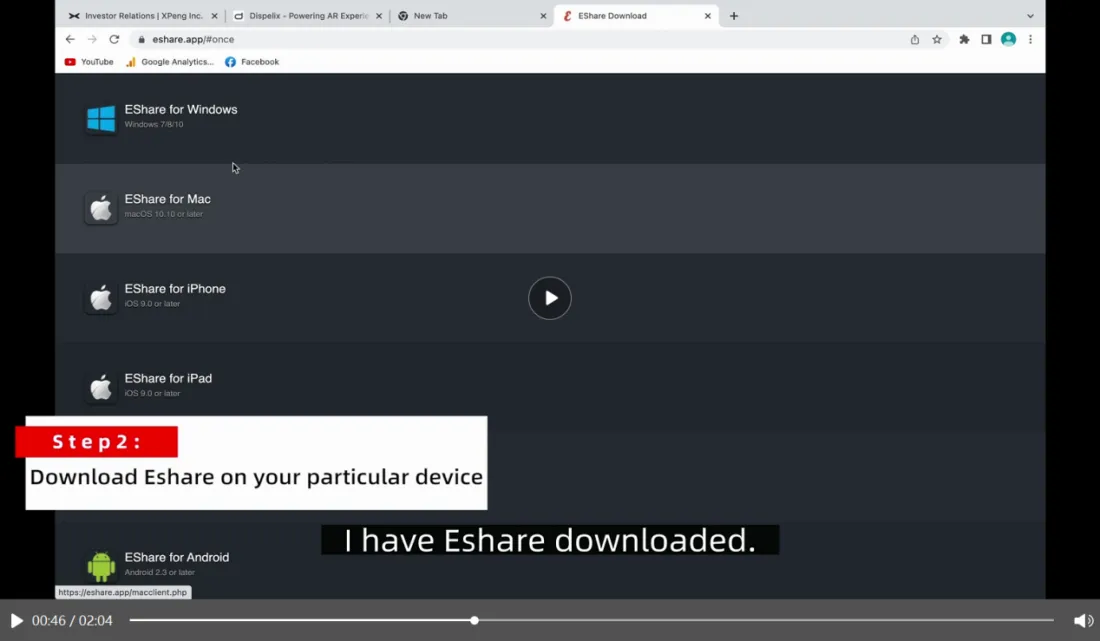
Step 2 Download EShare on your particular device
You can download EShare to your computer by visiting URL eshare.app here.
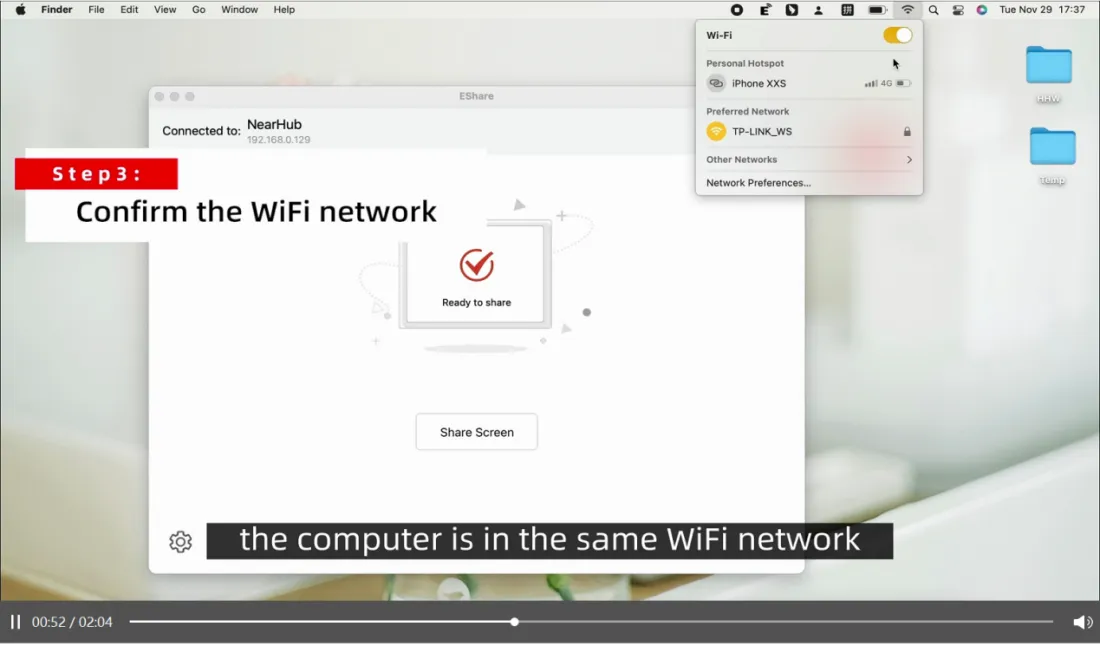
Step 3 Confirm the WiFi network
Make sure that your computer and your NearHub Board are connecting the same WiFi. When you finish the first two steps, open your EShare and enter your cast code which you can find in the Step 3 on the whiteboard cast page, like 1974 in the first picture.
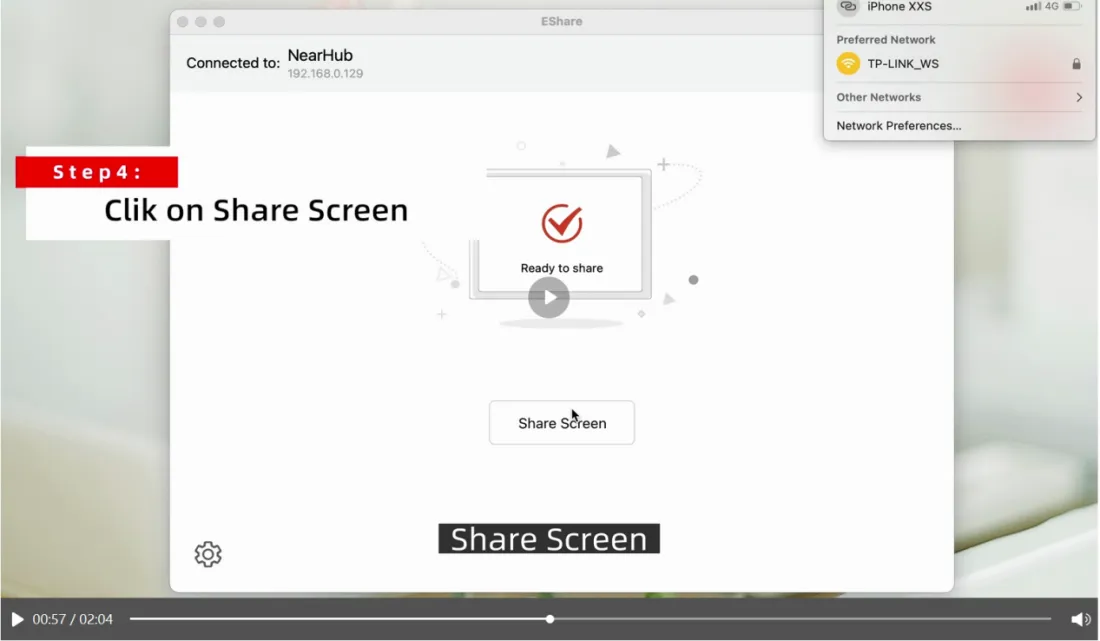
Step 4 Click on Share Screen
You will see “Ready to share” on your screen, and you just need to click on “Share Screen”. And now you can view the content of your computer on your NearHub Board.
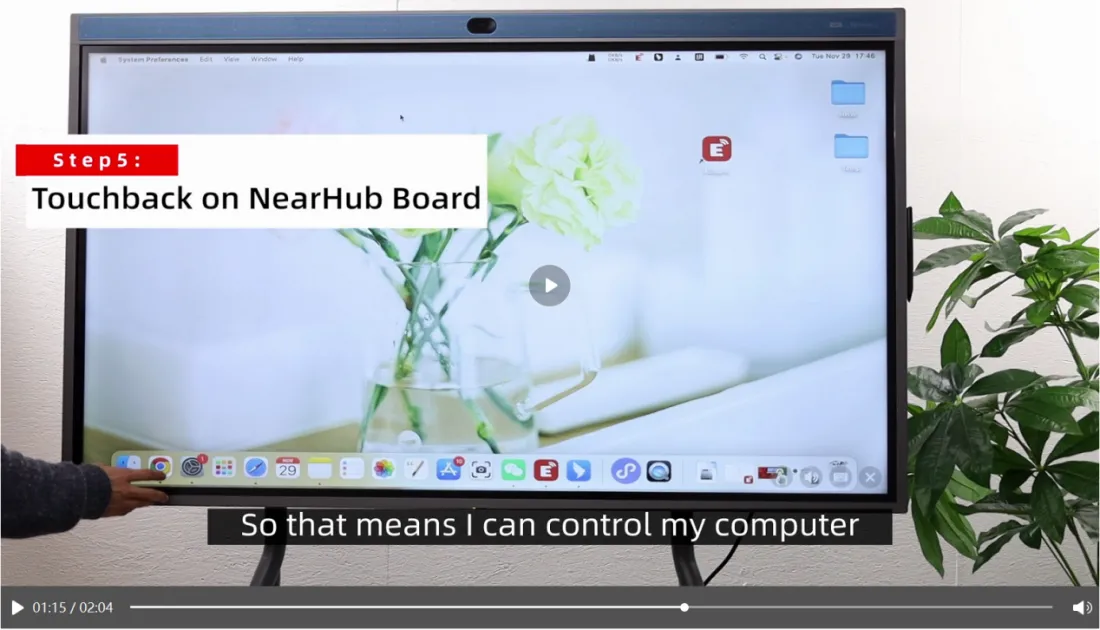
Step 5 Touchback on NearHub Board
A unique feature EShare has is the ability to touch back. To touch back means that you can control your computer simply by touching your board.
Step 6 Annotation
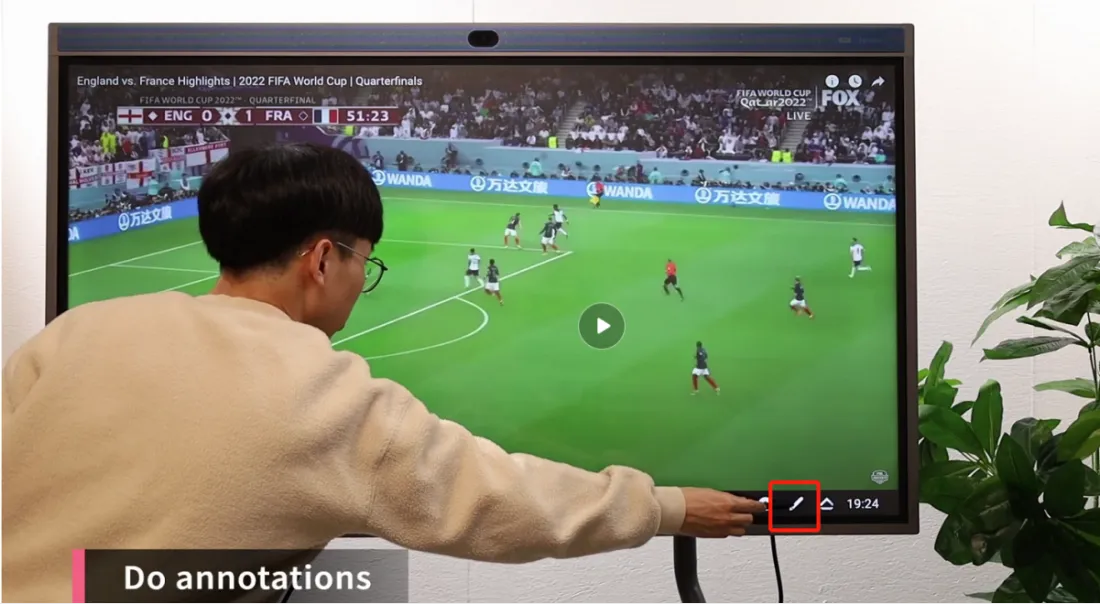
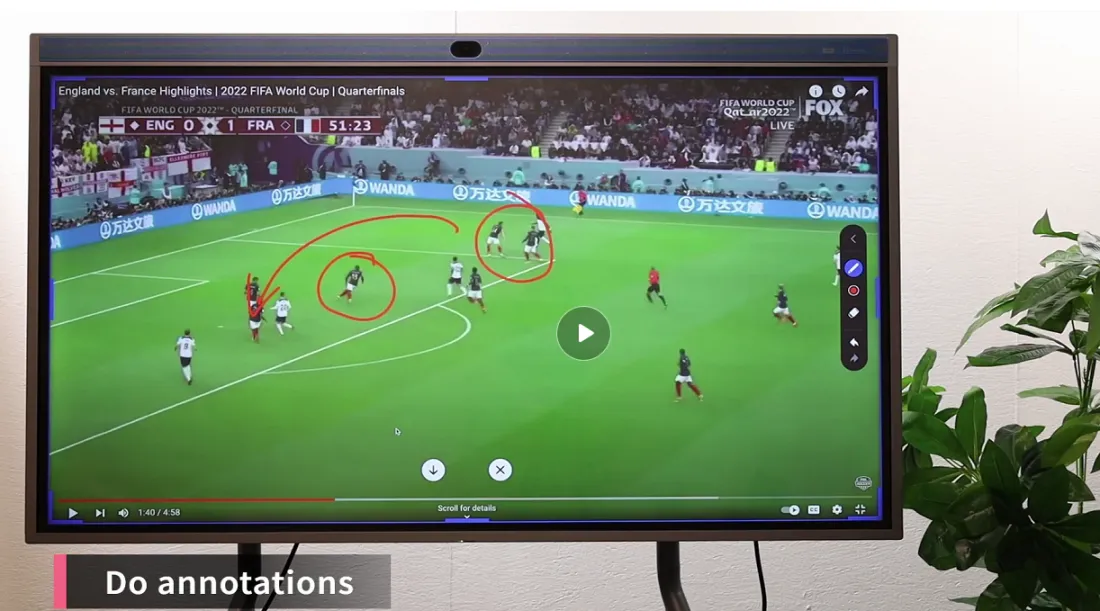
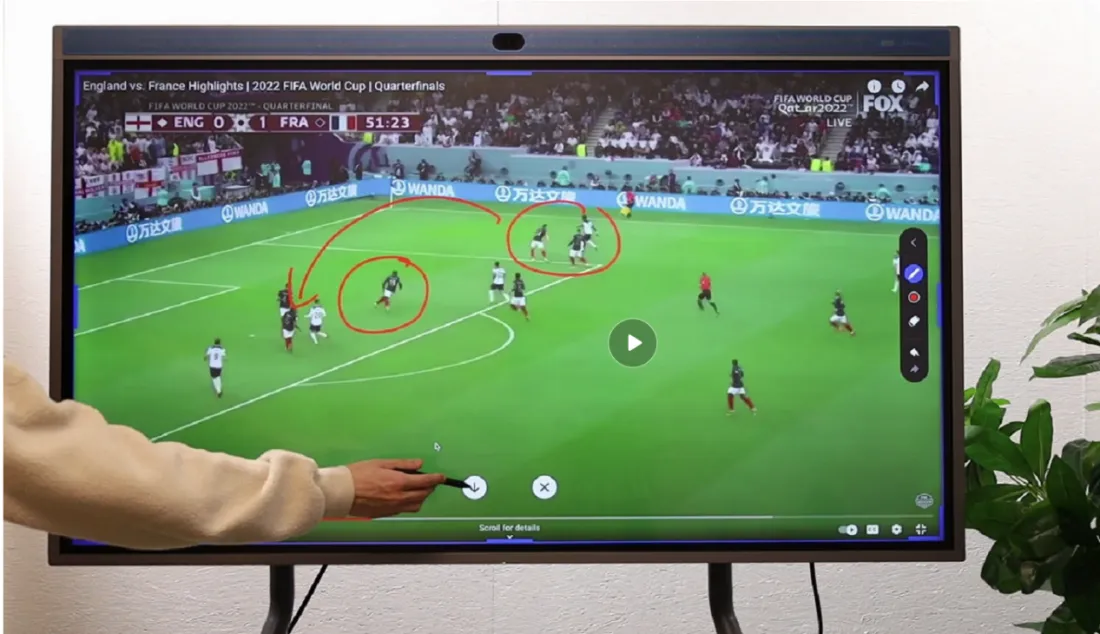
You can annotate on the screen with its smart pen during your screen mirroring. Slide up from the bottom and click the pencil-like button in the right. Then you can write and draw on the screen, and you can also upload the annotated screenshot to your NearHub app by click “↓”.
If you meet any problems in the process or have any further questions, please submit a support ticket here. Our support team will respond as soon as possible.