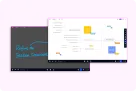
This article explores the top 10 free screen sharing software options for 2025.
best screen sharing software
good screen sharing software
best software for sharing screen
Updated: Aug 19, 2026 · 8 minutes read
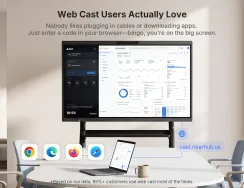
Global Business, Brought Near.
No Installer, No Hassle, Just Works.
In today's world of remote work, online collaboration, and virtual meetings, screen sharing software has become essential for effective communication. Whether you're conducting a virtual meeting, giving a presentation, or troubleshooting technical issues, the right screen sharing software can make a huge difference. In this article, we'll explore the best screen sharing software available in 2025, including free options that provide robust features for personal and professional use.
What Is Screen Sharing Software?
Screen sharing software allows users to share their screen in real-time with others, making it easier to collaborate remotely. With this tool, you can present documents, run software demos, and discuss ideas without being physically present in the same location. The best software for sharing screens typically offers features like real-time sharing, multiple platform support, and the ability to annotate or highlight content during presentations.
Best Screen Sharing Software: Top 10 Picks
Here are the top screen sharing software options for 2025, including the best free screen sharing software for seamless collaboration.
Quick Comparison of Top Free Screen Sharing Software
App Name
Best For
Key Features
Free Plan
Platform
Zoom
Virtual meetings and webinars
HD video, screen sharing with annotations, recording
40-minute meeting limit, unlimited 1:1 meetings
Windows, macOS, iOS, Android, Web
Google Meet
Google Workspace users
Share screen, live captions, integration with Google Docs
Unlimited meetings, up to 100 participants
Web (Chrome, Firefox, Safari)
Microsoft Teams
Business and enterprise use
Integrated with Office 365, file sharing, task management
1:1 meetings, group chat, screen sharing
Windows, macOS, iOS, Android
Skype
Personal and small teams
HD video, file and screen sharing, call recording
Unlimited video calls, messaging
Windows, macOS, iOS, Android
TeamViewer
Remote support and troubleshooting
Remote control, multi-platform support, file transfer
One-click meetings, screen sharing with drawing tools, custom branding
Up to 3 participants, basic features
Windows, macOS, iOS, Android
VNC Connect
Cross-platform screen sharing
Secure connection, file transfer, multi-platform support
Free for personal use
Windows, macOS, Linux, Raspberry Pi
Slack
Team communication and collaboration
Integrated with Google Drive, file sharing, real-time collaboration
Screen sharing, group chat
Windows, macOS, iOS, Android
1. Zoom
Best for: Virtual meetings and webinars
Why Zoom?: Zoom has long been a leader in screen sharing software. It offers high-quality video conferencing with easy-to-use screen sharing capabilities, ideal for team collaboration, online presentations, and remote training.
Key Features: Screen sharing with annotation tools, HD video, webinar hosting, cross-platform support.
Why Google Meet?: Google Meet offers a free screen sharing software option as part of the Google Workspace suite, making it ideal for those already using Google’s cloud services.
Key Features: Share screen, live captions, real-time collaboration with Google Docs and Sheets.
Free Plan: Unlimited meetings up to 100 participants.
Why Microsoft Teams?: As part of the Microsoft Office suite, Microsoft Teams integrates well with other productivity tools, allowing easy screen sharing and collaboration in professional settings.
Why Skype?: Skype remains one of the best screen sharing software options for small teams and personal use. It’s easy to set up and provides a simple interface for quick screen sharing during calls.
Key Features: HD video calls, screen sharing, file sharing, call recording.
Free Plan: Unlimited messaging and video calls.
Platform: Windows, macOS, iOS, Android.
Download: Skype
5. TeamViewer
Best for: Remote support and troubleshooting
Why TeamViewer?: Known for remote desktop access, TeamViewer also provides excellent screen sharing features. It’s great for IT professionals needing to troubleshoot or provide technical support remotely.
Why AnyDesk?: AnyDesk is known for its ultra-fast connection speeds and low latency, making it ideal for screen sharing that requires smooth video and quick response times.
Why Chrome Remote Desktop?: If you're looking for a quick, no-frills solution for screen sharing, Chrome Remote Desktop is a fantastic option. It works directly from your Chrome browser, making it simple to use.
Key Features: Remote desktop access, quick setup, no installation required.
Free Plan: Fully free for personal and business use.
Why Join.me?: Join.me is a fast and easy-to-use screen sharing software perfect for ad-hoc meetings and collaborations. It provides intuitive controls and excellent audio-visual quality.
Why VNC Connect?: VNC Connect is ideal for businesses that need cross-platform screen sharing software. It allows you to access and share screens on different operating systems seamlessly.
Why Slack?: While primarily a messaging app, Slack provides excellent screen sharing tools within its channels for team collaboration. If you're already using Slack for team communication, this is a great bonus feature.
Key Features: Integrated with Google Drive, file sharing, real-time collaboration.
Free Plan: Screen sharing, group chat, and file sharing.
Platform: Windows, macOS, iOS, Android.
Download: Slack
Conclusion: Choosing the Best Free Screen Sharing Software
Choosing the best screen sharing software depends on your needs. If you're looking for robust features, Zoom and Google Meet are excellent options. For those who need fast and easy solutions, Skype and Join.me are great choices. Meanwhile, TeamViewer and AnyDesk excel in remote support scenarios.
With these best screen sharing software tools, you can collaborate with teams, deliver presentations, and solve problems remotely, all while enjoying the benefits of free screen sharing software in 2025.
FAQ: Screen Sharing Software
Q1: Is screen sharing secure? Yes, if using tools with end-to-end encryption (Zoom, Microsoft Teams). Avoid public links for sensitive sessions—always enable password protection and waiting rooms.
Q2: Which free tool works best for large groups? Google Meet (100 participants) and Zoom (up to 100 with paid, but 40-minute limit on free). Slack supports 15 users in huddles.
Q3: Can I share only a specific app/window? Most tools (Zoom, Teams, Skype) allow selective window sharing. TeamViewer/AnyDesk even support multi-monitor control.
Q4: Do any tools offer built-in recording? Zoom, Teams, and Skype include free cloud/local recording. Google Meet requires Workspace subscription for recording.
Q5: What’s the most lightweight tool for slow internet? AnyDesk (low-latency) and Chrome Remote Desktop (browser-based) use under 2MB bandwidth. Avoid HD-heavy tools like Zoom if bandwidth is limited.
This article is designed to include the necessary keywords like best screen sharing software, good screen sharing software, and best software for sharing screens, ensuring visibility on Google search results.