- Produkte ansehen

Windows OS 2.0
NearHub Board S Max
Windows OS
NearHub Board S Pro
Für Huddle Rooms
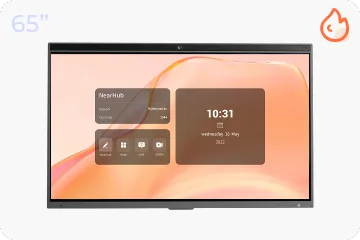
NearHub Board S55
Für mittelgroße Räume
NearHub Board S65
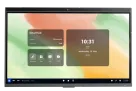
Für große Räume
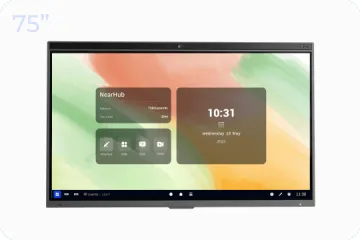
NearHub Board S75
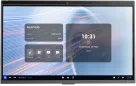
Für Boardrooms
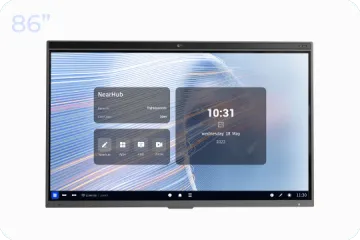
NearHub Board S86
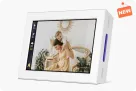
Smarter digitaler Bilderrahmen mit Luftqualitätsmonitor
NearHub Frames 10
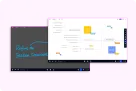
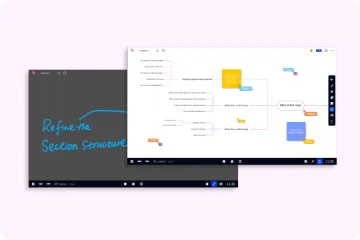
NearHub Canvas
Online-Whiteboard in Echtzeit
- Produkte ansehen
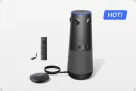
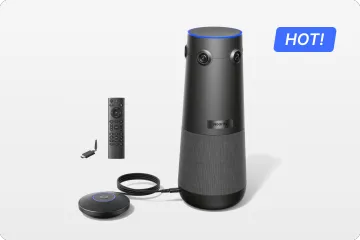
Echte 4K 360° All-in-1 Kamera für hybride Meetings
Nearity 360 Alien

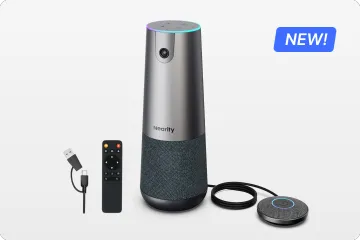
Echte 4K 120° All-in-1 Kamera für Teamzusammenarbeit
Nearity 120 Max

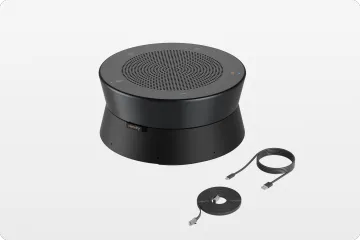
Audio der nächsten Stufe & innovatives Daisy-Chain
Nearity A20S
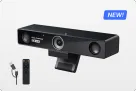
4K UHD 120° Webcam für hybride Meetings
Nearity V30S
360° All-in-one Kamera für professionelle Gruppengespräche
Nearity 360 Basic
All-in-one Kamera für Gruppenmeetings
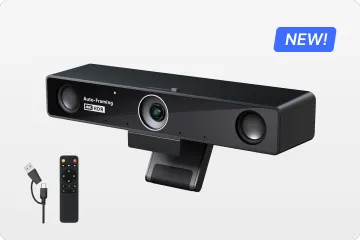
Nearity C45
- Produkte ansehen
- Produkte ansehen
- Besprechungsräume
- Anwendungsszenarien
- Interaktive Whiteboards
Introduction of AirPlay
AirPlay is a feature that allows Apple devices (commonly iPhones) to share media—like videos, images, and music—to AirPlay-enabled TVs, speakers, and other devices, as long as they're all within the same network. Here are some tips for you to use screen mirroring by AirPlay on your NearHub whiteboard, so that you can view the content from your mobile phone on a much bigger screen.
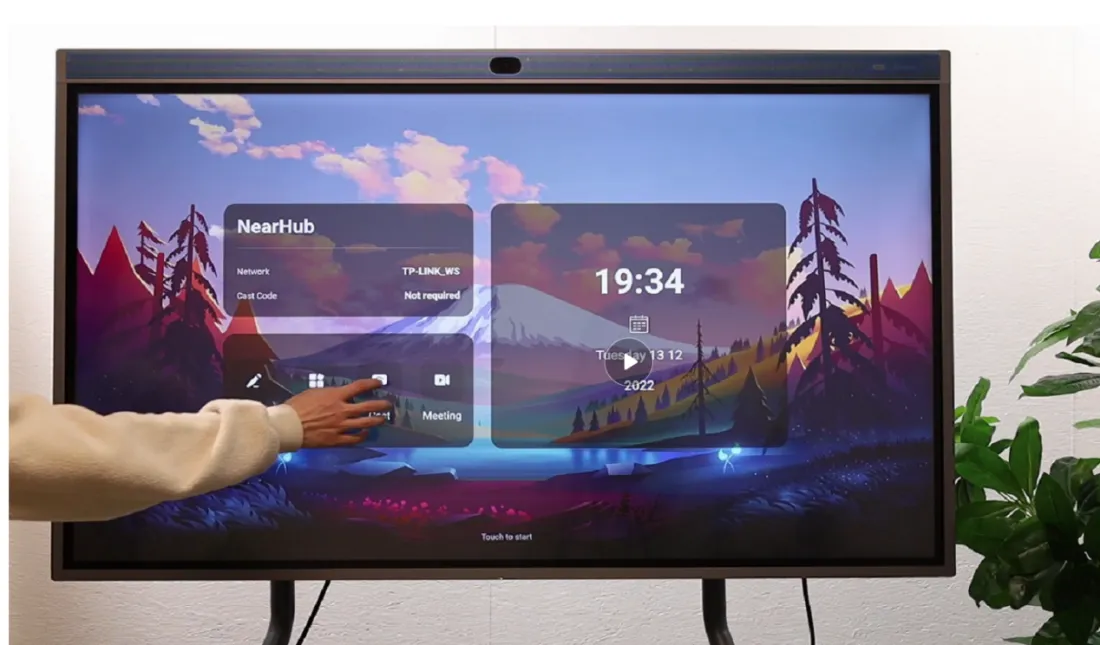
Step 1 Open up the cast page on NearHub Board
Click the "cast" on the home page then you open up the cast page.
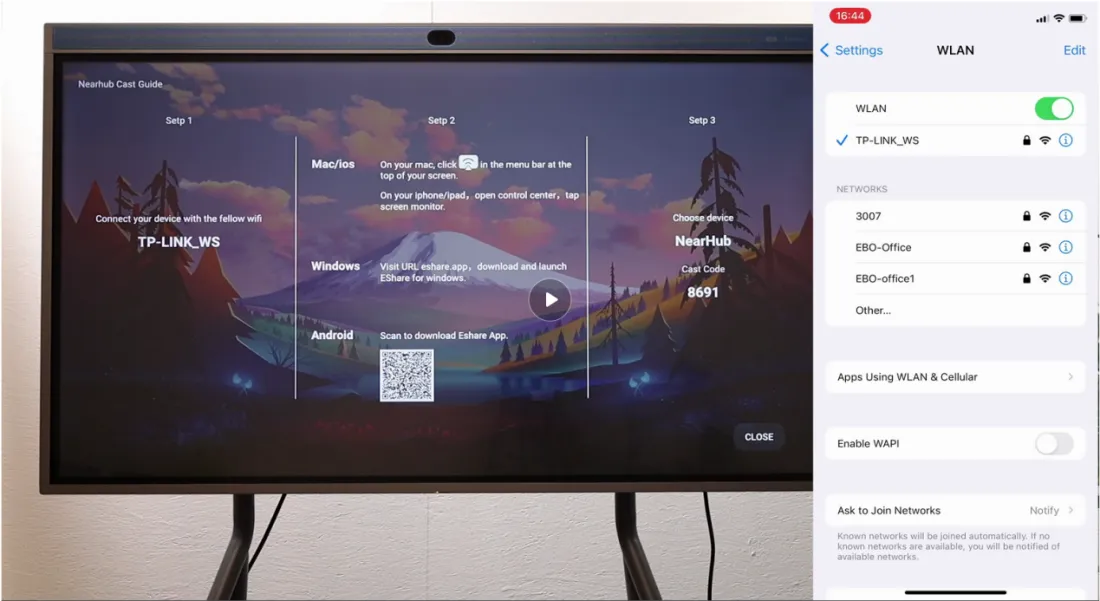
Step 2 Confirm the WiFi network
You need to make sure that your Iphone and your NearHub Board are connecting the same WiFi.
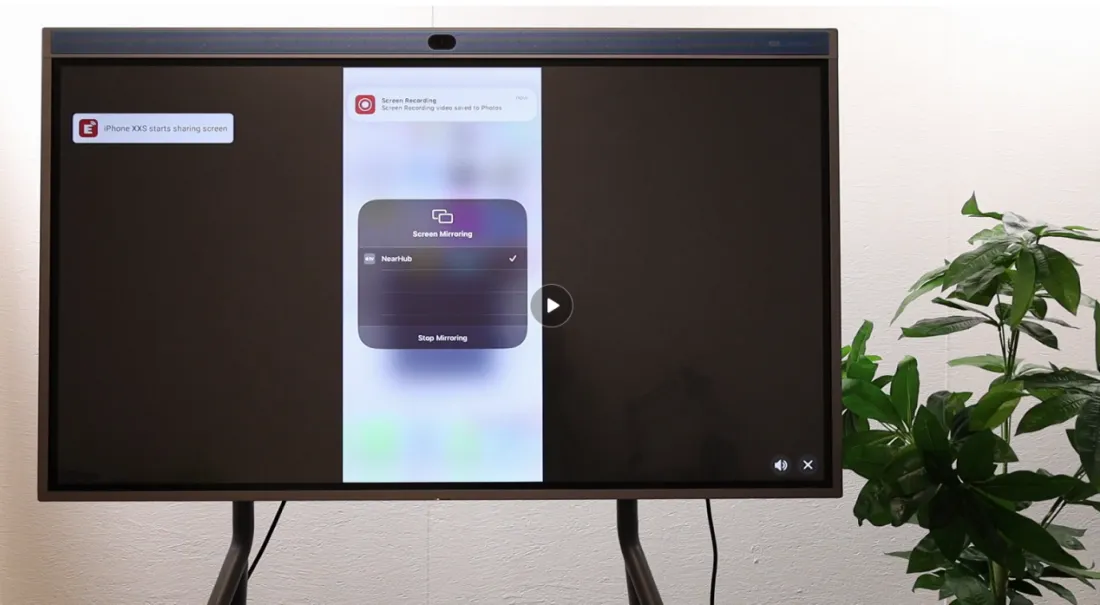
Step 3 Pick the “Screen Mirroring” on your Iphone
click the "screen mirroring" and choose "NearHub" in the list. Now you can cast your Iphone onto the board.
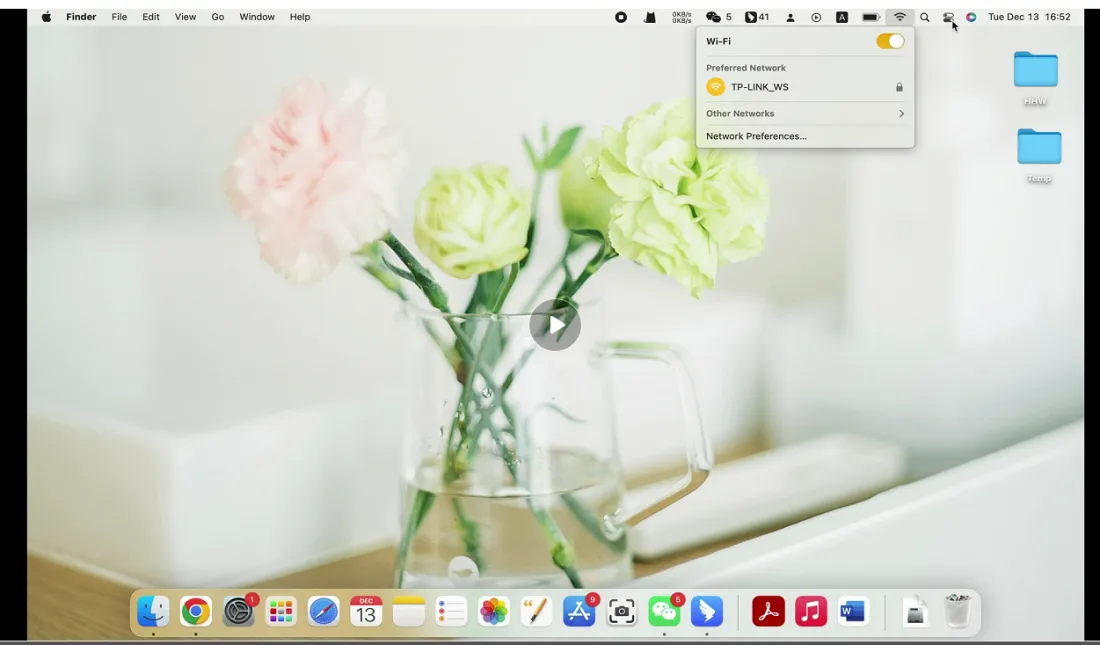
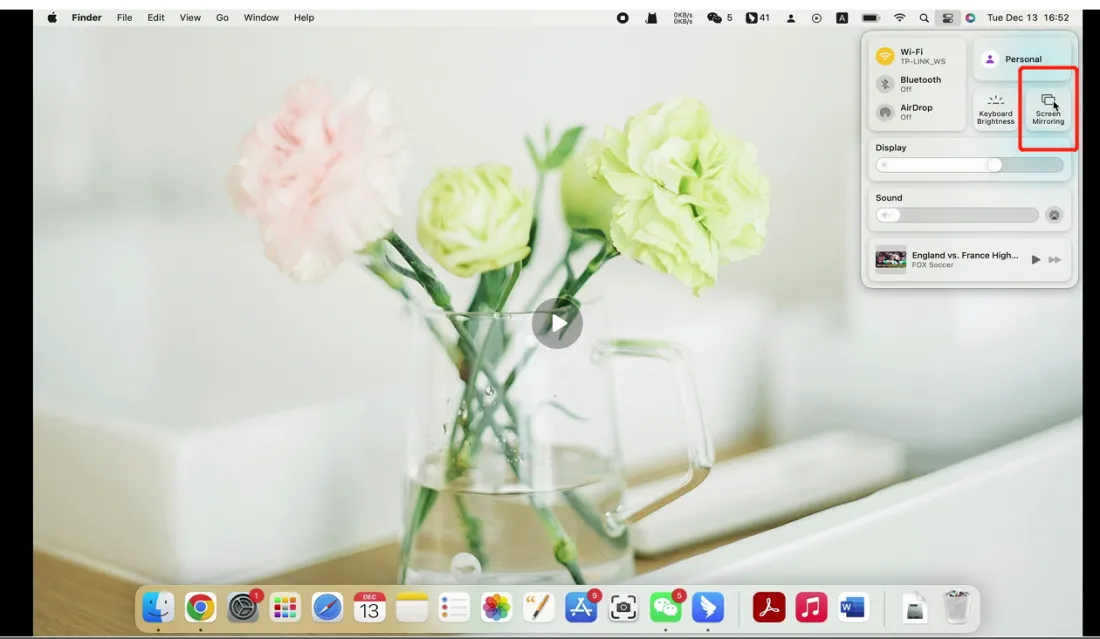
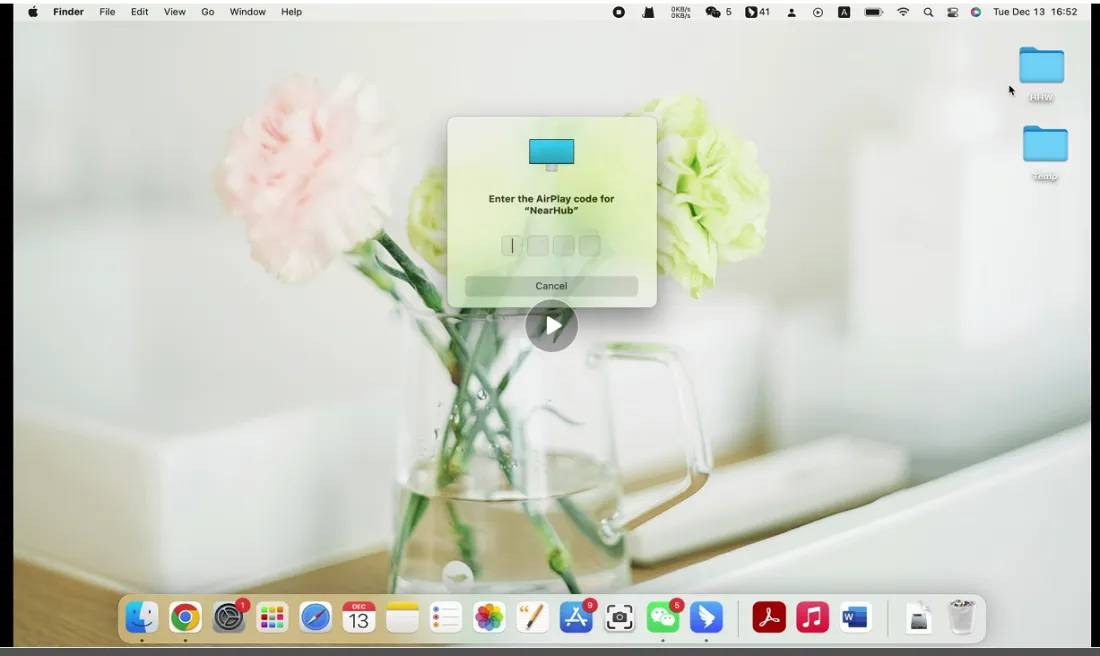
Step 4 Cast your MacBook screen on the board
You can also share the screen of your MacBook on the NearHub Board in the same way. Similarly, don’t forget to confirm that your MacBook connect to the same WiFi network.Hit the “Screen Mirroring” and enter the AirPlay code for “NearHub”. Maybe here you would be asked to enter verification code.
Finally
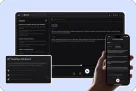
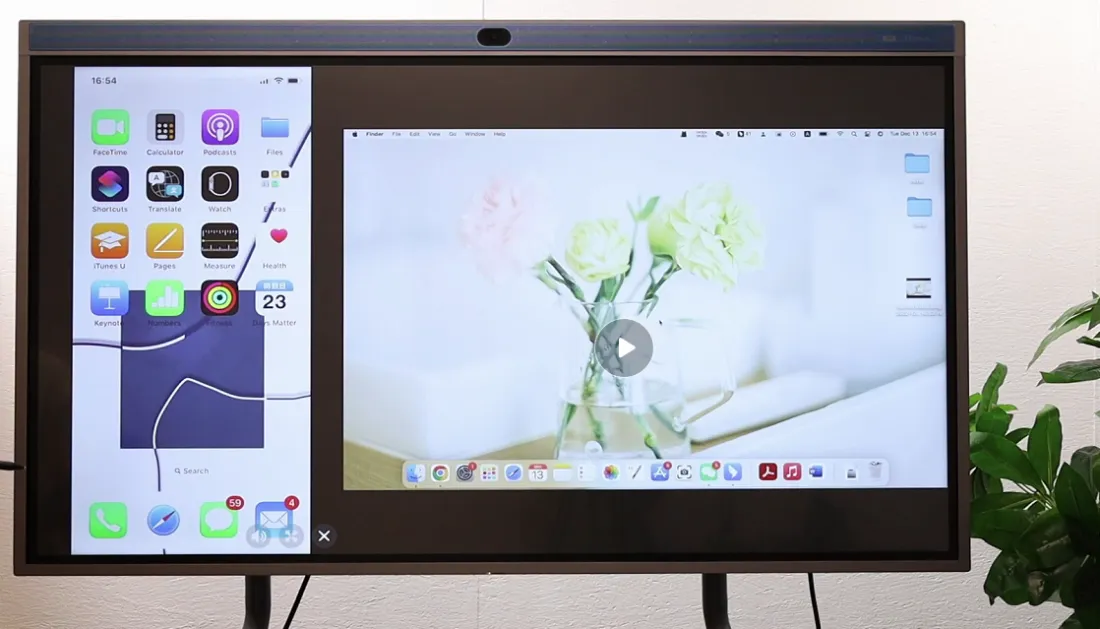
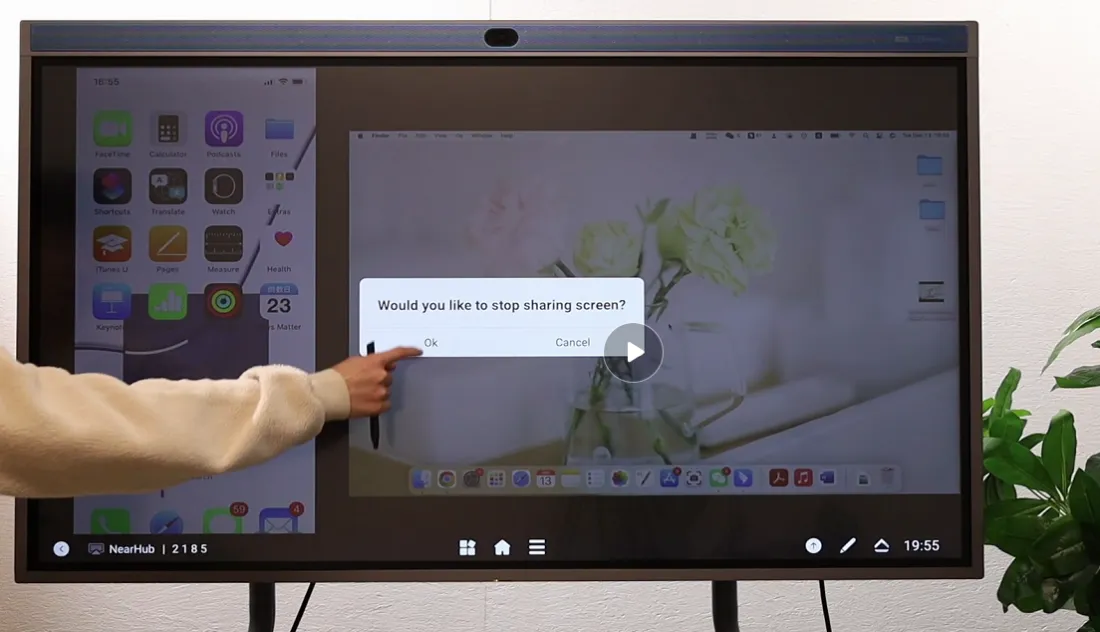
Now you can see our NearHub can support two devices to cast at the same time; and slide up from the bottom and you can choose which audio source you want to play in the lower right corner of the window. And if you want to stop sharing, click the leftest button in the same window and hit "OK".
If you meet any problems in the process or have any further questions, please submit a support ticket here. Our support team will respond as soon as possible.