- Produkte ansehen

Windows OS 2.0
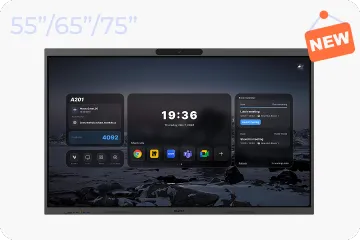
NearHub Board S Max
Windows OS
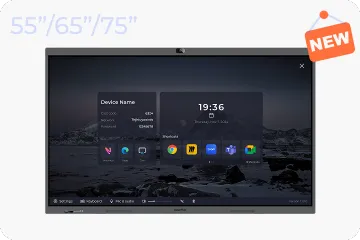
NearHub Board S Pro
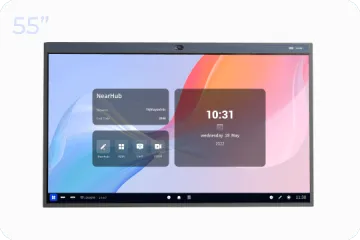
Für Huddle Rooms
NearHub Board S55
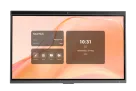
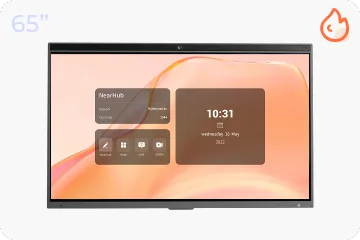
Für mittelgroße Räume
NearHub Board S65
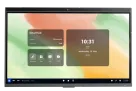
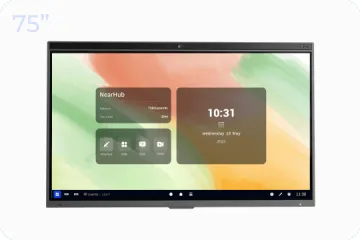
Für große Räume
NearHub Board S75
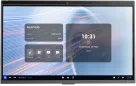
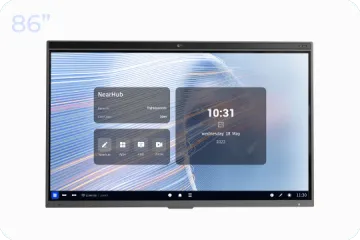
Für Boardrooms
NearHub Board S86
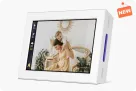
Smarter digitaler Bilderrahmen mit Luftqualitätsmonitor
NearHub Frames 10
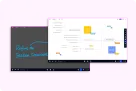
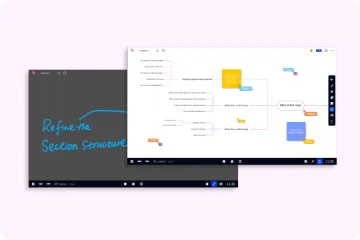
NearHub Canvas
Online-Whiteboard in Echtzeit
- Produkte ansehen
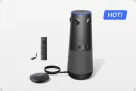
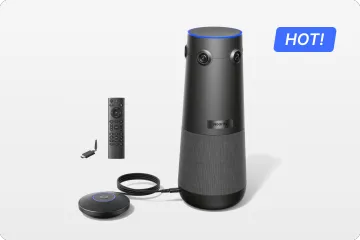
Echte 4K 360° All-in-1 Kamera für hybride Meetings
Nearity 360 Alien
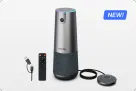
Echte 4K 120° All-in-1 Kamera für Teamzusammenarbeit
Nearity 120 Max

Audio der nächsten Stufe & innovatives Daisy-Chain
Nearity A20S
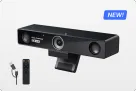
4K UHD 120° Webcam für hybride Meetings
Nearity V30S
360° All-in-one Kamera für professionelle Gruppengespräche
Nearity 360 Basic
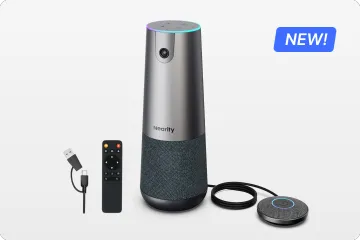
All-in-one Kamera für Gruppenmeetings
Nearity C45
- Produkte ansehen
- Produkte ansehen
- Besprechungsräume
- Anwendungsszenarien
- Interaktive Whiteboards
-
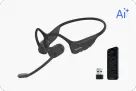
Plug & Play functionality for effortless setup.
-
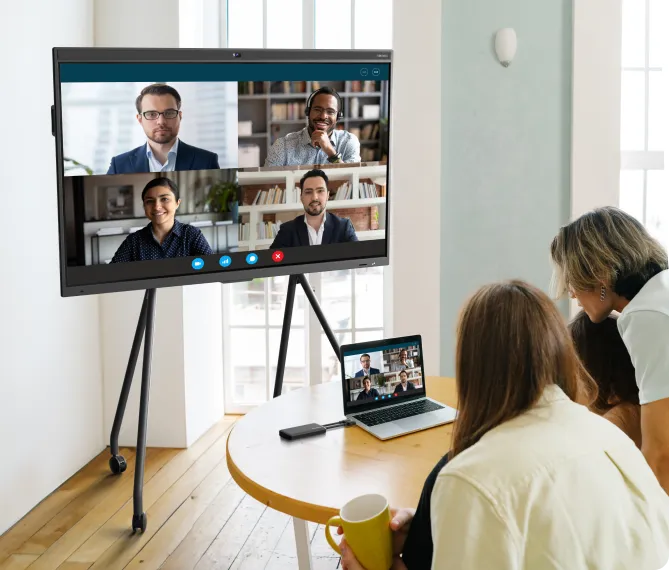
Wireless screen casting for untethered presentations.
-
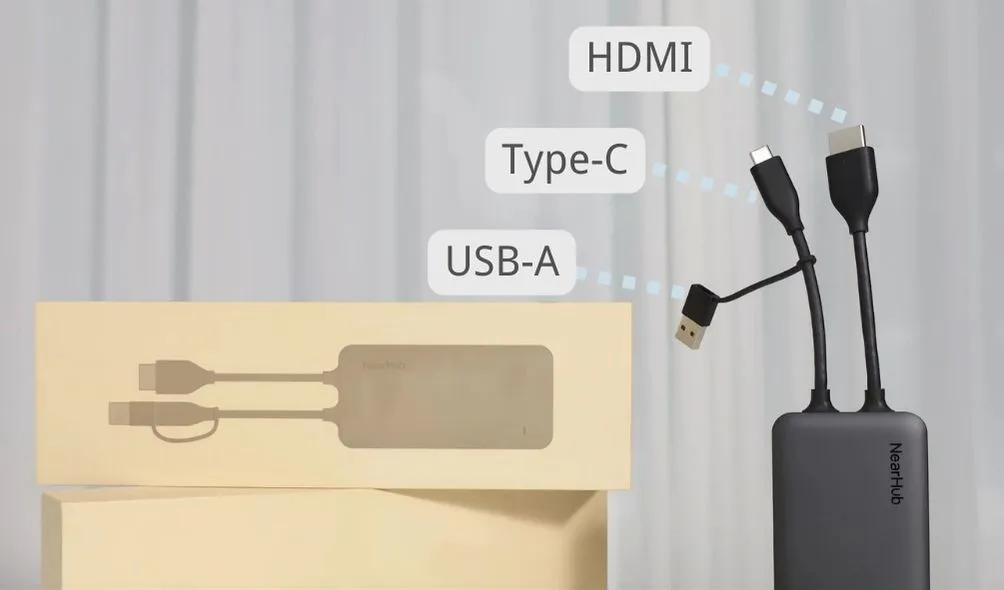
Three connection options: USB-A, Type-C, and HDMI.
-
Universal compatibility with various devices, including laptops, tablets, and mobiles.
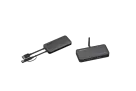
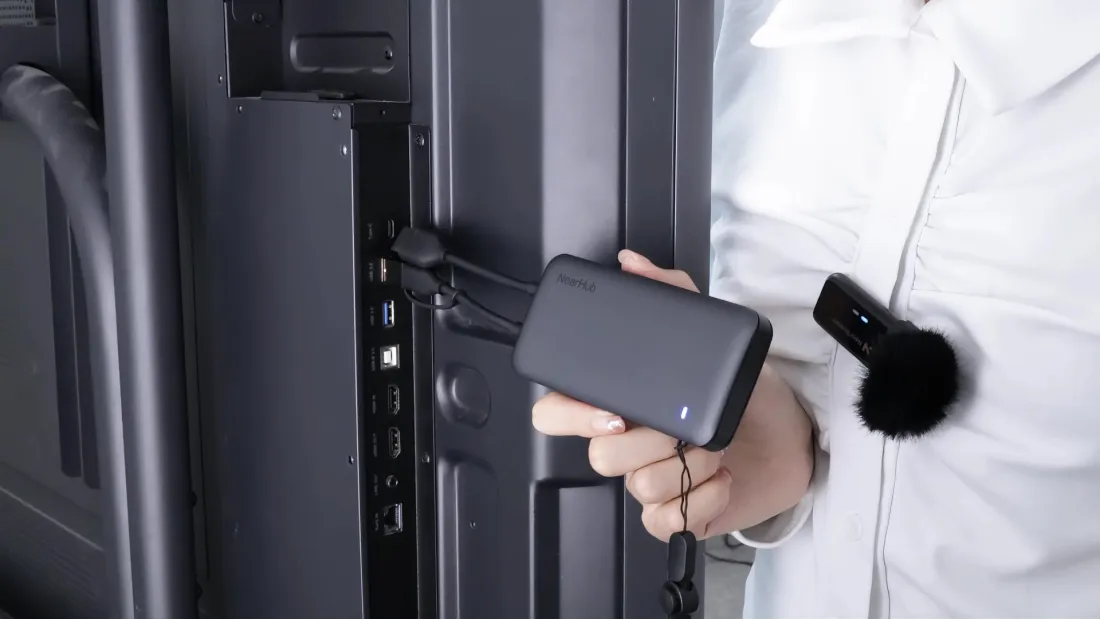
Three connectors of NearHub Tail

A guide on how to use the Tail
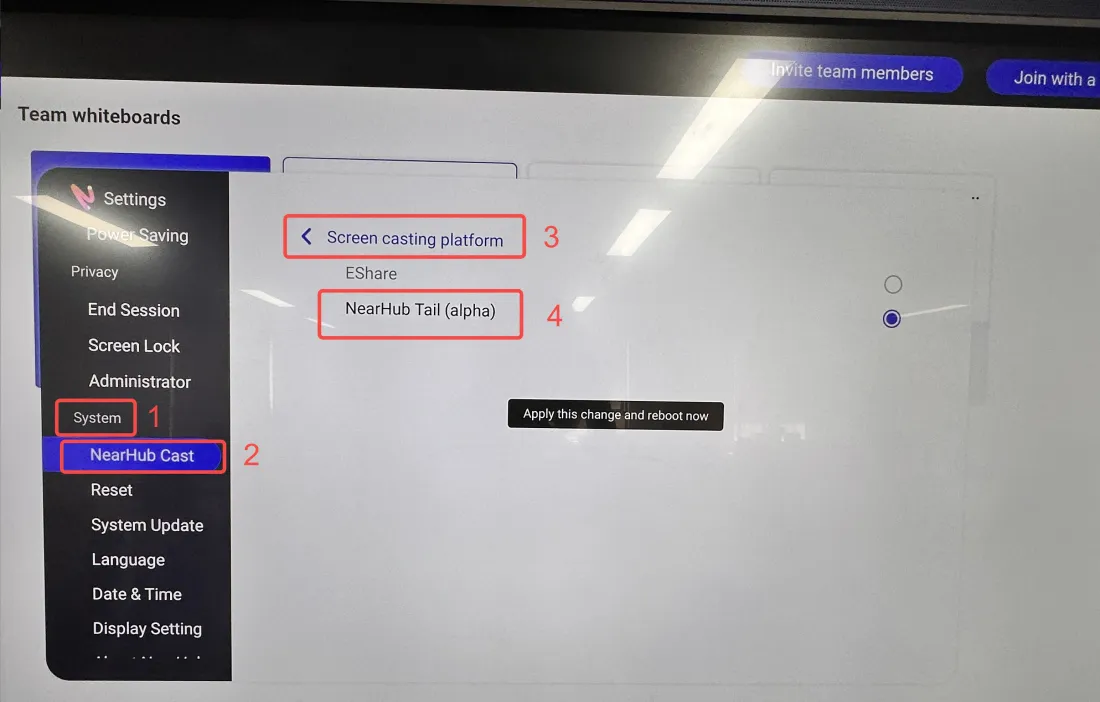
Step 1: Switch the Screen Casting Platform on NearHub Board
-
Find [Settings] in the bottom right corner of NearHub Board.
-
Find [NearHub Cast] in the System
-
Click [Screen casting platform] to find [NearHub Tail (alpha)], then check this option to complete the platform switch.
Step 2: Pairing the Tail with NearHub Board
-
To achieve pairing, you need to insert the USB-A connector into the designated port on the screen. When you plug in the screen port, the blue light on it will start blinking. You are supposed to keep it plugged in until the blue light no longer flashes and becomes a long bright state.
-
When the blue light is long on, the tail is successfully paired with the board, and there will be corresponding pop-ups [Tail box connected] on the screen.

Step 3: Connect the Tail to the Computer
Mac OS
-
If you are a Mac OS user, after finishing pairing the tail with NearHub Board, just connect the type-C port of the tail to your MacBook, and wait for a few seconds to realize wireless screen casting. Then, there will be corresponding pop-ups [Welcome TailClient ] on the screen.
Windows OS
-
If you are a Windows user, please link two cables simultaneously, HDMI and USB-A, to ensure smoothness and stability when using the Tail to cast the screen, considering that the USB-C ports on some Windows computers are only for charging and don't support audio/video data transfer. After successfully casting the screen, there will be corresponding pop-ups [Welcome TailClient ] on the screen.