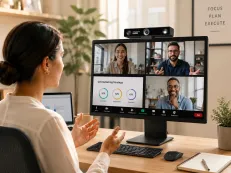












In the era of hybrid work, your voice is your most important professional tool. Whether you are leading a global sync or troubleshooting with a client, the quality of your audio can make or break a meeting. This is why finding the best headset for Microsoft Teams is no longer a luxury—it’s a necessity for productivity.
But with thousands of options on the market, how do you distinguish between a generic pair of headphones and a professional-grade headset for Microsoft Teams? This guide will walk you through everything you need to know to optimize your work setup.
Key Takeaways
- Teams Certification Matters: Certified headsets offer one-touch controls and better synchronization with the Teams app.
- Prioritize Mic Quality: Look for AI-powered noise reduction (ENC) to ensure your voice remains clear in noisy environments.
- Stability is Key: Use a dedicated USB dongle instead of native Bluetooth to avoid latency and connection drops.
- Comfort for Long Shifts: Choose between mono, stereo, or in-ear styles based on your need for situational awareness versus total immersion.
- Battery & Range: Ensure at least 10-15 hours of talk time and consider DECT technology if you need extended walking range.
What Makes a Headset “Microsoft Teams Compatible”?
Not every headset works well with Microsoft Teams—even if it technically “connects.” True compatibility goes deeper than basic audio output.
From an enterprise IT and UC (Unified Communications) perspective, Teams compatibility is not just about audio playback. A headset designed for Microsoft Teams should support predictable behavior under long meetings, rapid call switching, and frequent mute/unmute actions—all common in professional workflows.
Microsoft Teams Certification
A Teams-certified headset is tested and approved by Microsoft to work seamlessly with the platform. Certified models typically offer:
- One-touch Teams controls (answer, hang up, mute)
- Synchronized mute and status indicators
- More stable call performance
While non-certified headsets may still function, Teams-certified devices provide a smoother and more predictable user experience, especially in professional environments.
Connection Stability and Integration
Connection method matters:
- USB or USB dongle headsets offer the most stable experience for Teams
- Bluetooth-only headsets may suffer from latency, audio compression, or random disconnections
- Dongle-based wireless headsets often outperform standard Bluetooth when used with Teams
If Teams calls are mission-critical, stability should be a top priority.
Key Factors to Consider When Choosing a Microsoft Teams Headset
When searching for the best headsets for Microsoft Teams, you should evaluate your choices based on your specific environment and habits.
Microphone Quality and Noise Reduction
In business communication, the microphone is more critical than the speaker. Poor voice pickup directly affects comprehension, especially in Teams meetings with multiple participants.
High-quality Teams headsets typically use ENC or AI-based noise reduction to suppress keyboard noise, background conversations, and ambient office sounds.
Microsoft Teams calls often take place in shared offices or home environments. Look headset for work for:
- ENC or AI-powered noise cancellation
- Directional microphones that isolate your voice
A strong microphone is often more important than speaker quality for professional calls.
Audio Quality for Voice Communication
Unlike entertainment headphones, a Microsoft Teams headset should prioritize speech intelligibility over bass or immersive sound. Wideband audio support ensures voices sound natural and fatigue-free during extended meetings. Teams headsets should prioritize:
- Clear mid-range voice reproduction
- Wideband audio support for natural speech
Overly bass-heavy tuning can actually reduce call clarity.
Wired vs Wireless Headsets for Microsoft Teams
From a reliability standpoint:
- Wired headsets offer maximum stability
- Wireless models add mobility but require careful selection
If you sit at your desk all day, a wired USB headset is reliable and budget-friendly. However, if you like to pace or need to grab a coffee during long calls, the best wireless headset for Microsoft Teams will offer you the freedom of DECT or Bluetooth connectivity with a range of up to 100 feet.
Comfort for All-Day Wear and Wearing Style
For long meetings, customer support roles, and call-heavy work environments, headset comfort is not optional—it directly affects concentration, productivity, and physical well-being. A poorly fitting headset can cause pressure points, heat buildup, and fatigue over the course of a full workday.
Lightweight designs are especially important for extended use, as they reduce neck and head strain during back-to-back Teams calls. However, comfort is not only about weight—it is also closely tied to wearing style and ear coverage.
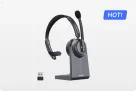
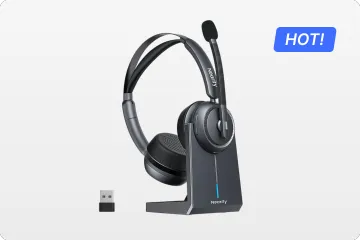
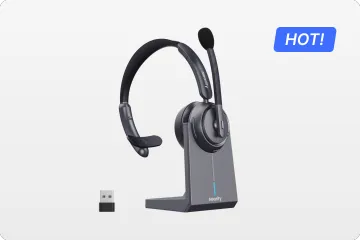
- Mono (Single-ear): Great for staying aware of your surroundings.
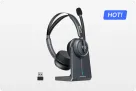
- Stereo (Dual-ear): Best for total immersion.
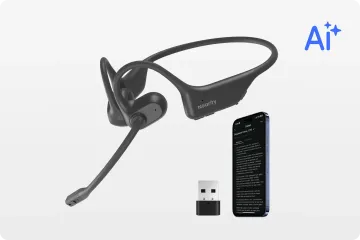
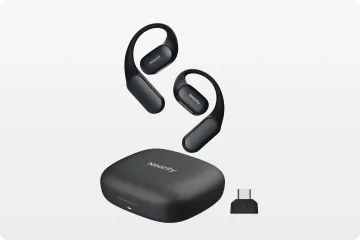
- In-ear: Preferred by those who dislike the "clamping" feel of traditional headbands.
Choosing the right wearing style helps reduce physical strain and cognitive fatigue, allowing users to stay focused and comfortable throughout the workday.
Controls and Ease of Use
A well-designed Teams headset should allow users to manage calls without breaking focus. Intuitive, physical controls are strongly preferred in business settings, especially during live meetings or high call volumes.
Key control features to look for include:
- Dedicated physical mute buttons with clear tactile feedback
- Volume and call controls that synchronize reliably with Microsoft Teams
- Visual or audible indicators that confirm mute and call status
Headsets with inconsistent or software-only controls increase the risk of accidental unmuting or delayed responses, which can disrupt meetings and reduce professional confidence.
Battery Life (for Wireless Models)
From a productivity standpoint, wireless headsets must be able to support a full workday without frequent charging interruptions. The best wireless headset for Microsoft Teams typically offers:
- 10–15 hours of real-world talk time, not just standby ratings
- Fast-charging capability to recover several hours of use in short breaks
Insufficient battery life can lead to dropped calls or forced device switching during critical meetings.
Cross-Device Compatibility
Modern professionals often work across multiple devices, such as:
- A primary work laptop
- A personal laptop for hybrid use
- A desktop PC or docking station in the office
Headsets that support seamless multi-device connectivity reduce the need for repeated pairing and manual reconnection. This is especially important for hybrid workers and shared workspaces, where quick transitions between devices are part of the daily workflow.
Best Headsets for Microsoft Teams by Use Case
To help narrow down the selection process, the following recommendations highlight some of the best headsets for Microsoft Teams, chosen based on real-world work scenarios rather than specifications alone. Each option addresses different professional needs, from executive-level focus to mobile and hybrid work.
The Executive's Choice: Jabra Evolve2 85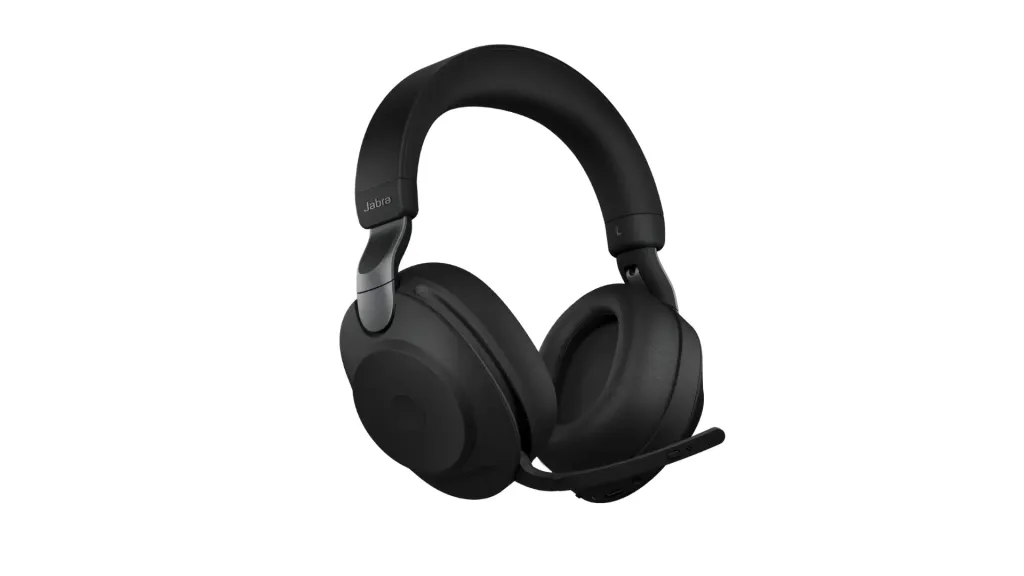
Designed for professionals who alternate between deep focus work and high-stakes meetings, the Jabra Evolve2 85 combines a premium build with a discreet, retractable boom arm and advanced active noise cancellation. Its balanced audio tuning and reliable Teams integration make it a strong candidate for users who demand both performance and polish. For many users, this is arguably the best wireless headset for Microsoft Teams in executive or leadership roles.
Best for: Executives, managers, strategy-focused professionals
The Road Warrior: Poly Voyager Focus 2
Built with mobility in mind, the Poly Voyager Focus 2 is lightweight, portable, and comfortable for extended wear. Its signature Acoustic Fence technology effectively blocks out surrounding noise, ensuring that only the user’s voice is transmitted—whether working from an airport lounge, café, or shared workspace.
Best for: Frequent travelers, mobile professionals, remote workers on the move
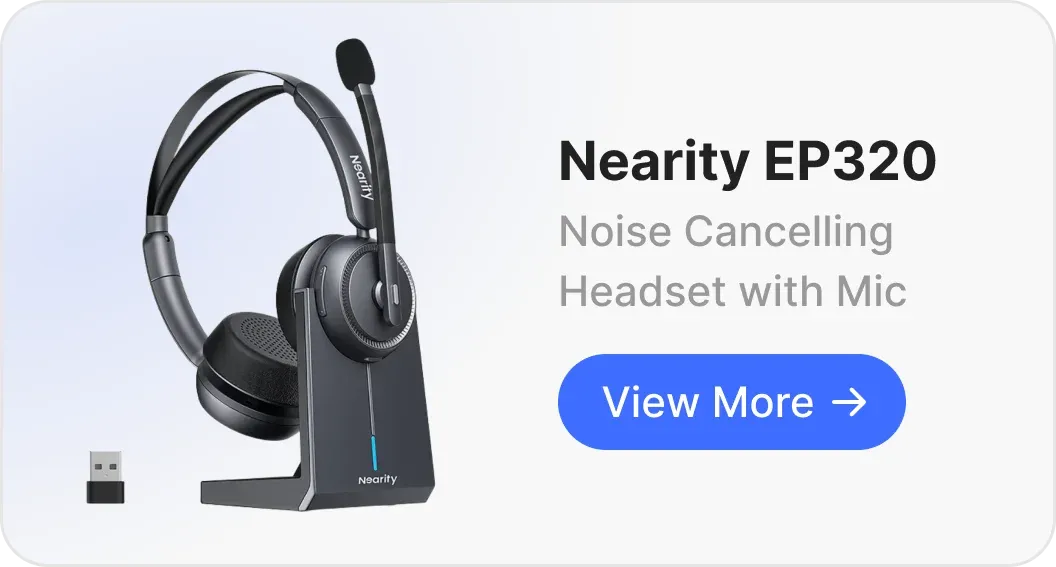
The AI-Powered Specialist: Nearhub EP320
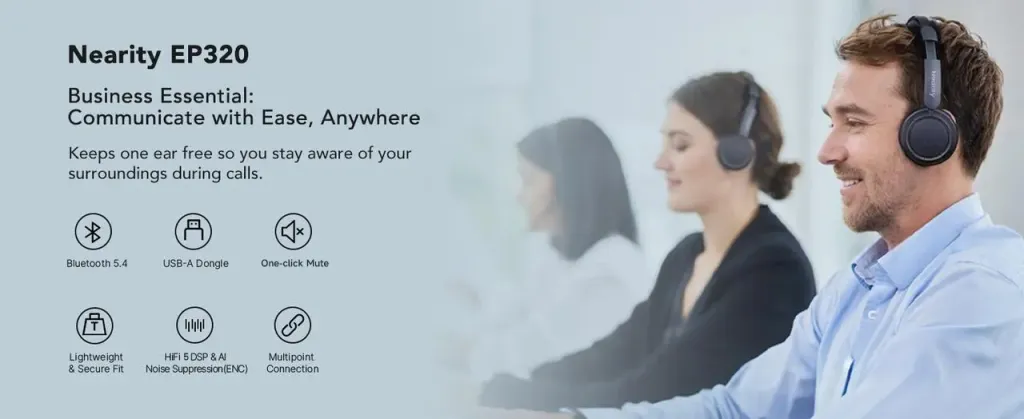
If you are looking for the best noise cancelling headphone for work, the Nearhub EP320 stands out with an exceptional 45-hour battery life and a four-microphone AI noise reduction system designed to suppress up to 99.9% of background noise. This makes it particularly suitable for hybrid professionals who require consistent performance across multiple workdays without frequent recharging.
Best for: Hybrid workers, high call-volume roles, long-duration use
The Budget-Friendly Professional: Logitech Zone Wired
For users who prioritize reliability and Teams certification over wireless freedom, the Logitech Zone Wired offers excellent microphone clarity, simple inline controls, and dependable performance at a more accessible price point. It’s a practical choice for fixed desk setups and cost-conscious deployments.
Best for: Office-based users, entry-level professionals, IT bulk purchasing
The Hybrid All-Rounder: Yealink WH62
Utilizing DECT wireless technology rather than Bluetooth, the Yealink WH62 delivers superior range and connection stability. This makes it ideal for users who move around their home or office during calls without worrying about dropouts or interference.
Best for: Hybrid workers, home offices, multi-room movement
How to Choose Among These Options
Rather than focusing on a single “best” product, professionals should evaluate:
- How mobile their workday is
- Whether noise isolation or environmental awareness matters more
- Battery expectations and device-switching habits
Matching the headset to the use case is the most reliable way to choose the right Microsoft Teams solution.
Common Mistakes When Choosing a Microsoft Teams Headset
To ensure your investment in the best noise cancelling headphone with mic for office delivers real productivity gains, it’s important to avoid several common pitfalls that frequently cause frustration in professional Microsoft Teams environments.
Buying Consumer Bluetooth Headphones
Many consumer-grade Bluetooth headphones are designed primarily for music playback rather than two-way voice communication. As a result, they often rely on basic Bluetooth profiles that are not optimized for sustained call quality in Microsoft Teams. This can lead to compressed, robotic-sounding audio and inconsistent microphone performance during meetings.
Professional headsets for Microsoft Teams are specifically engineered to support stable, full-duplex communication, which is critical for clear conversations and reliable collaboration.
Ignoring the Dongle
Even when a laptop supports Bluetooth natively, relying solely on built-in Bluetooth can introduce latency, connection drops, and limited call control functionality. A dedicated USB dongle provides a more stable wireless connection and enables full Teams features such as remote call answering, mute synchronization, and status indication.
For consistent performance, always use the USB dongle included with a professional Microsoft Teams headset.
Overlooking "Busy Light" Features
Visual status indicators—often referred to as busy lights—are frequently underestimated. A simple red “in-call” light helps signal to coworkers or family members that you are in a meeting, reducing interruptions and improving focus, especially in open offices or home workspaces.
While not essential, busy light features contribute meaningfully to a smoother and more professional daily workflow.
Conclusion – How to Choose the Best Headset for Microsoft Teams
Choosing the best headset for Microsoft Teams starts with understanding how you work. Consider:
- Your daily call volume
- Your work environment
- Whether mobility or stability matters more
There is no single “perfect” headset for everyone—but with the right balance of compatibility, comfort, and call quality, you can find the headset for Microsoft Teams that truly supports your workflow.
FQAs
Can I use any Bluetooth headset with Microsoft Teams?
Yes, but you may experience lag, poor mic quality, or a lack of synchronization between the headset's buttons and the Teams app.
Do I need a Teams-certified headset?
Not strictly, but certification ensures better integration, fewer issues, and a smoother experience—especially in professional settings.
What is the best wireless headset for Microsoft Teams?
The best option depends on your use case, but generally look for strong microphone noise cancellation, USB dongle connectivity, and all-day comfort.
Is a USB dongle better than native Bluetooth for Microsoft Teams?
Yes. USB dongles are purpose-built for professional headsets and provide more stable connectivity, lower latency, and full Teams call control support. Native Bluetooth is more prone to audio compression and connection instability during extended meetings.
Are mono (single-ear) headsets suitable for long Teams meetings?
Mono headsets can be effective for users who need situational awareness, such as supervisors or office-based professionals. However, for long meetings or noisy environments, stereo headsets often reduce listening fatigue by improving focus and voice isolation.