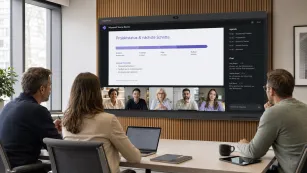
With the pandemic forcing people to work and interact virtually, video conferencing platforms like Google Meet have become an essential tool for remote communication. One of its latest features is Companion Mode, which offers an efficient way to manage meetings.
In this blog, we'll take a closer look at Companion Mode Google Meet and its benefits for remote workers.
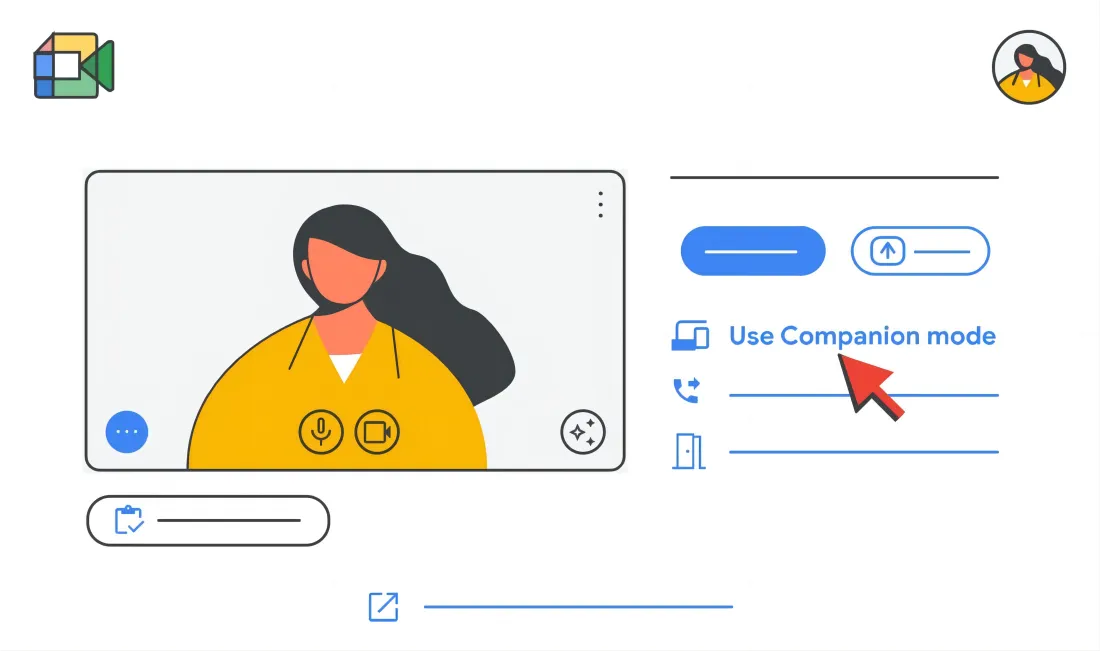
What is Companion Mode in Google Meet?
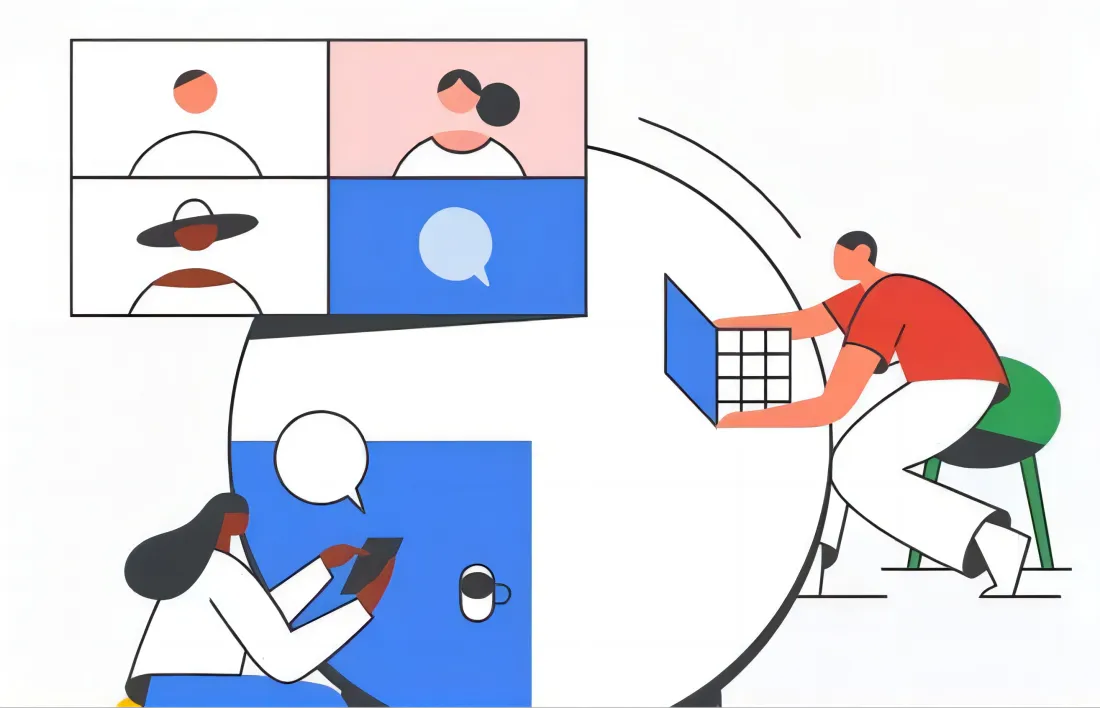
Companion Mode is a feature in Google Meet that allows participants to join and monitor a meeting from a secondary device while having the primary meeting on another device. The Companion Mode interface allows users to manage meeting functions like muting and unmuting participants, controlling audio, and viewing meeting chat. It also offers a streamlined experience for presenters to manage presentations, polls, Q&A sessions and share their screen while keeping the primary feed on another device. In essence, Companion Mode creates a more personalized and manageable meeting experience for remote workers and educators, making it easier to collaborate and connect virtually.
Companion mode vs. Participant mode
There are some differences between what you can do in Participant mode and Companion mode. Here is a breakdown of these differences.
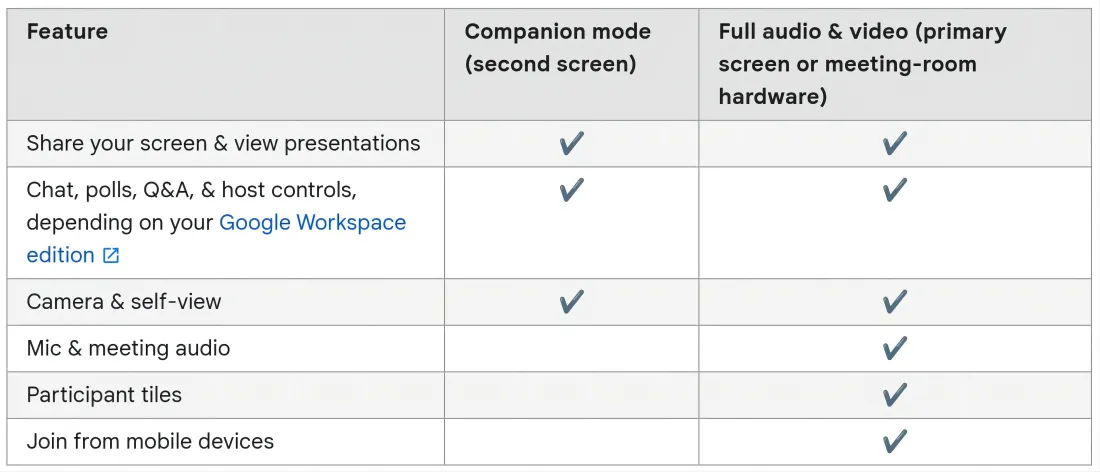
Source: Google
When joining a Google Meet call using Companion mode, you can:
1. Chat with other Google Meet participants
2. Share your screen
3. Access a virtual whiteboard to brainstorm ideas
4. Turn on captions to follow what's being said
Add-ons like hand-raising, conducting polls, and Q&A are available but require a specific Google Workspace edition.
When entering a meeting in Companion mode, your audio and microphone are disabled by default. This prevents audio echoes for you and other participants. Google Meet doesn't display two names for you in the participant list, one for your normal user and one for your Companion mode user. Instead, the software displays your name followed by a Companion tag in the People menu.
Benefits of Google Meet Companion Mode
Here are some benefits of using Google Meet Companion Mode:
Better control: With Companion Mode, you can manage meeting functions like muting and unmuting participants, controlling audio, and viewing meeting chat from your secondary device.
Improved presentation: Companion Mode allows you to share your screen and display presentations or other visual aids while keeping the primary video feed on another device.
Manageable interface: The Companion Mode interface is user-friendly and straightforward, making it easier to manage the meeting without feeling overwhelmed.
Personalized experience: Companion Mode allows users to personalize their meeting experience, making it a useful feature for remote work and educational settings.
Streamlined experience: With the ability to use Companion Mode, you can easily control meetings, manage presentations, and collaborate with participants from a secondary device, making meetings more efficient.
How to join Companion Mode in Google Meet
You can join a Google Meet call in Companion Mode in two ways while muting your laptop audio to prevent feedback.
One way to join a meeting in Companion Mode is through a meeting invite link sent from the Google Meet host:
- Click on the link or Join button in the Google Meet invitation.
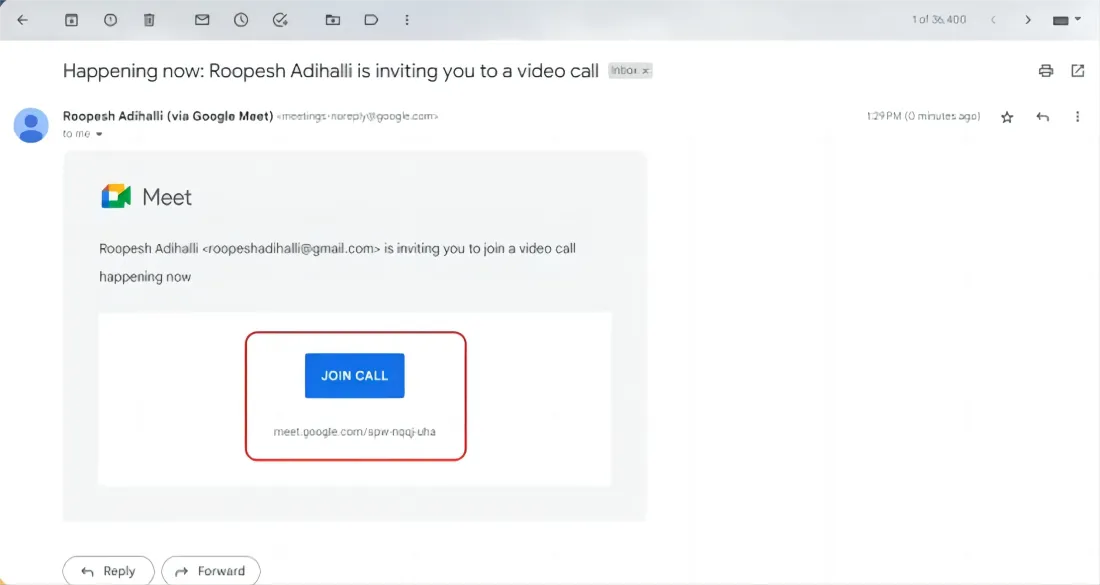
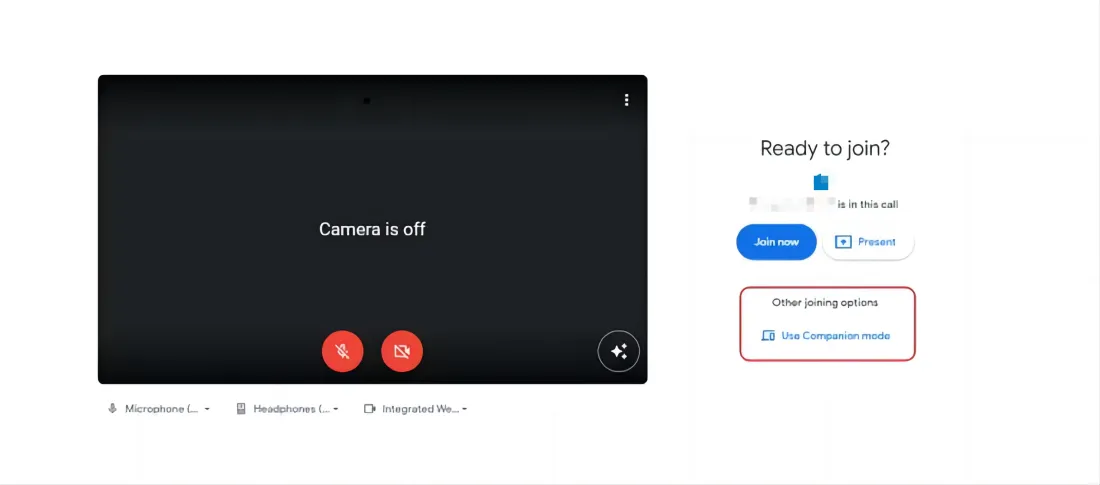
- Let the Ready to join? the meeting landing page loads on a new window.
- Click on the Use Companion Mode button under the Other joining options.
4. When you join the Google Meet video call, the window displays Using Companion Mode in the center with available features.
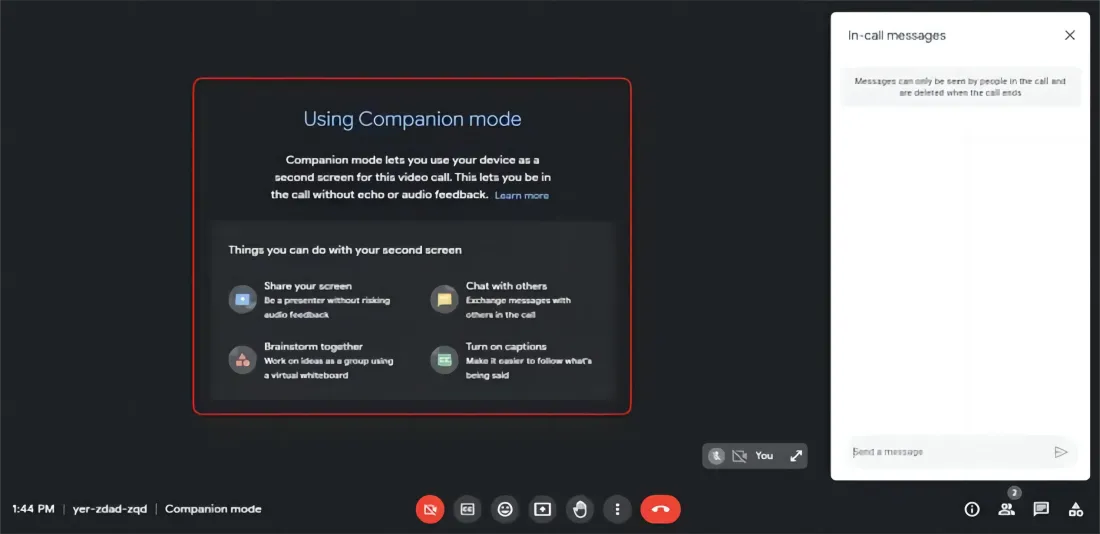
Another way you can join a Google Meet call in Companion Mode is by using a dedicated website link:
- Enter the dedicated website link URL for Google Meet in Companion Mode on your browser.

- Provide the meeting code or the link to the meeting in the Enter a code or link dialog box on the Meet home screen.
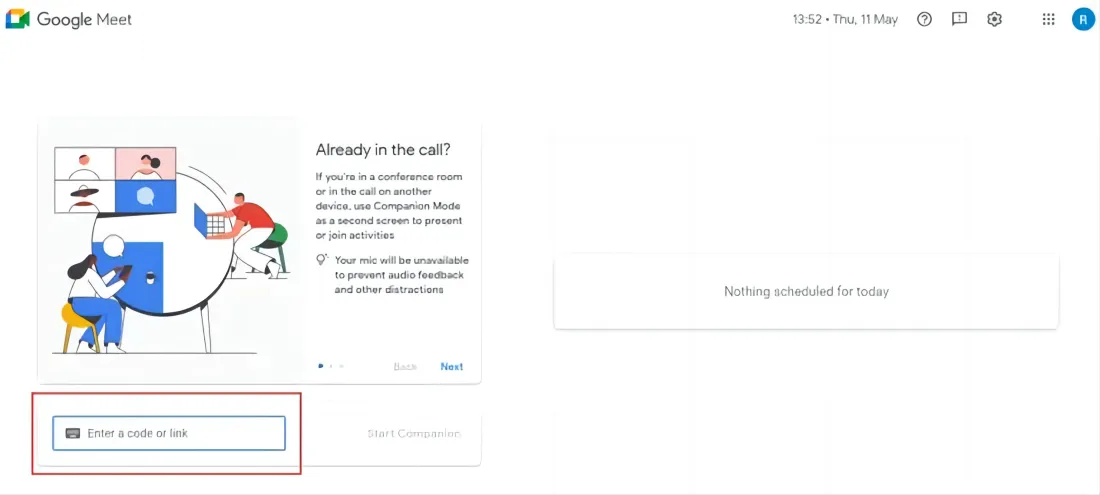
- Click on the Start Companion button to join the meeting.
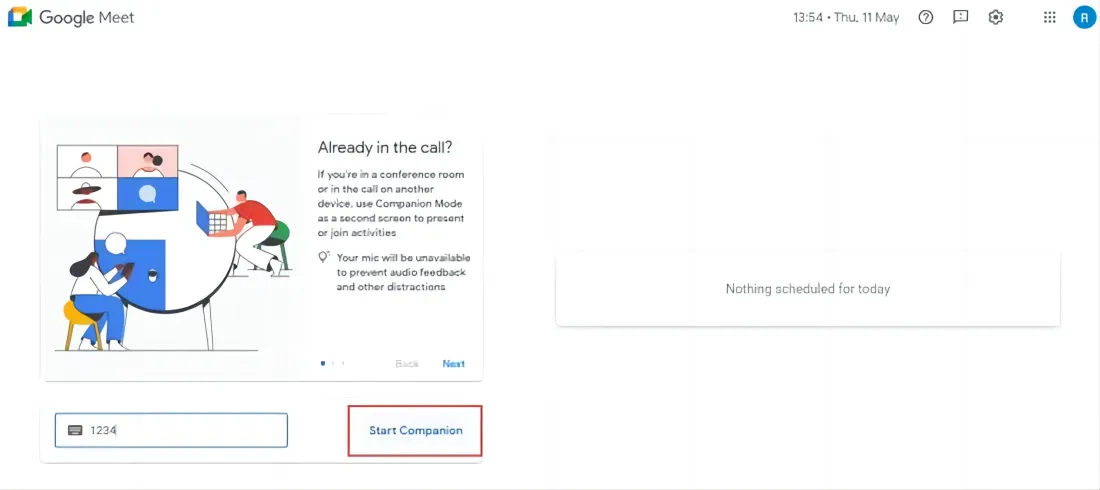
- You have to sign in to the same Google account invited to the meeting, or you will need approval from the meeting host to join the call in Companion Mode.
How to use Companion Mode in Google Meet
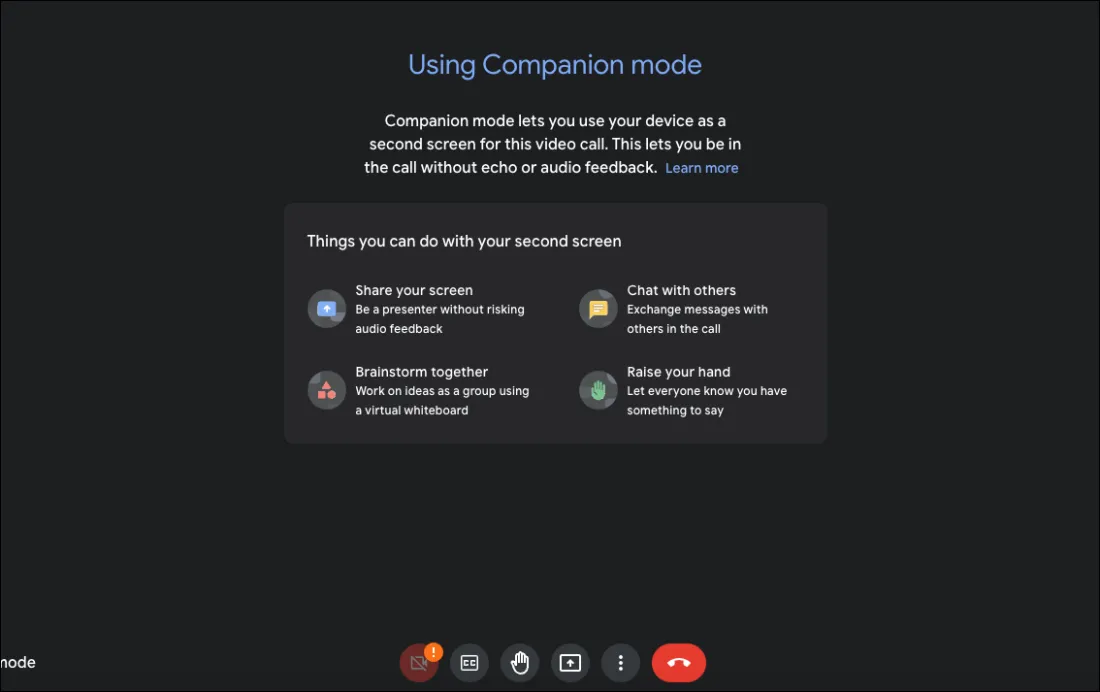
Now that you've joined the meeting in Companion Mode, it's easy to navigate your way around it. When you enter the meeting in Companion Mode, the first thing you'll notice is that instead of any video feeds, your screen will simply say Using Companion Mode. It'll also show an overview of features available to you in the mode.
In-Call Messages
Providing access to in-meeting chat is one of the main purposes of Companion mode, especially when being used by individuals in a conference room. The in-call messages panel will open automatically on the right when you join in Companion mode.
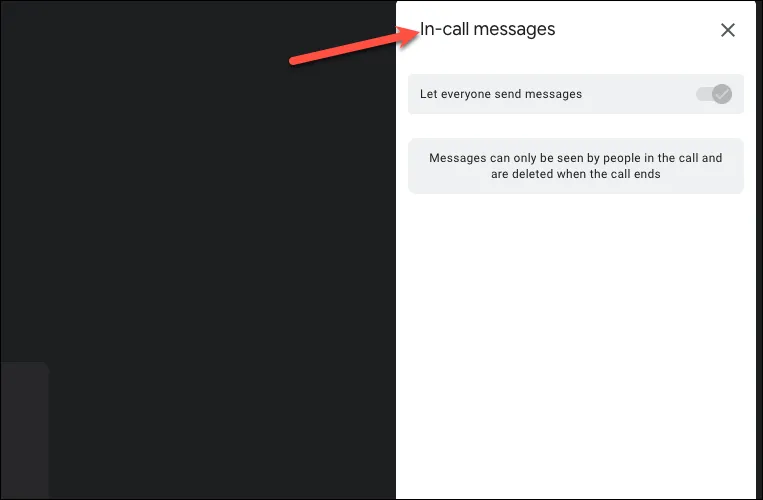
You can only view the messages that are sent after you join the meeting. So, if you want access to all meeting messages, remember to join with Companion mode at the beginning of the meeting.
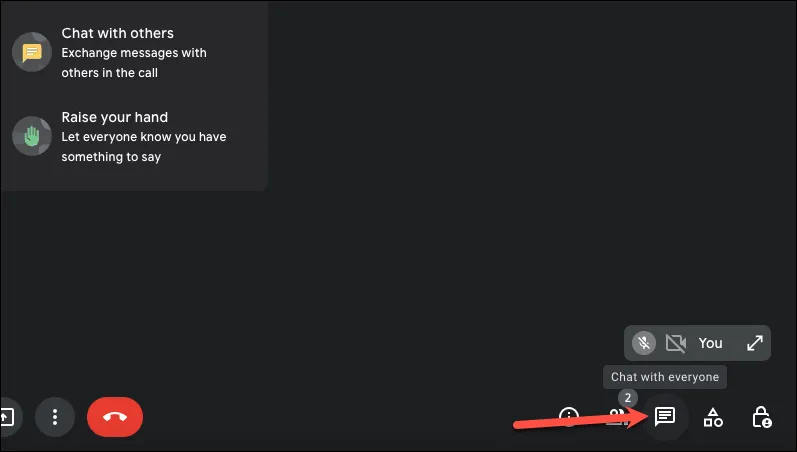
If you close the meeting panel, you can access it anytime again by clicking the Chat icon at the bottom right.
Present Screen
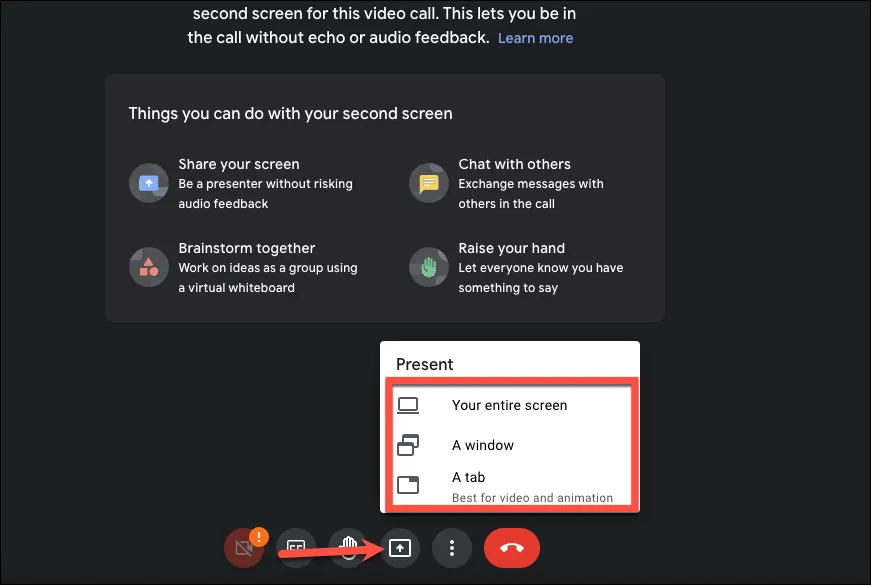
Another purpose for which Companion Mode was made was to give users a second screen to attend meetings where they can share and view presentations. If you want to present in a meeting in Companion Mode, simply click the Present Screen button from the meeting toolbar.
Then, select what would you like to present–Your entire screen, A window, or A tab–as you would in the normal meeting mode.
If you're viewing a presentation, you don't need to do anything on your companion mode screen. But on your primary device with the normal meeting, click the Unpin button on the presentation so you can see video tiles instead.
Share your Video
You can also share your video from the Companion mode if you're using it in the conference room. (If you're using it as a second screen, you won't need to turn on the video in Companion Mode).
Audio is never shared with Companion mode, and hence, your tile will never show as an active speaker. Moreover, your video will never appear on the meeting room hardware even when it is visible to other users in the meeting. But if you raise your hand, your video becomes visible on the meeting room hardware as well.
Click on the Turn on Camera button from the toolbar to share your video.
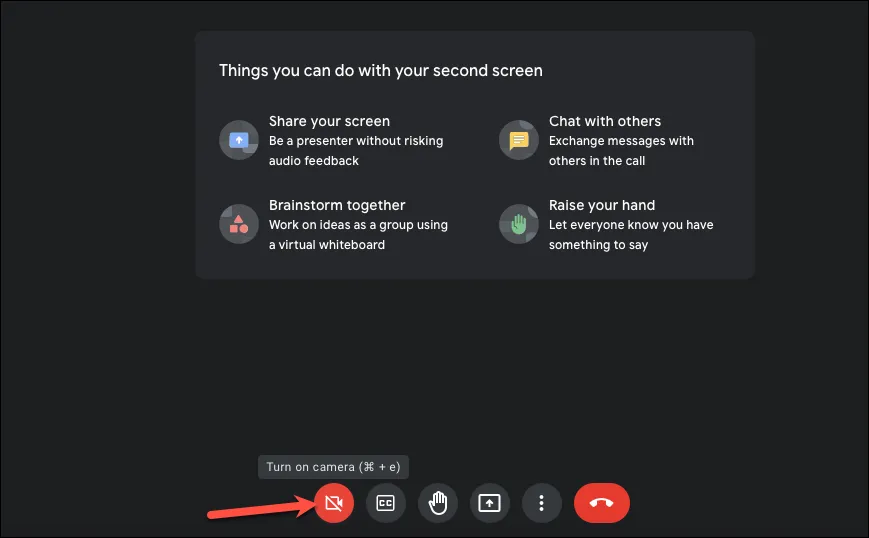
When you're sharing your video, you can also use visual effects by clicking the three-dot menu and selecting Apply Visual Effects from the menu. Then, select the effect from the panel that opens.
Conclusion
Google Meet Companion Mode is an excellent tool for remote workers, especially educators and professionals who require a more streamlined way of managing meetings. The feature offers seamless control, an easy-to-use interface, and the ability to personalize your meeting experience. With Companion Mode, Google Meet has added another tool to its arsenal, making it a more attractive choice for remote workers searching for better ways to work, connect and collaborate virtually.
NearHub is a virtual event platform that allows you to host online events, such as webinars, conferences, and meetings. You can use NearHub together with Google Meet to enhance your virtual events or meetings. With NearHub, you can create an event landing page, invite attendees, and manage registrations. You can then integrate Google Meet with NearHub to conduct your virtual meeting or webinar. By using NearHub board to manage the event logistics and Google Meet for the video conferencing, you can offer a seamless and professional experience to your participants. This combination can help you create productive and engaging virtual events that bring people together regardless of location.
To boost the SEO ranking of your blog post and provide a better user experience, here are the English FAQs for Google Meet Companion Mode. These are written to be clear, concise, and keyword-rich.
💡 Frequently Asked Questions: Google Meet Companion Mode
Q1: What is the primary purpose of Google Meet Companion Mode?
A: Companion Mode is designed to give you a second screen for meetings. It allows you to access collaborative features—like chat, polls, Q&A, and screen sharing—on a secondary device (like a laptop) while using a primary device (like a conference room system or a Nest Hub) for audio and video.
Q2: Does Companion Mode cause audio feedback or echoes?
A: No. One of the best features of Companion Mode is that it joins the meeting with your microphone and speakers automatically disabled. This prevents the screeching audio feedback that occurs when two devices in the same room are active on the same call.
Q3: Can I share my screen while in Companion Mode?
A: Yes! Presenting is a key use case for this mode. By clicking the "Present Screen" button on your companion device, you can share a window or tab while keeping your primary screen dedicated to viewing the other participants.
Q4: Will my name appear twice in the participant list?
A: No, Google Meet handles this intelligently. Your name will only appear once in the participant list, but it will be marked with a (Companion) tag to let others know you are connected via a second device.
Q5: Can I see the chat history in Companion Mode?
A: You can only see the chat messages sent after you join the meeting in Companion Mode. If you need to see the full chat history, it is recommended to join in Companion Mode as soon as the meeting starts.
Q6: Is Companion Mode available on mobile devices?
A: Currently, Companion Mode is primarily designed for web browsers on laptops and desktops. It is intended to complement large-screen meeting hardware rather than replace the mobile app experience.
Q7: How does NearHub work with Google Meet Companion Mode?
A: NearHub boards act as the perfect primary device. You can host the video call on the NearHub interactive board for a professional, large-scale view, while using your laptop in Companion Mode to manage the "mess-free" writing canvas, chat with attendees, and control the meeting flow without distracting from the main presentation.