- Voir les produits
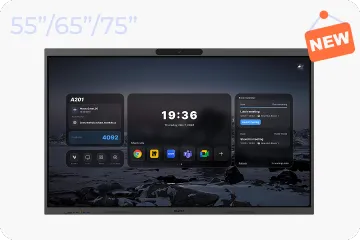
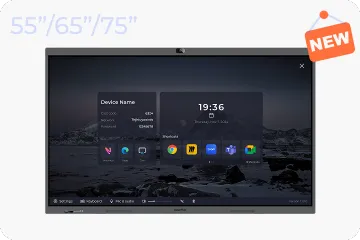
Système Windows
NearHub Board S Pro
Pour les Salles de Réunion Informelles
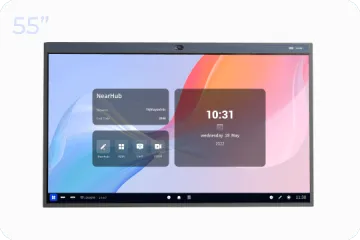
NearHub Board S55
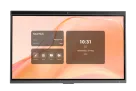
Pour les Salles Moyennes
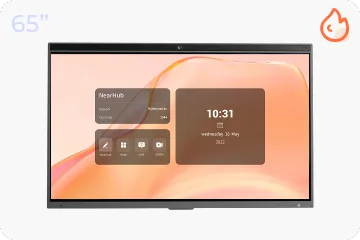
NearHub Board S65
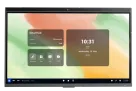
Pour les Grandes Salles
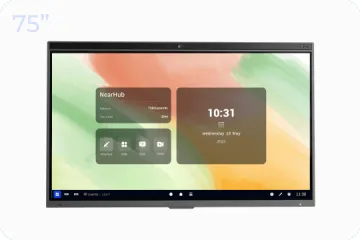
NearHub Board S75
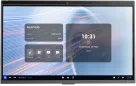
Pour les Salles Spacieuses
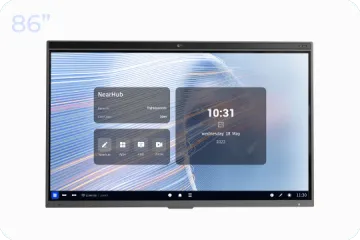
NearHub Board S86
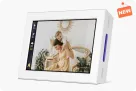
Cadre Photo Numérique Intelligent avec Moniteur de Qualité d’Air
NearHub Frames 10
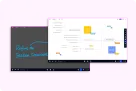
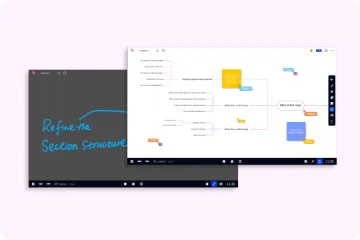
NearHub Canvas
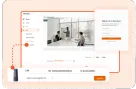
Tableau Blanc en Ligne en Temps Réel
- Voir les produits
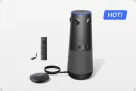
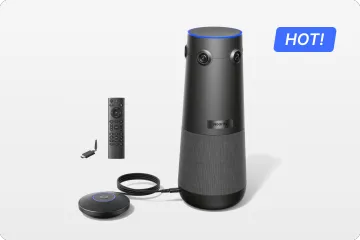
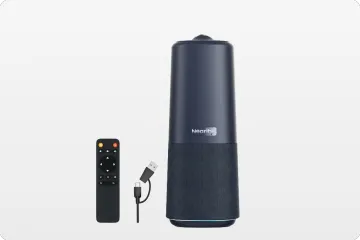
Véritable Caméra Tout-En-Un 4K 360° pour les Réunions Hybrides
Nearity 360 Alien

Véritable Caméra Tout-En-Un 4K 120° pour la Collaboration d’Équipe
Nearity 120 Max

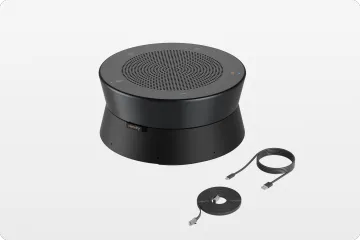
Audio Nouvelle Génération & Daisy-Chain Pionnier
Nearity A20S
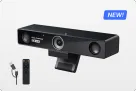
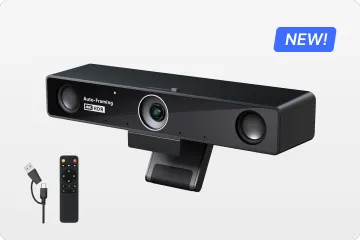
Webcam 4K UHD 120° Pour Réunion Hybride
Nearity V30S
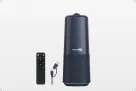
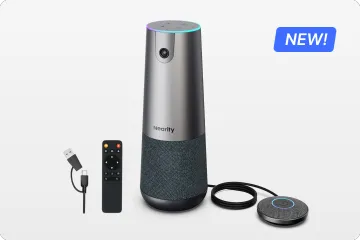
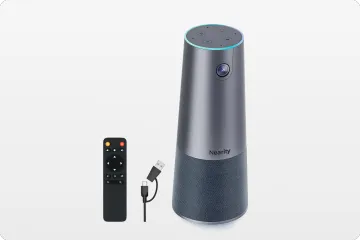
Caméra Tout-En-Un 360° pour les Discussions de Groupe Pro
Nearity C50
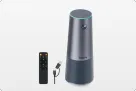
Caméra Tout-En-Un pour la Réunion de Groupe
Nearity C45
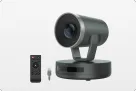
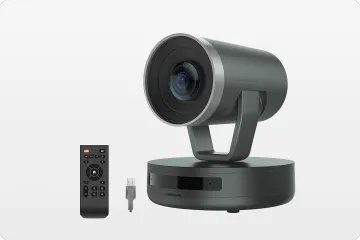
Caméra PTZ Puissante avec Zoom Hybride 10x
Nearity V410
- Voir les produits
- Voir les produits
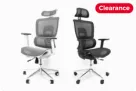
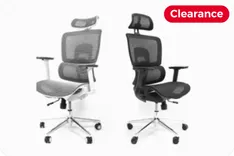
Pour les Grandes Tailles
NearHub EC20
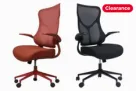
Pour les Petites Morphologies
NearHub EC10
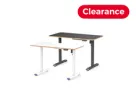
Bureau Assis-Debout Électrique Avec Hauteur Réglable
NearHub OD20
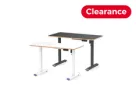
Double Moteur Bureau Informatique Debout
NearHub OD30
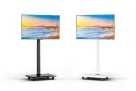
Chariot TV Mobile Pour Écrans De 26 À 70"
NearHub TC30
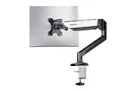
Bras pour Moniteur Simple Pour les Écrans de 13 à 32”
NearHub MA10
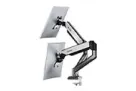
Bras pour Double Moniteur pour les Écrans de 13 à 32”
NearHub MA20
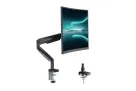
Bras pour Moniteur Simple pour les Écrans de 13 à 35
NearHub MA30
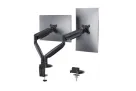
Support de Bureau pour Double Moniteur pour les Écrans de 13 à 35
NearHub MA40
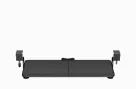
Plateau Clavier Ergonomique
NearHub KD10
- Voir les produits