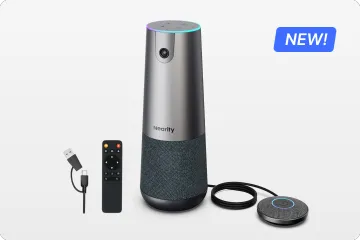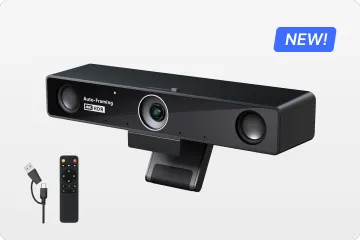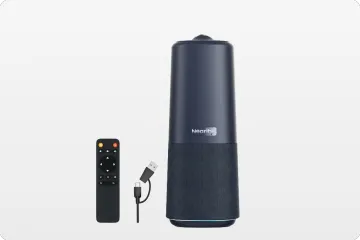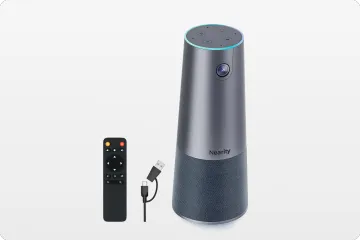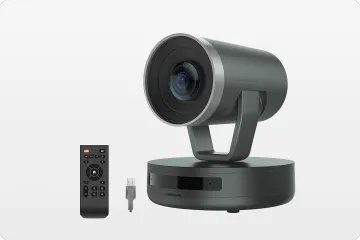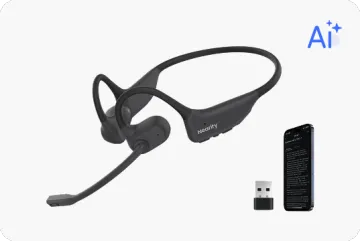
- Voir les produits

Système Windows
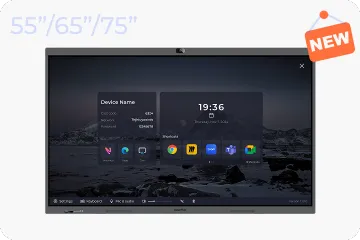
NearHub Board S Pro
Pour les Salles de Réunion Informelles
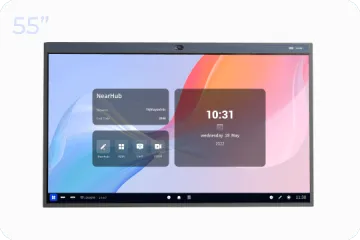
NearHub Board S55
Pour les Salles Moyennes
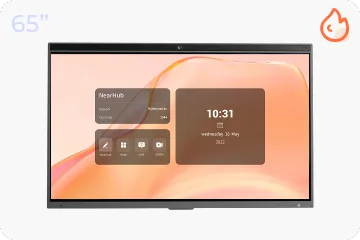
NearHub Board S65
Pour les Grandes Salles
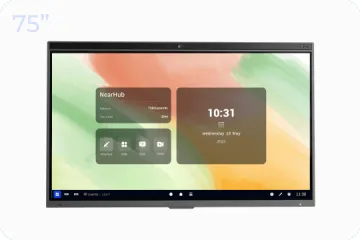
NearHub Board S75
Pour les Salles Spacieuses
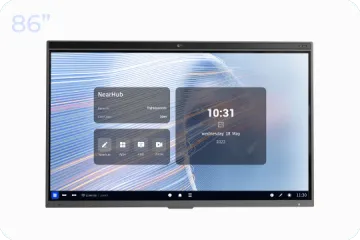
NearHub Board S86
Cadre Photo Numérique Intelligent avec Moniteur de Qualité d’Air
NearHub Frames 10
NearHub Canvas
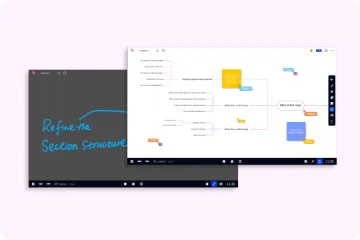
Tableau Blanc en Ligne en Temps Réel
- Voir les produits

Véritable Caméra Tout-En-Un 4K 360° pour les Réunions Hybrides
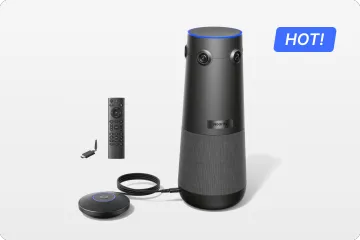
Nearity 360 Alien

Véritable Caméra Tout-En-Un 4K 120° pour la Collaboration d’Équipe
Nearity 120 Max

Audio Nouvelle Génération & Daisy-Chain Pionnier
Nearity A20S
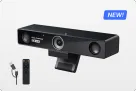
Webcam 4K UHD 120° Pour Réunion Hybride
Nearity V30S
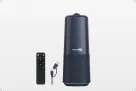
Caméra Tout-En-Un 360° pour les Discussions de Groupe Pro
Nearity C50
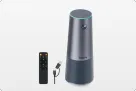
Caméra Tout-En-Un pour la Réunion de Groupe
Nearity C45
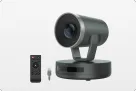
Caméra PTZ Puissante avec Zoom Hybride 10x
Nearity V410
- Voir les produits
- Voir les produits
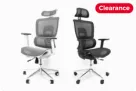
Pour les Grandes Tailles
NearHub EC20
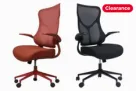
Pour les Petites Morphologies
NearHub EC10
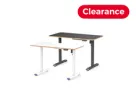
Bureau Assis-Debout Électrique Avec Hauteur Réglable
NearHub OD20
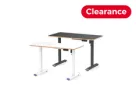
Double Moteur Bureau Informatique Debout
NearHub OD30
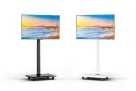
Chariot TV Mobile Pour Écrans De 26 À 70"
NearHub TC30
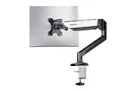
Bras pour Moniteur Simple Pour les Écrans de 13 à 32”
NearHub MA10
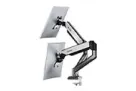
Bras pour Double Moniteur pour les Écrans de 13 à 32”
NearHub MA20
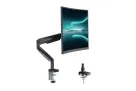
Bras pour Moniteur Simple pour les Écrans de 13 à 35
NearHub MA30
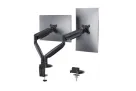
Support de Bureau pour Double Moniteur pour les Écrans de 13 à 35
NearHub MA40
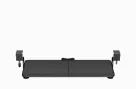
Plateau Clavier Ergonomique
NearHub KD10
- Voir les produits
In workplace we usually need to view the content from our computer on our whiteboard screen. This article offers concrete steps for you to use screen mirroring of NearHub Board.
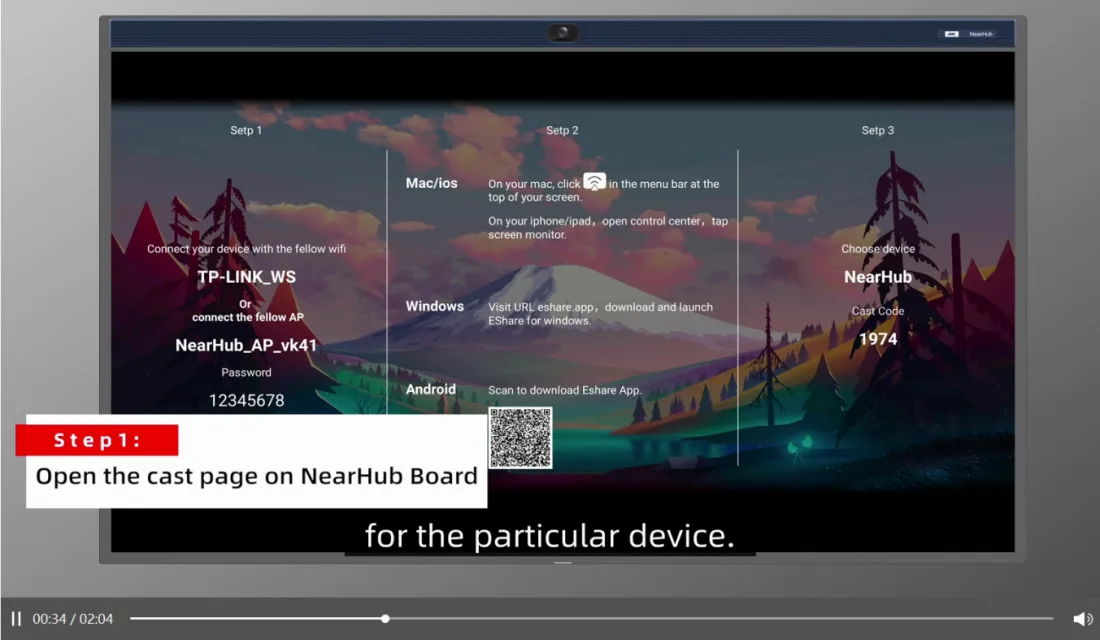
Step 1 Open the cast page on NearHub Board
EShare is a third party screen mirroring software which is free to use. And it is also a good option if you want to share your screen without Airplay or Chromecast. You can open the home page of your NearHub Board and click the "cast" here.
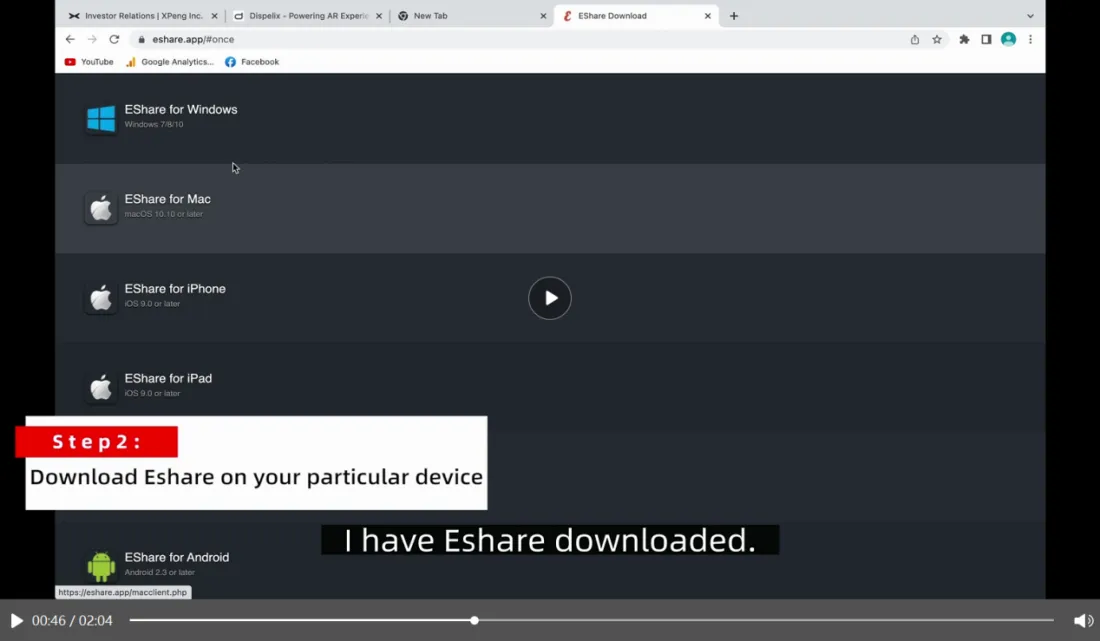
Step 2 Download EShare on your particular device
You can download EShare to your computer by visiting URL eshare.app here.
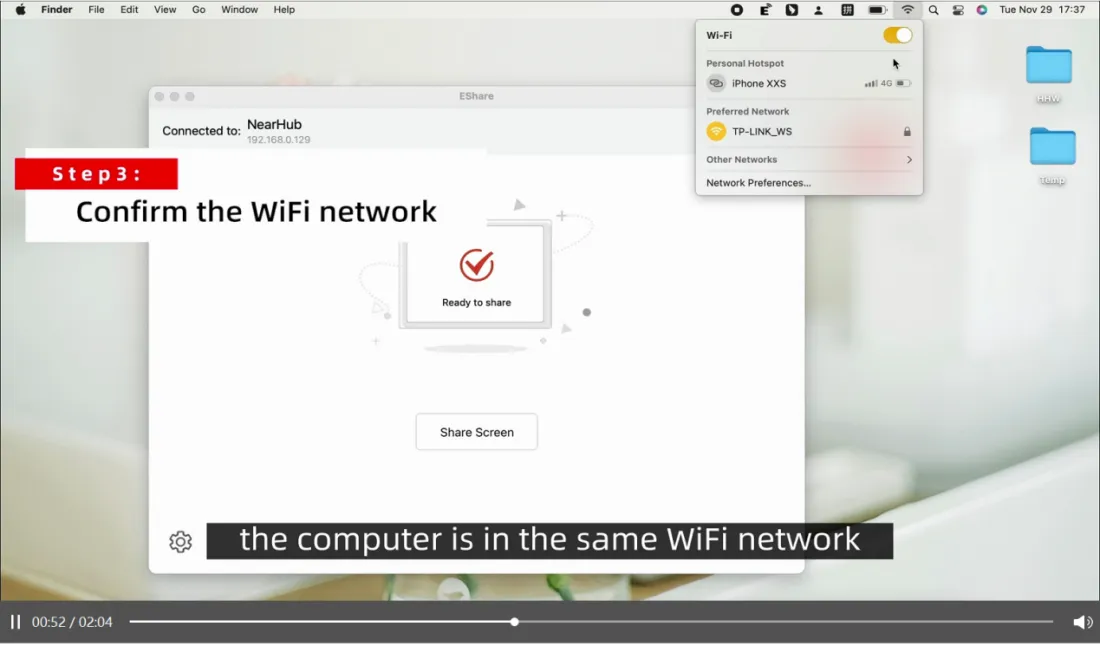
Step 3 Confirm the WiFi network
Make sure that your computer and your NearHub Board are connecting the same WiFi. When you finish the first two steps, open your EShare and enter your cast code which you can find in the Step 3 on the whiteboard cast page, like 1974 in the first picture.
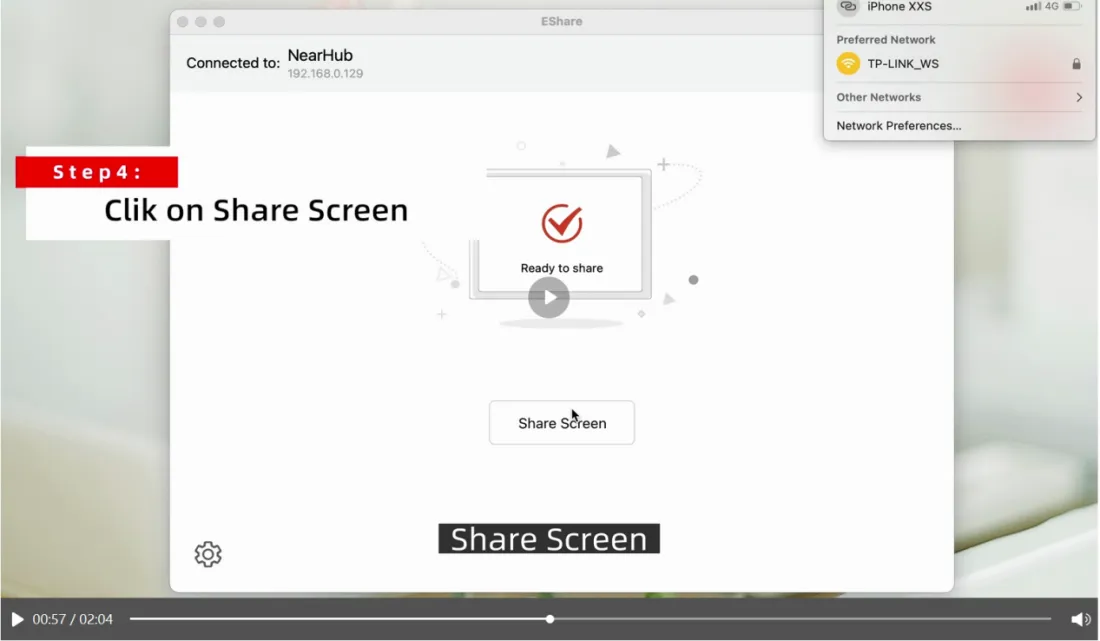
Step 4 Click on Share Screen
You will see “Ready to share” on your screen, and you just need to click on “Share Screen”. And now you can view the content of your computer on your NearHub Board.
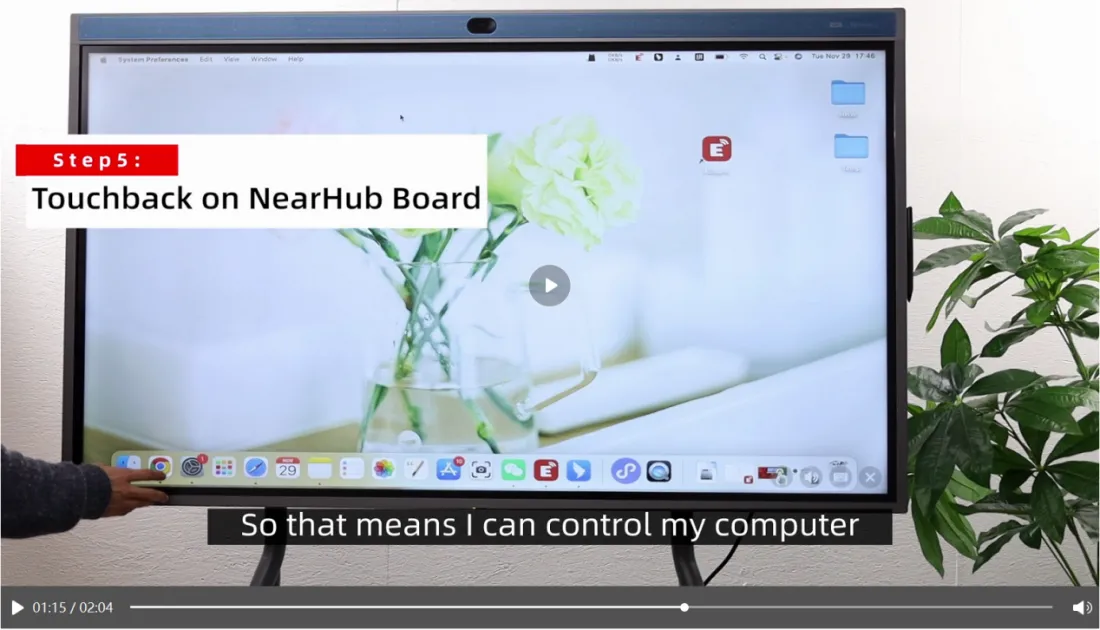
Step 5 Touchback on NearHub Board
A unique feature EShare has is the ability to touch back. To touch back means that you can control your computer simply by touching your board.
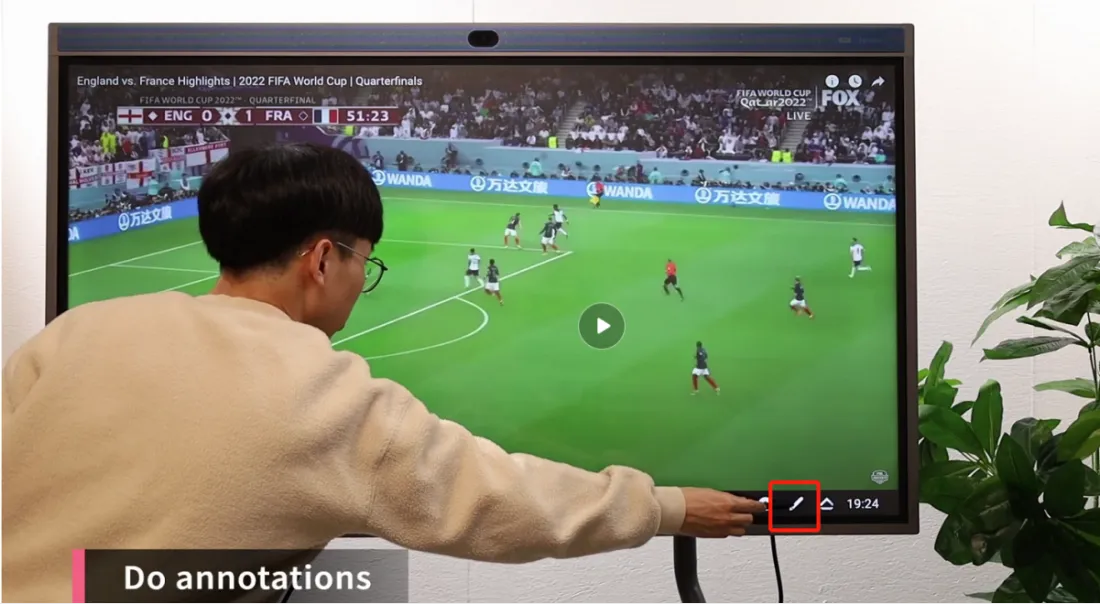
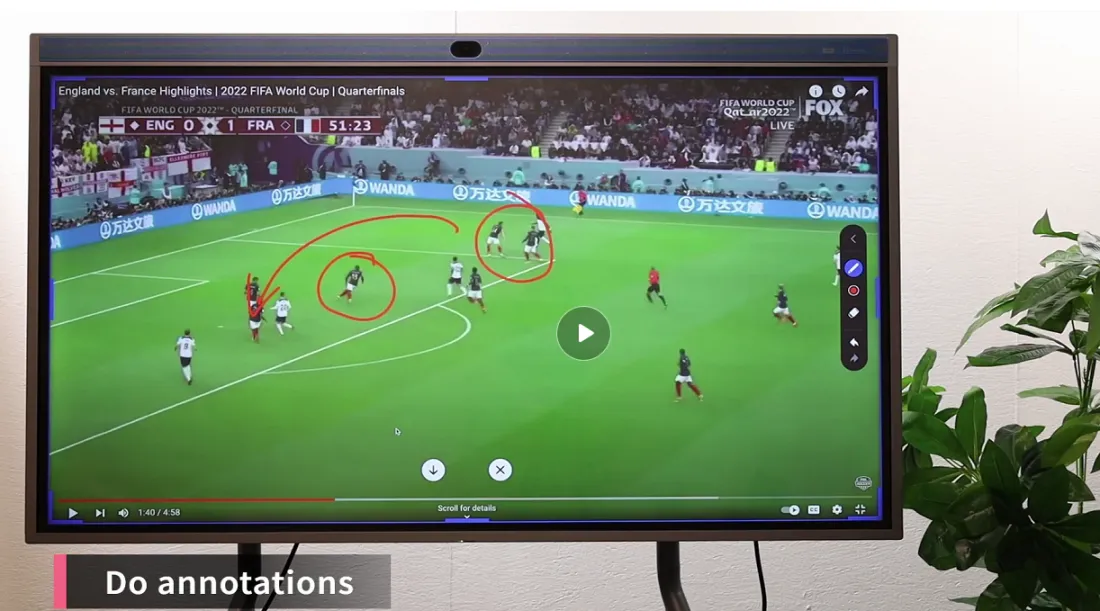
Step 6 Annotation
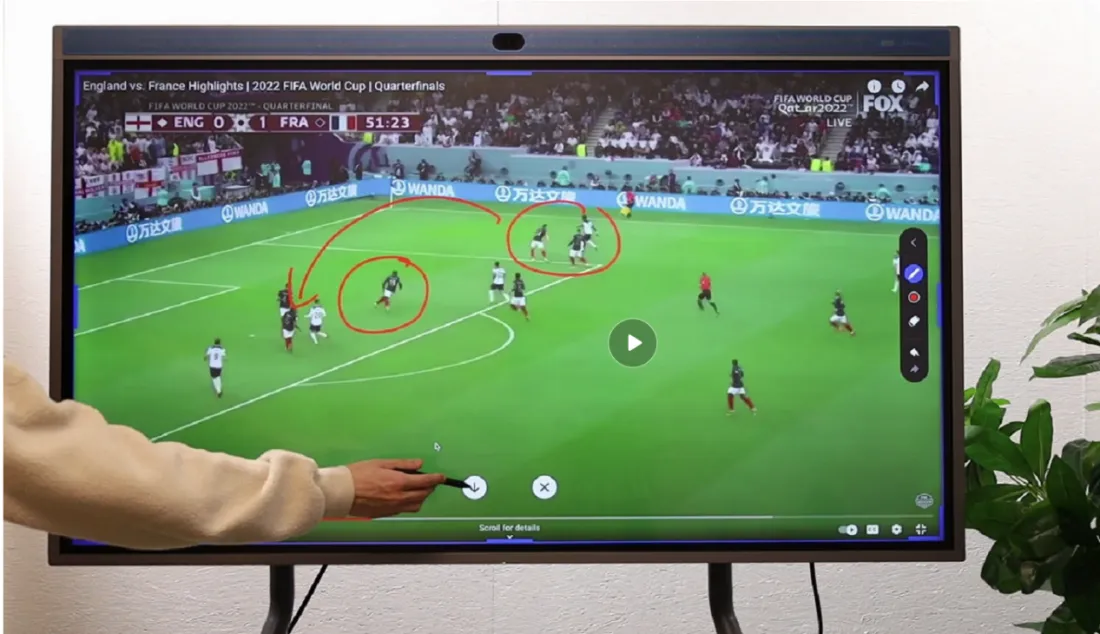
You can annotate on the screen with its smart pen during your screen mirroring. Slide up from the bottom and click the pencil-like button in the right. Then you can write and draw on the screen, and you can also upload the annotated screenshot to your NearHub app by click “↓”.
If you meet any problems in the process or have any further questions, please submit a support ticket here. Our support team will respond as soon as possible.