





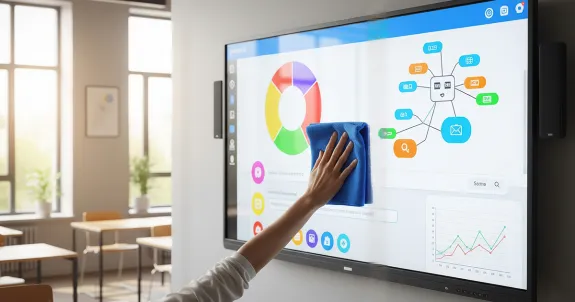
Imagine you are in the middle of a crucial presentation. You reach out to drag a graph across the screen, but your finger sticks on a smudge of oily residue. Or worse, you’re teaching a math lesson, and the "ghost" of yesterday's equation is still faintly visible, muddying the clarity of today’s notes. It’s frustrating, unprofessional, and frankly, a little gross.
We invest thousands in state-of-the-art interactive technology to enhance collaboration and learning. Yet, the maintenance of these devices often falls by the wayside until the screen is virtually unusable. Whether you are a teacher managing a chaotic classroom or an IT manager overseeing a corporate suite, knowing how to clean a smart board screen properly is not just about aesthetics—it’s about protecting your investment and ensuring the longevity of the technology.
This article is your comprehensive How-to Guide on maintaining your interactive displays. We aren’t just going to tell you to "wipe it down." We are going to dive deep into the science of the glass, the specific chemicals that spell disaster for touch sensors, and the professional protocols that will keep your screen looking brand new for a decade.
We will cover everything from the daily wipe-down to deep sanitization, all while highlighting the 5 common mistakes to avoid that could void your warranty or damage your hardware.
Key Takeaways
- The Golden Rule: Never spray liquid directly onto the screen. Always spray your cloth first to prevent liquid from damaging the sensitive IR sensors in the bezel.
- Best Cleaning Solution: Use a mixture of 70% Isopropyl Alcohol (IPA) and distilled water, or a dedicated screen cleaner. This aligns with CDC guidelines for electronics.
- What to Avoid: Never use Windex (Ammonia), bleach, or paper towels. These strip the anti-glare coating and cause micro-scratches.
- Safety First: Always turn off and unplug your smart board before cleaning to spot dirt clearly and avoid electrical shock.
- Fix Touch Issues: If your board has "phantom touches" or dead zones, clean the dust from the infrared bezel frames using a dry microfiber cloth or compressed air.
The Science of the Screen: Why Standard Cleaning Fails
Before we grab a rag, it is vital to understand what you are actually cleaning. A smart board is not just a glorified dry-erase board. It is a complex piece of electronic equipment comprised of several delicate layers.
1. The Anti-Glare Coating
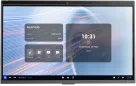
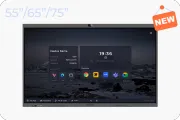
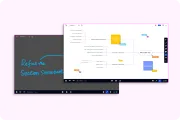
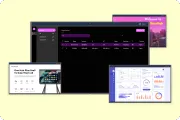
Most high-quality interactive displays, including the smart electronic whiteboard from NearHub, feature a specialized etched glass surface or an anti-glare coating. This coating is designed to diffuse light so that users can see the screen clearly from any angle without reflection.
- The Risk: Harsh chemicals like ammonia or bleach can strip this coating away. Once the coating is damaged, you will notice permanent "shiny" spots where the glare is unbearable, effectively ruining the viewing experience in that area.
2. The Infrared (IR) Touch Frame
Many smart boards use IR technology to detect touch. This involves a frame of invisible light beams crisscrossing the surface of the screen.
- The Risk: Dust and debris are the enemies here. If you use a paper towel that leaves behind lint, or if you let dust accumulate in the corners, it can block these IR beams. The result? "Phantom touches" (where the mouse clicks itself) or dead zones where the board stops responding to your finger.
3. The Hydrophobic Layer
Some premium screens have an oleophobic (oil-repelling) layer to reduce fingerprints.
- The Risk: Alcohol-based cleaners with high concentrations (above 70%) or abrasive scrubbing pads can wear this layer down over time, making the screen a magnet for oils and grease.
Understanding these components explains why the method matters. You aren't just cleaning glass; you are maintaining a precision instrument.
The Ultimate Toolkit: What You Need (and What You Don't)
Preparation is half the battle. If you have the wrong tools, you might as well not start. In fact, using the wrong tools is the leading cause of damage to interactive displays.
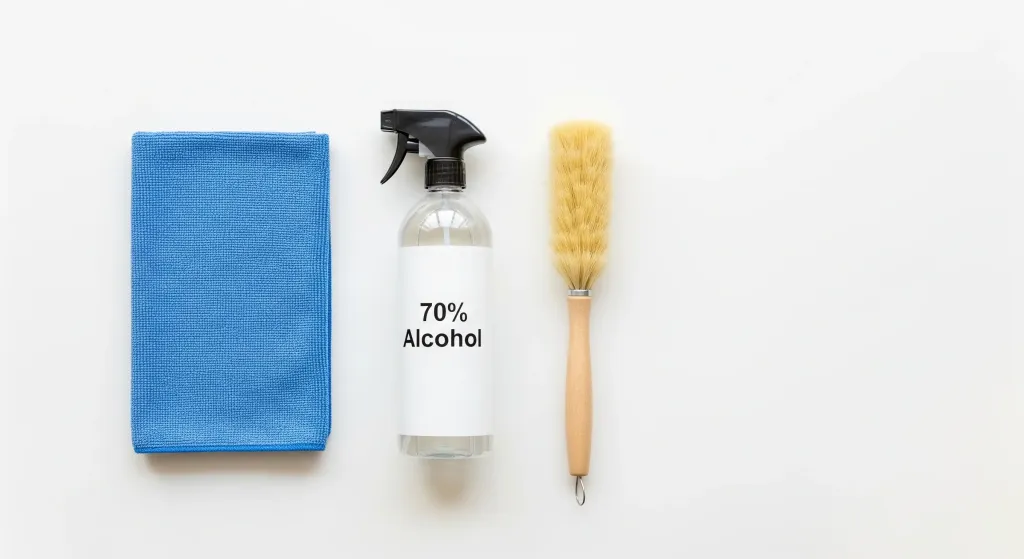
The "Green Light" List (Safe to Use)
These items should be in every classroom or conference room that houses a smart writing board.
- Microfiber Cloths: This is non-negotiable. Microfiber traps dust rather than spreading it. It is soft enough not to scratch the coating but effective enough to lift oils.
- 70% Isopropyl Alcohol (IPA): This is the industry standard for disinfecting electronics, aligning with CDC guidelines for electronics and major tech manufacturer recommendations. It dries quickly and cuts through grease without damaging sensitive coatings.
- Distilled Water: If you don't need to disinfect, distilled water is the safest solvent. Tap water often contains minerals (calcium/lime) that can leave white streaks or deposits on the screen.
- Spray Bottle (Mist Setting): You need a bottle that creates a fine mist, not a jet stream.
- Soft Bristle Brush: Useful for dusting the corners and the bezel where the IR sensors live.
The "Red Light" List (Never Use)
Ban these items from your cleaning cart immediately.
| Item | Why It’s Dangerous | Potential Damage |
|---|---|---|
| Paper Towels / Tissues | Made of wood pulp; abrasive on a microscopic level. | Micro-scratches that cloud the screen over time. Leaves lint that blocks sensors. |
| Ammonia (Windex) | Highly alkaline. | Strips anti-glare coatings; causes yellowing of plastics. |
| Bleach / Clorox Wipes | Corrosive. | Can damage the protective layers of the screen and discolor the bezel. |
| Acetone | Solvent used in nail polish remover. | Can melt plastic bezels and instantly destroy screen coatings. |
| Tap Water | Contains minerals. | Leaves hard water spots that are difficult to remove without scrubbing. |
Step-by-Step Guide: How to Clean a Smart Board Screen Like a Pro
Follow this routine to ensure a streak-free, undamaged surface. This protocol applies to almost any major brand, including NearHub displays.
Step 1: The Safety Shutdown
Never try to clean a screen that is turned on.
- Turn it off: Shut down the smart board completely.
- Unplug it (Optional but Recommended): For a deep clean, unplugging ensures no stray liquid causes a short circuit if it drips.
- The "Black Screen" Benefit: Cleaning a black, powered-off screen allows you to see smudges and dust much clearly than when the pixels are lit up.
Step 2: The Dry Dusting (Crucial First Pass)
Before adding any liquid, you must remove the loose dust. If you wet a dusty screen, you simply create mud.
- Take a clean, dry microfiber cloth.
- Wipe the screen in large, gentle "S" motions starting from the top.
- Focus on the corners: Dust tends to settle in the bottom bezel. Use a soft brush or the corner of the cloth to gently dislodge dust from the IR sensor frame.
Step 3: The Liquid Application
This is where most people mess up.
- Mix your solution: Use a 50/50 mix of 70% Isopropyl Alcohol and distilled water, or use a pre-formulated screen cleaner.
- Spray the CLOTH, not the screen: We cannot emphasize this enough. Spray your microfiber cloth until it is damp (not soaking wet).
- Why? If you spray the screen, gravity takes over. The liquid will run down the glass and pool in the bottom bezel, where the sensitive electronics and IR sensors are located. This is the fastest way to kill a smart board cost-ing thousands of dollars.
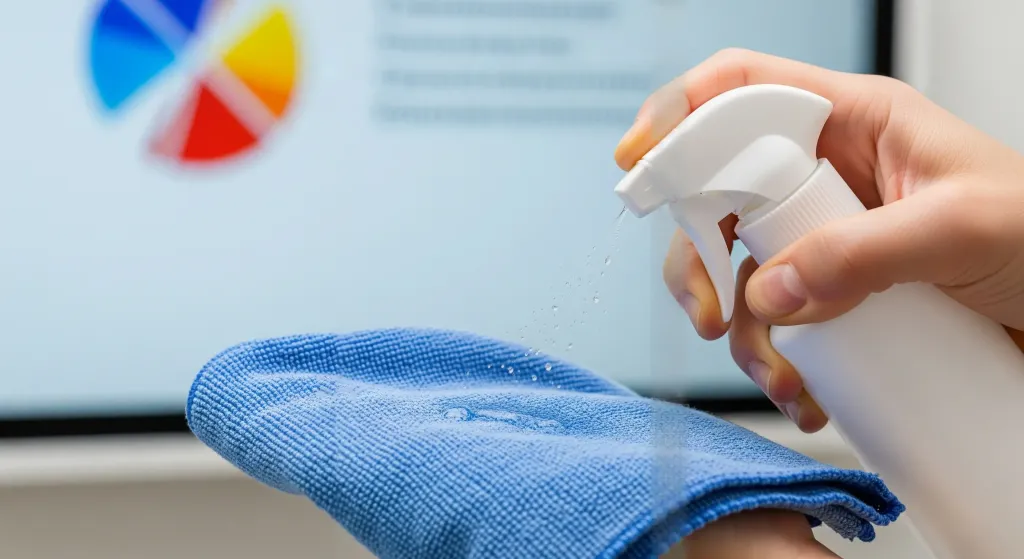
Step 4: The Wet Wipe
- With your damp cloth, wipe the screen gently.
- Start at the top and work your way down.
- Use circular motions for stubborn fingerprints, but finish with horizontal swipes to prevent streaking.
- Pressure Check: Do not press hard. The glass is durable, but excessive pressure can damage the LCD panel behind it (known as pressure bruising).
Step 5: The Drying Phase
- Take a second, dry microfiber cloth.
- Buff the screen dry immediately to prevent streaks.
- Wait at least 5-10 minutes before turning the device back on to ensure all moisture has evaporated from the edges.
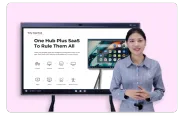
Watch the Visual Guide
For a quick visual demonstration of these safety protocols, watch this helpful video from NearHub:
5 Common Mistakes to Avoid When Cleaning Smart Boards
Even with good intentions, users often make errors that degrade their device. Here are the top five pitfalls to watch out for.
1. Spraying Directly on the Screen
We touched on this, but it bears repeating. Liquid seeks the path of least resistance. On a vertical surface, that path is down—right into the bezel.
- The Consequence: Liquid damage in the bezel often voids warranties. It can corrode the connection points of the touch sensors, leading to permanent dead zones at the bottom of the screen.
2. Using "Standard" Classroom Cleaners
Teachers are used to sanitizing desks with Clorox wipes or spraying whiteboards with Expo cleaner.
- The Consequence: Dry-erase board cleaner is oil-based and meant for non-porous enamel surfaces. It often leaves a greasy residue on etched glass smart boards that makes touch interaction feel "sticky" and creates a haze. Disinfecting wipes are too abrasive and chemically harsh for the anti-glare coating.
3. Ignoring the Frame and Bezel
Users often obsess over the glass but ignore the black frame surrounding it.
- The Consequence: On IR (Infrared) boards, the magic happens in the frame. If dust accumulates there, it blocks the light emitters. If you are experiencing "ghost touches" (the mouse jumping around) or the board won't register your touch in a specific corner, 90% of the time, it is dirty sensors in the bezel.
4. Cleaning While the Board is Hot
Smart boards generate heat. If you spray a cool liquid onto a hot glass surface, two things happen.
- The Consequence: First, the liquid evaporates too quickly, leaving behind streaky mineral deposits or soap scum. Second, in extreme cases, the thermal shock (rapid temperature change) can stress the glass, potentially leading to micro-fractures over time. Always let the board cool down for 15 minutes post-shutdown.
5. Using Dirty Cloths
Using the same cloth you used to wipe down the whiteboard tray or the teacher's desk? Bad idea.
- The Consequence: You are likely transferring abrasive grit, chalk dust, or oils from other surfaces onto your expensive screen. Keep a dedicated stash of "Screen Only" microfiber cloths.
Deep Cleaning vs. Daily Maintenance: A Schedule for Success
How often should you be cleaning? This depends on usage. A university lecture hall board used once a day has different needs than a kindergarten smart electronic whiteboard touched by sticky fingers all day.
The Daily Routine (2 Minutes)
- When: End of the day.
- Action: Dry wipe only. Remove the day's dust and light fingerprints.
- Goal: Prevent oil buildup from hardening overnight.
The Weekly Routine (10 Minutes)
- When: Friday afternoon.
- Action: Damp wipe with the 70% Isopropyl Alcohol mixture.
- Goal: Sanitize the surface and remove heavier grime.
- Check: Inspect the stylus pens. Clean the tips of the styluses as they can collect debris which then scratches the screen.
The Emergency Clean (Accidental Permanent Marker)
It happens. Someone mistakes the smart board for a standard dry-erase board and writes on it with a Sharpie.
- Don't Panic: Do not scrub with an abrasive sponge.
- The Fix:
- Trace over the permanent marker ink with a standard Dry Erase marker. The solvents in the fresh ink will re-liquefy the permanent ink.
- Wipe away immediately with a microfiber cloth.
- Repeat if necessary.
- Finish with an Isopropyl Alcohol clean to remove any ghosting.
Hygiene in Shared Spaces: Why Cleaning Matters More Now
In the post-pandemic era, the cleanliness of shared touch surfaces is under scrutiny. A smart board is a "high-touch" surface.
The Classroom Context
According to various health studies, school desktops and shared electronics can harbor more bacteria than restroom surfaces if left uncleaned. Research by NSF International highlights that electronics in schools are among the top germiest items, necessitating stricter cleaning protocols.
- Touch Transmission: In a classroom, 30 students might touch the board in a single period.
- The Solution: Teachers should keep a spray bottle of 70% Isopropyl Alcohol (kept out of reach of children) and a clean cloth. A quick "reset" wipe between periods helps reduce the viral load on the surface.
The Corporate Context
In meeting rooms, the specialized stylus is often the vector for germs.
- Protocol: Don't just clean the screen; wipe down the pens and the remote controls.
- NearHub Advantage: NearHub boards are designed with smooth, edge-to-edge glass that makes sanitization easier compared to older boards with deep bezels that trap bacteria.
Troubleshooting Screen Issues Related to Dirt
Sometimes, you might think your board is broken, but it is actually just dirty. Before you call IT support or check the warranty, run through this checklist.
Issue 1: The "Phantom Touch"
- Symptom: The cursor jumps to a corner, or windows open by themselves.
- Cause: A buildup of dust or a smudge on the reflective tape inside the bezel is confusing the IR sensors.
- Fix: Use a can of compressed air (held upright) to blow out the corners of the frame. Follow up with a dry microfiber cloth run along the inside edge of the bezel.
Issue 2: The "Dead Zone"
- Symptom: You draw a line across the screen, but it breaks in the middle.
- Cause: A sticky residue (like tape adhesive or dried soda) on the glass is interfering with the touch registration, or blocking the sensor path.
- Fix: perform a "Spot Clean" with undiluted Isopropyl Alcohol on that specific area to cut through the residue.
Issue 3: Blurry Text or "Rainbow" Effect
- Symptom: The screen looks oily or has a rainbow shimmer.
- Cause: Too much detergent residue. If you used soap or a generic cleaner, it left a film.
- Fix: You need to rinse the screen. Use distilled water on a microfiber cloth to wipe away the chemical residue, then buff dry.
Frequently Asked Questions (FAQ)
Here are some specific questions users often ask about how to clean a smart board screen.
1. Can I use Windex or glass cleaner on my smart board?
No. Most glass cleaners contain ammonia or other alkalis. These chemicals can strip the anti-glare coating over time, leading to reflection spots and eventual clouding of the glass. Always check the ingredients and avoid ammonia.
2. Is 99% Isopropyl Alcohol better than 70%?
Actually, no. 70% is ideal. 99% alcohol evaporates too quickly to effectively break down the cell walls of bacteria for sanitization, and it can be harsh on plastics. The 30% water content in the 70% solution acts as a catalyst for denaturation of proteins (killing germs) and keeps the surface wet long enough to clean effectively.
3. How do I remove sticky tape residue from the screen?
Do not scrape it! Apply a small amount of 70% Isopropyl Alcohol to a cloth and hold it against the sticky spot for 60 seconds to soften the adhesive. Then, gently rub it away.
4. My screen has scratches; will cleaning fix them?
Cleaning cannot fix physical scratches. However, sometimes what looks like a scratch is actually a streak of hardened plastic from a stylus tip. Try a vigorous polish with a microfiber cloth; if it disappears, it was just residue.
5. Does NearHub have specific cleaning recommendations?
Yes, NearHub recommends using non-abrasive, alcohol-based cleaners applied to a cloth first. Regular maintenance of your smart writing board ensures the touch sensitivity remains acute and the 4K display remains crisp.
Conclusion: Protect Your Tech
Learning how to clean a smart board screen is not rocket science, but it does require discipline. The "spray and wipe" mentality we use for kitchen counters does not apply here. By avoiding the common mistakes—like spraying directly on the screen or using paper towels—you protect the delicate IR sensors and anti-glare coatings that make the technology work.
Remember, a clean screen is an inviting canvas. It encourages students to come up and solve problems; it invites colleagues to brainstorm freely. Don't let a layer of grime become a barrier to collaboration.
Implement these steps today. Go grab a microfiber cloth, mix up your solution, and give your smart board the care it deserves. Your eyes (and your budget) will thank you.
Looking for a reliable, easy-to-maintain interactive display? Check out our smart writing board here: NearHub Interactive Smart Whiteboard S Pro.




 sales@nearhub.us
