











Have you ever been in the middle of a high-stakes classroom presentation, only to realize that the students in the back row are squinting at a tiny diagram? It is a common frustration for educators and presenters alike. When the fine details of a complex map or the small font of a research paper are lost, engagement drops instantly.
This is where understanding the full capabilities of electronic whiteboards becomes a game-changer. Modern classrooms are evolving, and the ability to manipulate content dynamically—specifically through zooming—is no longer a luxury; it is a necessity.
In this comprehensive How-to Guide : "How to Use Electronic Whiteboards Like a Pro", we will dive deep into the mechanics of navigation. Whether you are a first-time user or a seasoned tech-savvy educator, this guide will provide you with the exact steps to master the zoom function, ensuring every student has a front-row seat to your content.
Key Takeaways
- Master Universal Gestures: Proficiency with the two-finger "pinch-out" (Zoom In) and "pinch-in" (Zoom Out) is the fundamental skill for any digital presentation.
- Navigate the Infinite Canvas: In the NearHub Whiteboard app, use the "Navigator" mini-map to get a bird's-eye view of your entire workspace or double-tap to reset your view instantly.
- Deep Document Interaction: When presenting Word or PDF files, combine the software's internal sliders with hardware gestures to ensure your annotations stay perfectly aligned with the content.
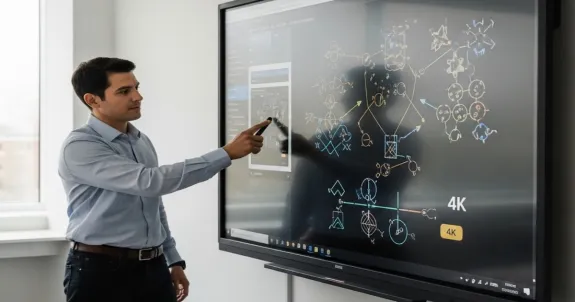
- High-Precision Image Analysis: Leverage 4K resolution to dive into image details. Use the "Magnifier" tool to highlight specific areas while keeping the overall context visible to the audience.
- Immersive Video Teaching: Use the full-screen button for immediate immersion.
- Utilize Pro Tools: Go beyond basic navigation by using the "Lasso Tool" to manually resize elements or "Split-Screen Mode" to compare content from different apps side-by-side.
- Ensure Synchronized Collaboration: In hybrid or remote environments, your zoom actions sync automatically, ensuring that both in-person and remote participants are focused on the same detail.
The Universal Pinch-to-Zoom Gesture Explained in Electronic Whiteboards
 Before we get into specific software, we must understand the hardware foundation. Most modern interactive smart boardsystems utilize advanced multi-touch technology—either Infrared (IR) or Capacitive touch.
The Psychology of Interaction
The "Pinch-to-Zoom" gesture has become the universal standard for digital navigation. Since the advent of the smartphone, our brains have become wired to expect this intuitive interaction. On a smart electronic whiteboard, this gesture scales up, allowing for a much more physical and immersive experience.
How to Perform the Universal Gesture:
- To Zoom In: Place two fingertips (usually your thumb and index finger) on the screen and move them apart. The content will expand from the midpoint of your fingers.
- To Zoom Out: Place two fingers apart on the screen and "pinch" them together. This brings more of the canvas into view.
- Centering: Most systems will zoom into the specific area where your fingers are placed, making it easy to "target" a specific corner of a document.
Why It Matters for SEO and Usability
According to industry reports from Futuresource Consulting, the adoption of interactive displays in education has seen a 15% year-over-year growth. This surge is driven by the demand for intuitive UI. When you use a smart electronic whiteboard, the "Pinch-to-Zoom" gesture reduces the "cognitive load" on the presenter, allowing you to focus on teaching rather than fighting with the technology.
How to Zoom in the NearHub Whiteboard App
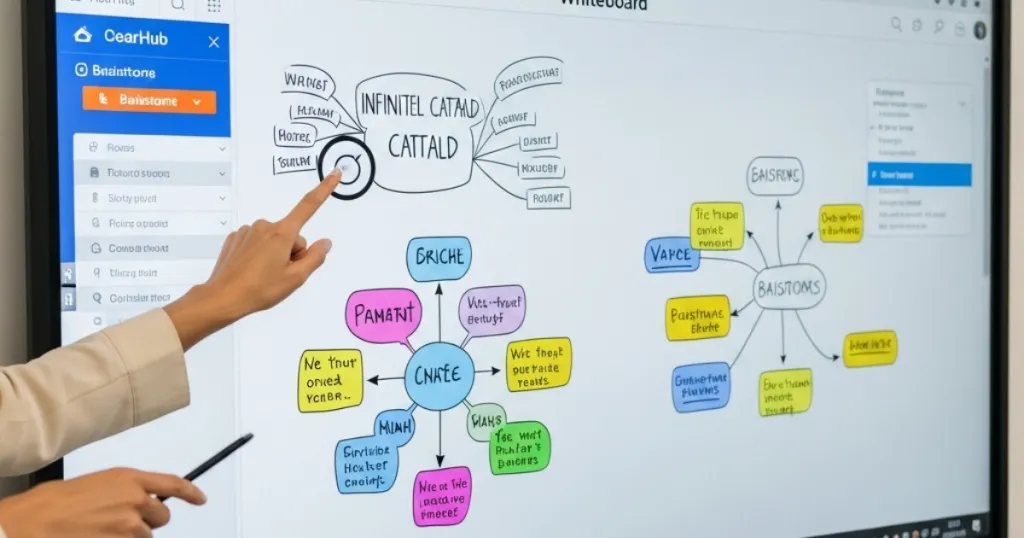
The NearHub Whiteboard App is designed specifically for high-intensity brainstorming and detailed instruction. Unlike a physical board, the digital canvas is "infinite."
Mastering the Infinite Canvas
In the NearHub environment, the canvas isn't limited by physical borders. You can write for miles, but to keep your audience focused, you need to know how to use a smart board to navigate this space.
Step-by-Step Zooming in NearHub:
- Direct Gesture: Use the standard two-finger pinch anywhere on the blank canvas. NearHub's software is optimized for low latency, meaning the zoom feels "liquid" and immediate.
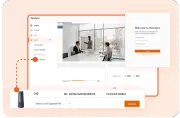
- The Navigator Tool: Look for a small map or percentage icon in the corner of the screen. This allows you to see a "bird's eye view" of your entire board.
- Reset Zoom: If you find yourself too far in or out, a simple double-tap with two fingers often resets the view to "fit-to-screen."
Pro Tip for Educators:
When teaching complex subjects like biology or engineering, use the zoom to transition from a "macro" view (the whole system) to a "micro" view (individual components). This visual storytelling is one of the primary reasons electronic whiteboards are replacing traditional projectors.
Zooming in Documents: Word, PDFs and Beyond
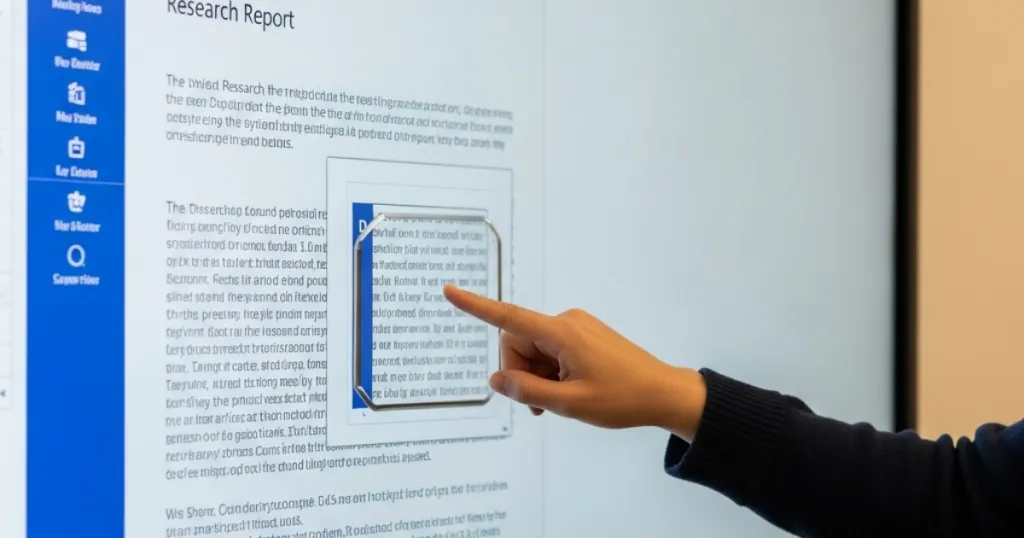
Teaching often involves static documents. However, static doesn't mean "stuck." Whether you are reviewing a student's essay in Microsoft Word or analyzing a historical PDF, zooming is vital for legibility.
Working with Microsoft Office
When you open a Word document on your interactive smart board, the software usually creates a "container" for that document.
- Internal Document Zoom: Use the slider at the bottom right of the Word interface.
- System-Level Zoom: Use the board's native gestures to zoom into the entire window.
- Annotation Mode: In many electronic whiteboards, if you zoom in and then select a pen, your notes will "stick" to the specific zoom level of the document.
The PDF Challenge
PDFs can be notoriously difficult to read on large screens if the resolution is low.
- Continuous Scroll: Set your PDF viewer to "Continuous" mode.
- Reflow: Some advanced boards allow for "text reflow," which enlarges the text while keeping it within the screen boundaries.
| Feature | Word Documents | PDF Files | Excel Spreadsheets |
| Primary Zoom | Pinch-to-zoom / Slider | Pinch-to-zoom | Pinch-to-zoom / Scroll |
| Best For | Editing & Annotating | Reading & Highlighting | Data Analysis |
| Clarity | High (Vector-based) | High (Vector-based) | Medium (Cell-locked) |
Getting a Closer Look: Zooming in on Images
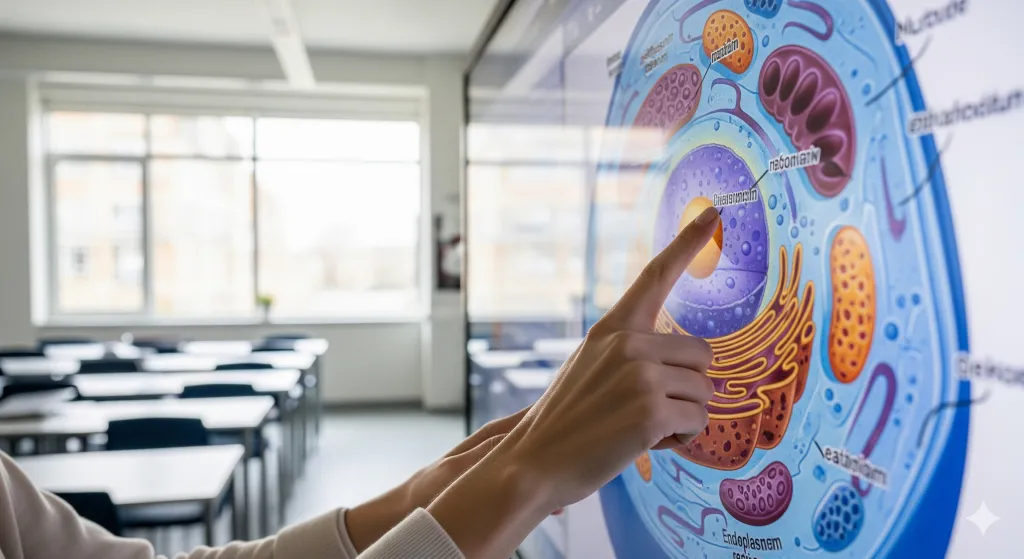 Visual aids are the backbone of modern pedagogy. High-resolution images on electronic whiteboards can act as digital microscopes.
Detailed Image Analysis
If you are displaying an image of a famous painting or a satellite map:
- Open the image using the board's native gallery or file explorer.
- Use the pinch gesture to dive into specific pixels.
- NearHub Tip: Use the "Magnifier" tool if available. This creates a floating window that zooms into whatever is underneath it, allowing the rest of the image to remain at a 1:1 scale for context.
Impact on Learning
Studies by Statista indicate that visual learning increases information retention by up to 29%. By effectively zooming in on images, you are utilizing the high-definition 4K panels found in most smart electronic whiteboard units to their full potential.
Full-Screen Immersion: Zooming Videos on NearHub
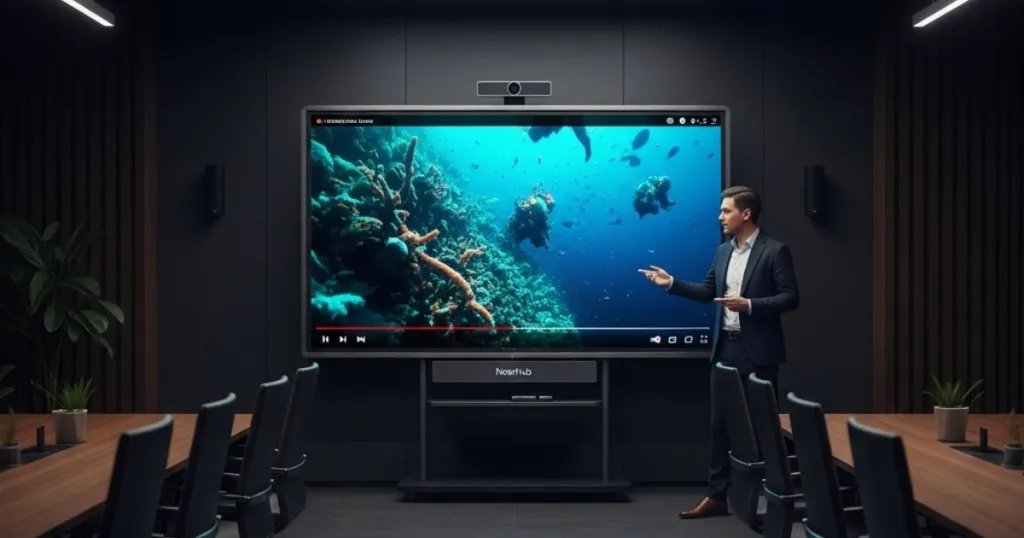
Video On your NearHub Board, the most direct way to focus on video content is using the Full-Screen button. One tap expands the video to fill your display, creating an immersive viewing experience for presentations or lessons.
The A Smart Alternative for Highlihting Details
If you need to examine a specific frame in detail:
- Pause the video at the key moment.
- Use annotation tools from the NearHub Whiteboard app to draw or write directly over the paused video.
- Resume playback seamlessly when ready.
This method uses your board's built-in collaboration strengths to achieve the same goal — focusing attention on important details — in a way that keeps your presentation flowing naturally.
Audio Synchronization
A common "pro" tip for how to use a smart board with video is to ensure your audio output is switched to the board's internal speakers before zooming into full-screen. This ensures the sensory experience matches the visual immersion.
Beyond Basic Zoom: Pro Navigation Tips
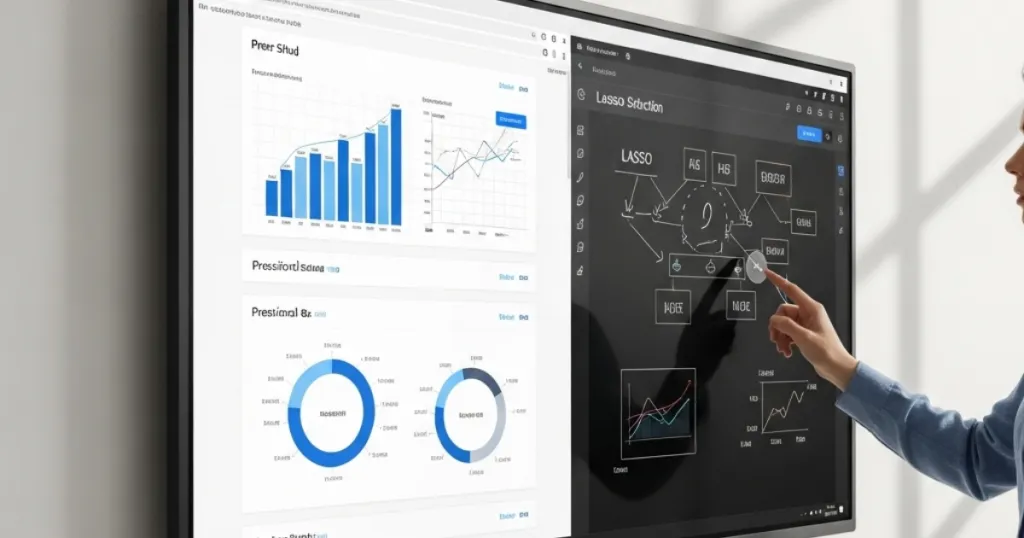
Once you've mastered the pinch, it's time to explore the advanced features that separate the amateurs from the pros.
1.The Lasso Tool for Relocation
Sometimes you don't need to zoom; you need to move. The Lasso tool allows you to select a group of annotations or images and shrink/grow them manually.
2.Multi-Window Multitasking
On high-end electronic whiteboards, you can run two apps side-by-side.
- Zooming in Split Screen: You can independently zoom into a web browser on the left while keeping your whiteboard at a 100% scale on the right.
3.Remote Control Shortcuts
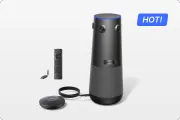
Many boards, including NearHub models, come with a remote or a stylus with buttons.
- Assign the "Volume Up" button to "Zoom In" during presentation mode for hands-free navigation.
Why NearHub's Unified Zoom Experience Transforms Collaboration
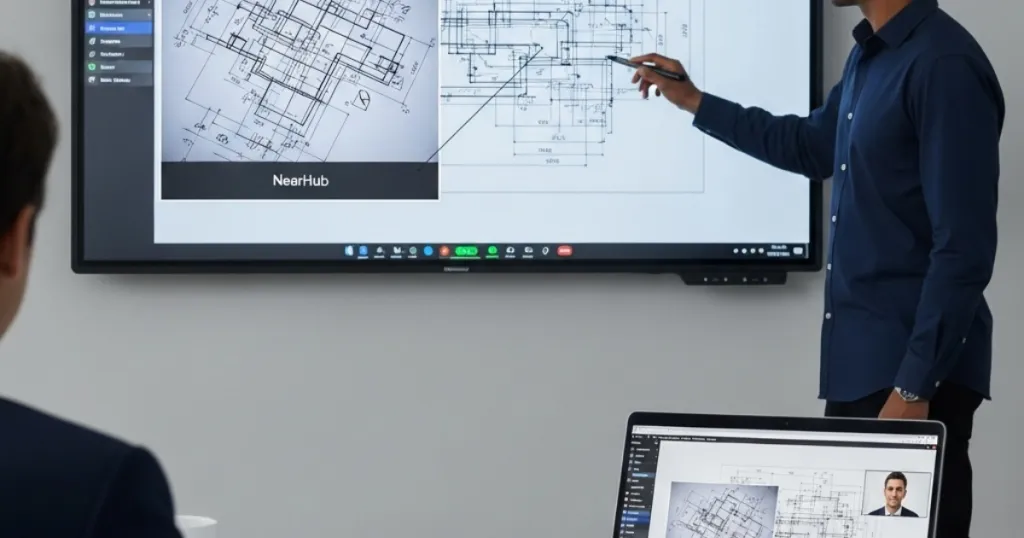
NearHub isn't just a screen; it's a productivity ecosystem. The "Unified Zoom" experience means that the transition between your whiteboard, your documents, and your web browser is seamless.
Hardware Meets Software
The 4K resolution of the interactive smart board ensures that even when you are zoomed in at 400%, the lines remain crisp and the text remains legible. This "no-pixelation" experience is crucial for professional settings where clarity represents authority.
Real-World Use Case: Remote Collaboration
In a hybrid environment, when you zoom in on your board, the remote participants (via Zoom or Teams) see exactly what you see. NearHub's software synchronizes the "View Port," ensuring that your remote audience isn't looking at a wide shot while you are discussing a tiny detail.
Conclusion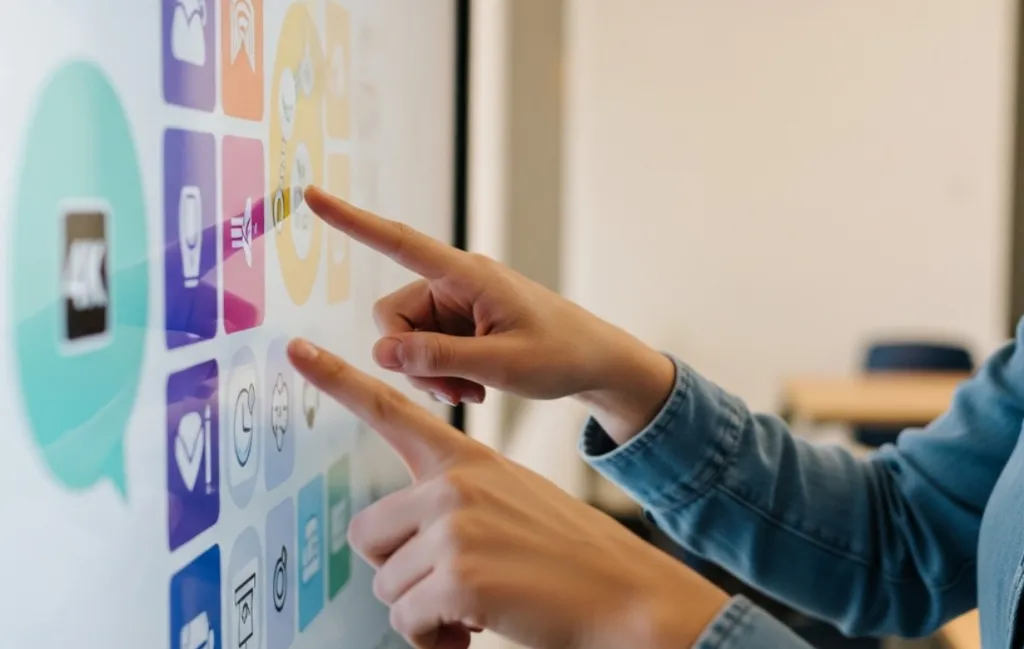
Mastering the zoom function on electronic whiteboards is more than just a technical skill; it is a pedagogical strategy. By knowing how to guide your audience’s eyes from the big picture to the smallest detail, you create a more engaging, inclusive, and professional environment.
Whether you are navigating an infinite whiteboard canvas, a complex PDF, or a high-definition video, the gestures remain the same. The key is to practice these movements until they become second nature, allowing your technology to disappear so your message can shine.
Looking for a reliable electronic whiteboard that makes these interactions effortless? Check out our interactive smart board here to see how we are redefining classroom technology.
Note: This post was designed to help educators and business leaders maximize their investment in interactive technology. For more tips on how to use a smart board, visit our blog regularly.
FAQ Section: Mastering Your Electronic Whiteboard
Q1: Why does my pinch-to-zoom feel laggy in smart board?
Lag is often caused by having too many background apps open. Ensure you are using a board with a high-performance processor, like the NearHub S55, and clear your cache regularly.
Q2: How do I zoom in and out in ZOOM?
To zoom in or out within the Zoom video conferencing app on a NearHub board, use the pinch-to-zoom gesture on the shared screen area. If you are the host, you can also use Zoom's "View Options" to adjust the zoom ratio for yourself or use "Screen Share" settings to magnify specific portions of your display for remote viewers.
Q3: How do I zoom out if I’ve lost my place on an infinite canvas?
Look for the "Fit to Content" or "Home" button. This will automatically zoom out far enough to show everything you have written or placed on the board.
Q4: Does zooming work with a stylus, or only with fingers?
This depends on the board. Some smart electronic whiteboard systems support "Pen + Gesture" where you can write with the pen and zoom with your other hand simultaneously.
Q5: How do I zoom out on my smart notebook?
On most smart notebook apps, you can use the two-finger pinch-in gesture to zoom out. Alternatively, look for the magnifying glass icon or a percentage dropdown in the toolbar (usually at the top or bottom of the interface) and select "Fit to Page" to return to a full-screen view.




 sales@nearhub.us
