



















We’ve all been there. You’re ready to dive into your favorite playlist, settle into a high-stakes meeting, or finally start that true-crime podcast, and—silence. Or worse, a crackling sound that makes your skin crawl. You find yourself frantically wiggling the wire, wondering, "Why aren't my headphones working?"
It is one of the most frustrating "first-world problems" of the digital age. Whether it’s a total blackout of sound, a finicky headphone jack not working, or the maddening scenario where your headphone is only working on one side, audio issues can derail your productivity and your mood.
In this guide, we aren’t just going to list technical jargon. We’re going to walk through the "why" and "how" of fixing these issues so you can get back to your audio in no time. And if you're tired of the constant battle with tangled wires and failing jacks, we'll introduce you to a modern alternative: open ear earbuds, the innovative solution for people who need reliability and comfort without the "plugged-in" fatigue.
Key Takeaways
- Most headphone issues are simple software or minor hardware problems, not total failure.
- Quick fixes include checking volume, restarting devices, and testing headphones on multiple devices.
- Clean and inspect headphone jacks, and use adapters or dongles for USB-C or Lightning devices if needed.
- Single-ear audio often results from balance settings or internal wire shorts.
- App-specific settings and multi-device conflicts can override system audio.
- When repair costs exceed 50% of a new high-quality pair, upgrading is often the smarter choice.
- Open ear earbuds provide comfort, reliability, and ambient awareness, reducing common headphone frustrations.
Don’t Panic: Most Headphone Problems Are Easy to Fix
Before you give up and throw your expensive gear in the trash, take a deep breath. When you're staring at your device and asking, "why are my headphones not working," it’s easy to assume the absolute worst—that the internal hardware is fried or the motherboard is dead. However, statistics and technician experience tell a different story.
A Universal Digital Frustration
Audio failures are incredibly common in today’s multi-device world. Phones, laptops, operating systems, apps, and accessories all need to “talk” to each other correctly. With frequent software updates and multiple audio outputs competing for priority, it’s only a matter of time before something misfires.
That’s why millions of users search for these exact problems every month. You’re not alone—and more importantly, you’re probably not dealing with a catastrophic failure.
It's Rarely a "Death Sentence"
We want to emphasize that in the vast majority of cases, your headphones are not "completely broken." They are likely just "miscommunicating" with your device. Whether it’s a laptop, a smartphone, or a high-end DAC, the hardware is usually fine. What feels like a dead product is often just a software setting that was toggled by mistake, a driver that needs a quick refresh, or a tiny bit of dust blocking an electrical signal. Don't let a temporary silence convince you that you need to spend money on a replacement just yet.
Our Systematic Roadmap to Success
To save you time and prevent unnecessary frustration, this article will guide you through a systematic, step-by-step troubleshooting process. We aren't going to jump into the deep end immediately. Instead, we will start with the easiest, "no-cost" fixes that take seconds to perform and gradually move toward more specific hardware investigations. By following this roadmap, you can rule out 90% of common problems before ever needing to look at a repair manual.
Why Are My Headphones Not Working? The "Quick Start" Checklist
Before we tear into the hardware, let’s rule out the "oops" moments. Sometimes the solution is so simple we overlook it in our frustration.
Check the Volume (All of Them)
It sounds obvious, but modern devices have multiple volume layers. Check your physical headphone dial, your app volume (Spotify/YouTube), and your system volume. Sometimes a "mute" button is toggled on one while the others look fine.
The "Power Cycle" Magic
Restart your device. Whether it’s a smartphone, a PC, or a Mac, a simple restart clears out temporary software glitches that might be blocking the audio gateway.
Test on a Different Device
This is the "Golden Rule" of troubleshooting. Plug your headphones into a different laptop or phone.
- If they work elsewhere: Your original device (or its settings) is the culprit.
- If they don't work anywhere: The problem is definitely the headphones.
The Hardware Deep Dive: Fixing a Headphone Jack Not Working
If you’ve confirmed the headphones work on other devices but your main machine is silent, the physical port is likely the issue. The headphone jack not working is a common physical failure point due to dust, lint, and mechanical wear.
Clean Out the Lint
Think about how often your phone sits in your pocket. Tiny bits of pocket lint can get packed into the jack every time you plug in your headphones. Eventually, this creates a physical barrier that prevents a complete electrical connection.
- The Fix: Use a toothpick or a can of compressed air to gently clear out the port. You’ll be surprised at what comes out!
Inspect for "The Click"
When you plug in your headphones, do you feel a definitive "click"? If the plug feels "mushy" or doesn't go all the way in, there is an obstruction. If it's too loose, the internal pins may be bent. According to authoritative tech repair guides like iFixit, physical port degradation is a top reason for device replacement.
Using an Adapter or Dongle: USB-C and Lightning Compatibility
If you've tried cleaning and wiggling but the internal jack is physically broken, don't lose hope. Using a USB-to-3.5mm adapter or a dedicated DAC dongle is a reliable workaround. However, compatibility is key.
- USB-C Devices: Many modern smartphones require an "active" adapter with a built-in Digital-to-Analog Converter (DAC). "Passive" adapters may only work with specific devices that support Analog Audio Output over USB-C.
- Lightning (iPhone) Devices: For older iPhones, ensure your dongle is MFi Certified (Made for iPhone). Non-certified cables often trigger the "This accessory is not supported" message.
The One-Sided Struggle: Why is My Headphone Only Working on One Side?
This is perhaps the most annoying audio issue. You have sound, but it's lopsided. This usually points to a "short" in the wire or a balance setting gone rogue.
Software Check: The Audio Balance Slider
Sometimes, Windows or macOS updates can accidentally shift your audio balance to 100% Left or 100% Right.
- On Windows: Go to Settings > Sound > Properties. Look for the "Balance" sliders.
- On Mac: Go to System Settings > Sound > Output and check the balance slider.
Hardware Check: The "Wiggle Test"
If the sound cuts in and out when you move the wire near the plug, you have a broken internal wire. You can try to "bridge" this with electrical tape as a temporary measure, but it usually signifies that your headphones are reaching the end of their life.
| Problem | Likely Cause | Recommended Action |
| No sound at all | Muted software or dead port | Restart & clean the jack |
| Static/Crackling | Dirty port or frayed wire | Clean with air or replace cable |
| Audio in one ear only | Balance settings or internal short | Check balance slider; wiggle wire |
| Sound is muffled | Incomplete plug insertion | Push until you hear a "click" |
Device and Software Issues That Can Affect Headphones
Sometimes the headphones and the jack are perfectly fine, but your operating system is making a poor executive decision. Modern devices are smart, but they can be easily confused by competing audio signals.
Audio Output Settings Are Incorrect
If your headphone jack not working seems like a permanent state, check if your system is still routing sound through the internal speakers. In many cases, especially after an update, the device fails to auto-switch when a new jack is detected.
- Multi-Device Conflict: If you have an external monitor with built-in speakers connected via HDMI or DisplayPort, your computer might prioritize the monitor’s audio over your headphones.
Bluetooth or Driver Conflicts
Wireless technology is convenient, but it can be a bully. If you have a pair of wireless earbuds nearby that are already paired, your phone or laptop might silently auto-connect to them, disabling the wired headphone jack in the process.
- Legacy Drivers: Old or corrupted audio drivers can cause the OS to "forget" how to communicate with the physical port. Checking for a "Generic USB Audio" error in your device manager is a good first step.
App-Specific Sound Issues
Is the sound missing everywhere, or just in one specific place? Many users find their headphone only working on one side or not at all only when using a specific browser or video conferencing tool.
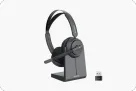
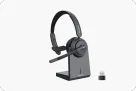
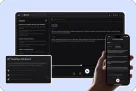
- Conference Software: Apps like Zoom, Microsoft Teams, and Google Meet have their own internal audio settings that can override your system settings. Always check the "Mic and Speaker" test within the app itself. For frequent online meetings, using a reliable headset for meetings can help ensure consistent audio and reduce troubleshooting.
How to Tell If Your Headphones Are Actually Broken
Eventually, every piece of hardware reaches its limit. If you've gone through the "Quick Start" checklist and verified your software settings, it’s time for a reality check.
Signs of Permanent Hardware Damage
There are a few "tells" that indicate your headphones have moved beyond a simple fix.
- Complete Silence with High-Resistance Feeling: If you plug them into three different devices and hear absolutely nothing—not even a faint buzz or static—the internal voice coil or the main driver may have snapped.
- Consistent, Heavy Static: Persistent static that doesn't change when you rotate the plug usually means the speaker diaphragm is torn or contaminated.
When Repairs Are Not Worth It
We live in an age where repairability is often sacrificed for sleek design. If your budget headphones require a professional to open up the housing and solder a 30-gauge wire, the labor cost will almost certainly exceed the value of the product.
- Repair Cost vs. New Pair: If the repair quote is more than 50% of the price of a new, higher-quality pair, it is usually more logical to upgrade. Transitioning to a design that avoids common failure points—such as investing in reliable good budget earbuds—is often the smartest financial decision.
Experience a Smarter Alternative: How Open Ear Earbuds Address Common Headphone Problems
If you're tired of constantly asking why are my headphones not working, it might be time to move past the fragile wires and intrusive designs of the past. Traditional earbuds jam into your ear canal (causing ear fatigue), and over-ear headphones can be heavy and hot.
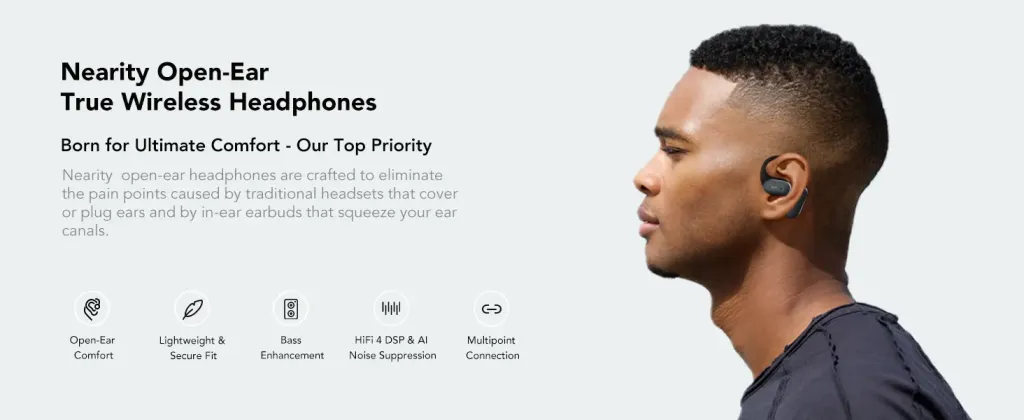
Open ear earbuds represent a practical evolution in how many people experience audio—especially in professional and active environments where comfort, stability, and awareness matter.
Unmatched Comfort and Reliability
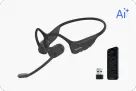
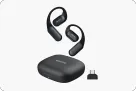
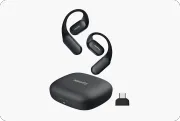
Unlike traditional earbuds that rely on a perfect seal in your ear canal to sound "good," the NearHub MemPod Fit 2 uses air conduction technology and a secure ear-hook design. It sits comfortably on the outside of your ear. This means no more "clogged" feeling and significantly less ear fatigue. If you've been looking for the best earbuds for office use, these are a game-changer because they allow you to stay aware of your colleagues while enjoying crystal-clear audio.
Designed for the Modern Worker
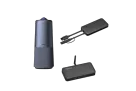
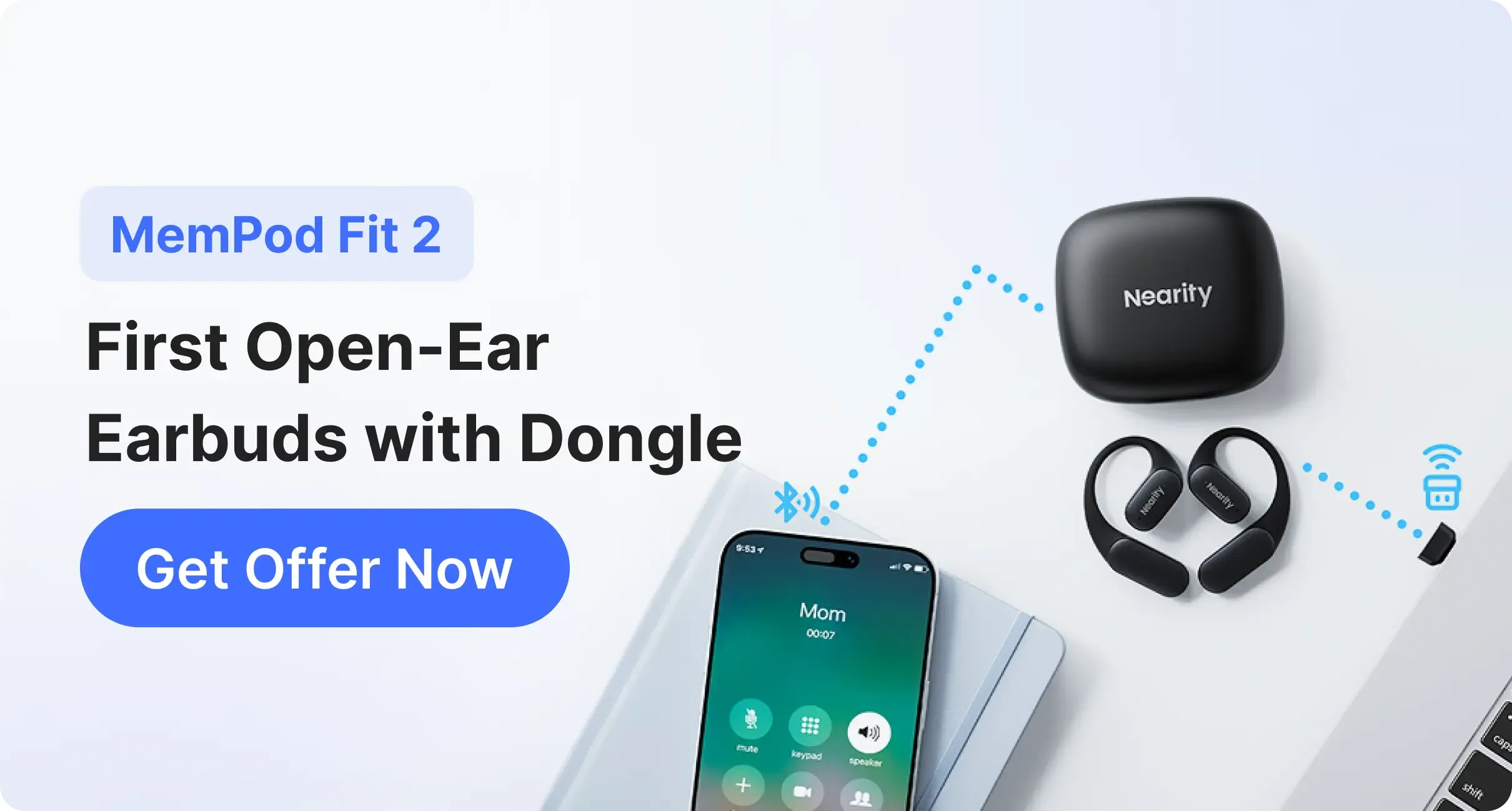
One of the primary reasons professionals struggle with audio is the finicky Bluetooth connection on laptops. The MemPod Fit 2 eliminates this frustration with its dedicated USB dongle, providing the "plug-and-play" stability often missing from built-in drivers. This rock-solid reliability is why many consider it the best earbuds for work for juggling busy schedules and multi-device tasks without the headache of connection failures.
Final Thoughts: Stop Troubleshooting, Start Listening
Whether you’re dealing with a headphone jack not working or figuring out why your headphone only works on one side, most issues have straightforward explanations and fixes.
But if you find yourself repeatedly troubleshooting instead of listening, it may be time to upgrade to a design built for modern use. Open ear earbuds can reduce many of the everyday frustrations outlined above—so your audio works when you need it, without constant intervention.
FAQs
- Why aren't my headphones working even though they are plugged in?
Check if the device has defaulted to a different output, like a monitor speaker. Also, ensure the jack is free of debris.
- Can water damage cause my headphones to only work on one side?
Yes. Moisture can short out the delicate internal wiring. If they got wet, let them dry for 48 hours before testing.
- How do I fix a loose headphone jack on my laptop?
A truly loose jack often requires professional soldering. However, most "loose" feelings are actually caused by lint preventing a deep connection.
- Why is there a delay (latency) in my Bluetooth headphones?
This is often a limitation of the Bluetooth codec. Using a dedicated dongle, like the one with MemPod Fit 2, can virtually eliminate this lag.
- Are open ear earbuds better for my hearing?
Because they don't blast sound directly into the ear canal and allow for ambient sound, they can be a safer alternative for long-term use.


 sales@nearhub.us
